

Solid Security Settings Checklist: How To Set Up Solid Security
The Solid Security plugin offers a quick WordPress security scan, but you may need guidance on configuring its other settings properly. This post provides a comprehensive checklist for setting up Solid Security, explaining the various options, Pro features, and basic WordPress security best practices.

The Solid Security plugin includes a one-click WordPress Security check, but you may still have questions about the other settings and how to configure the plugin properly on your website.
In this post, we’ll walk through a complete Solid Security setup checklist with an explanation on settings, Pro features, and basic WordPress security fundamentals.
Global Settings
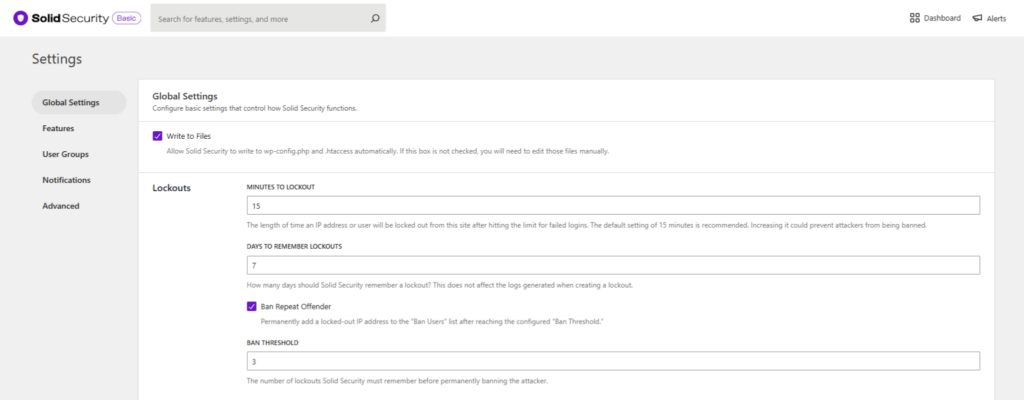
- Here are the master ban settings. This is the criteria the features use to determine when to permanently ban IPs. The banned IPs are written to the .htaccess file.
- Whitelist your IP here to avoid it from being locked out.
- Choose whether to store your Security logs in the database or in a file stored on your server.
- Choose how long to keep the logs to help conserve resources
- Choose the IP Detection method that matches your configuration, or choose “Security Check Scan (Recommended)” to allow Solid Security to automatically determine the correct method for your site. Accurately configuring this setting is required for certain features to function properly (including Ban Users, Local Brute Force and Network Brute Force protection, etc.)
Ban Users
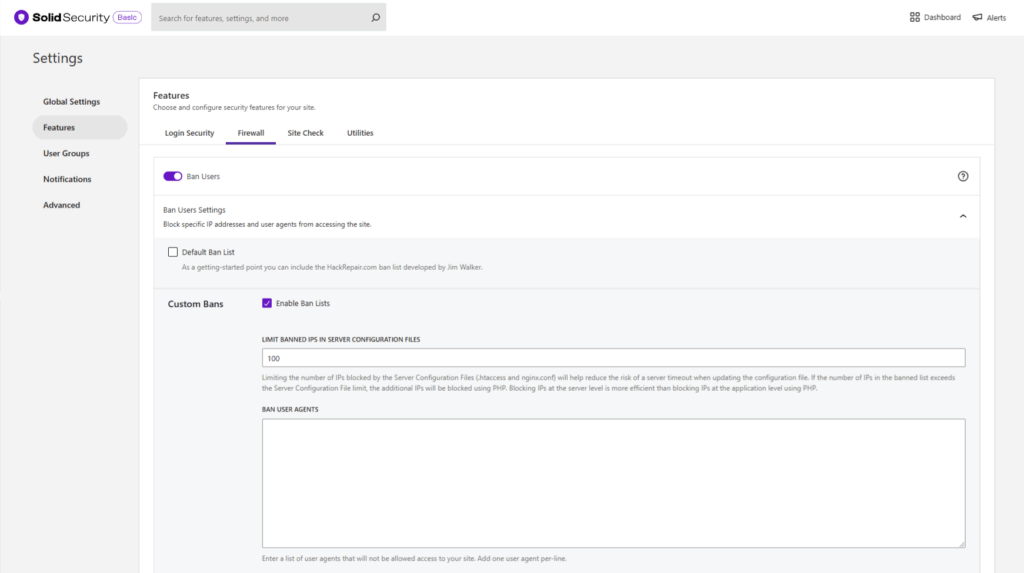
Hack Repair Default Blacklist enables a blacklist with several known bad actors and bots you may not need. However, some sites that make use of third-party applications need some of these. Check the full functionality of your site after enabling it.
- The list of IPs and IP ranges to be banned from your site. You can use IPv4 or IPv6 formats.
- You can ban specific user agents.
Local Brute Force Protection
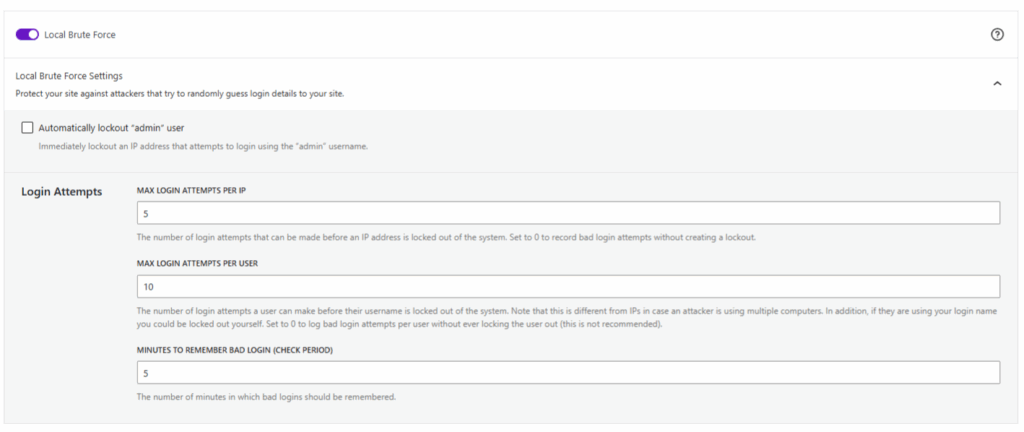
The IPs will be written to the .htaccess and permanently banned.
- You can choose to automatically lock out a user trying to log in with the username “admin.” If you don’t have a user on your site with this username, you should enable this feature.
Network Brute Force Protection
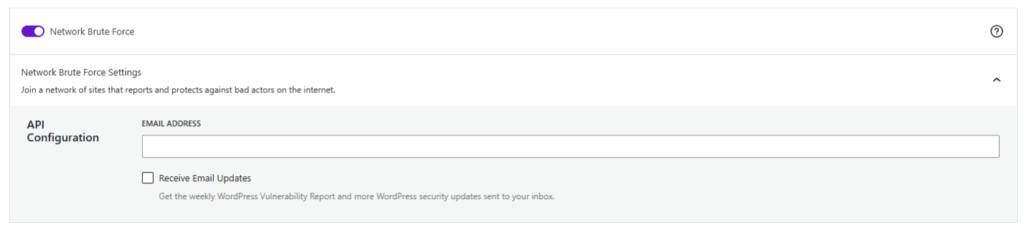
- When you enable this, you’re able to “crowd share” our SolidWP blacklist. If any IP has been banned on any other site in our network, it will be banned from your site as well.
File Change Detection
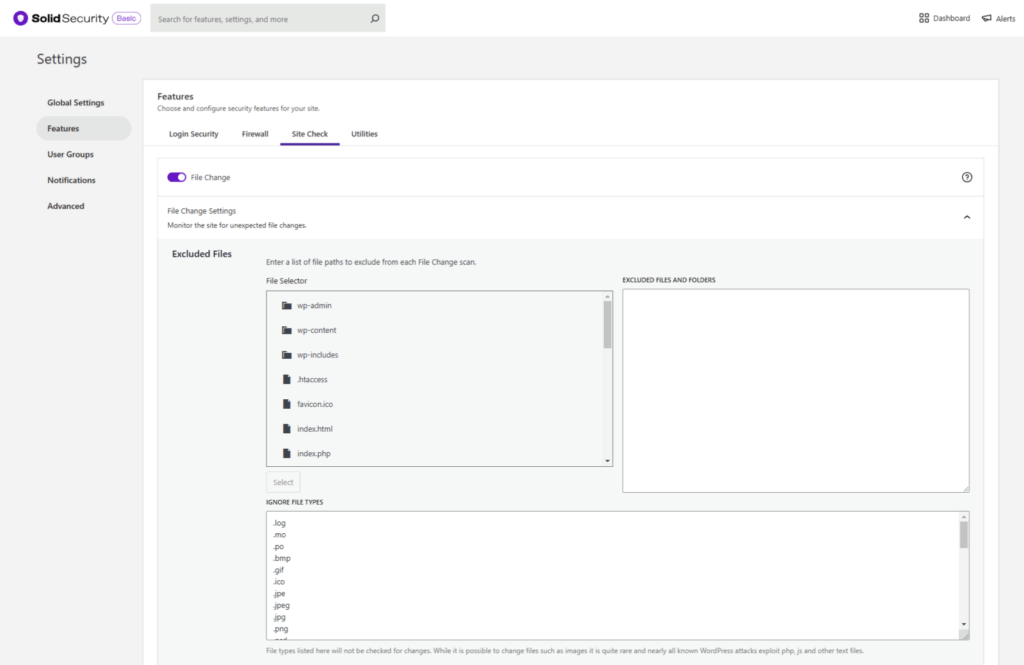
Depending on what’s happening with your site, this can be the most resource-intense feature in the plugin.
- You can choose to include or exclude files and directories scanned. I typically suggest excluding files with known processes to help quiet the white noise. An example of this would be caching files, backup directories and the .htaccess file. Of course, this is personal preference.
- Choose how to be notified of file changes.
- Compare Online Files will scan your SolidWP and WordPress Core files and let you know if any change is malicious.
Scheduled Site Scan

Protect your site with automated site scans. When this feature is enabled, the site will be automatically scanned twice a day. If a problem is found, an email is sent to select users.
Enforce SSL
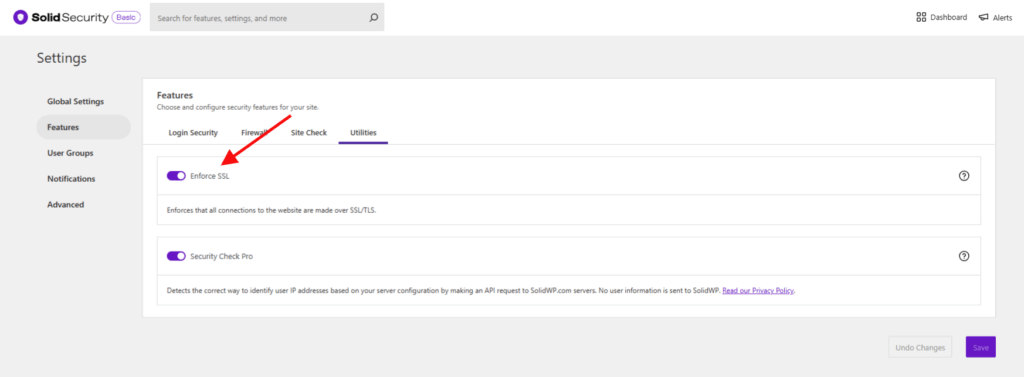
- The SSL module allows you to force SSL on the whole site, per page or in the dashboard if your site supports SSL. Note that sites with SSL don’t necessarily need this, only ones that aren’t forcing redirects to https.
Security Check Pro
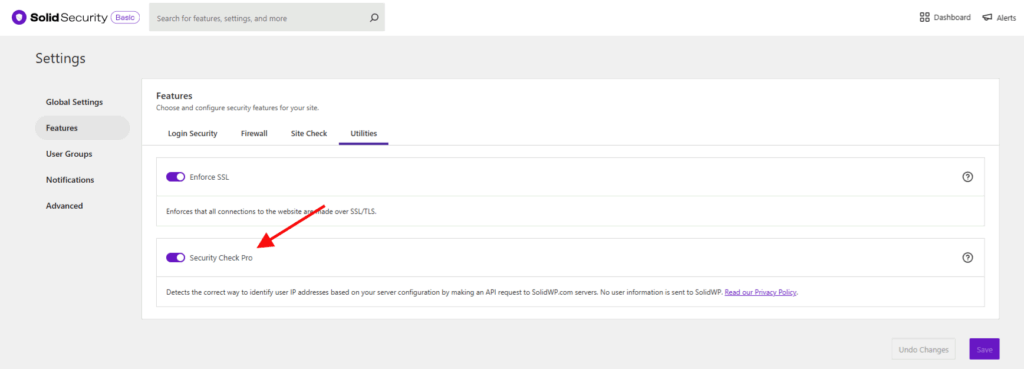
The Security Check Pro setects the correct way to identify user IP addresses based on your server configuration by making an API request to SolidWP.com servers. No user information is sent to SolidWP. Read our Privacy Policy.
System Tweaks
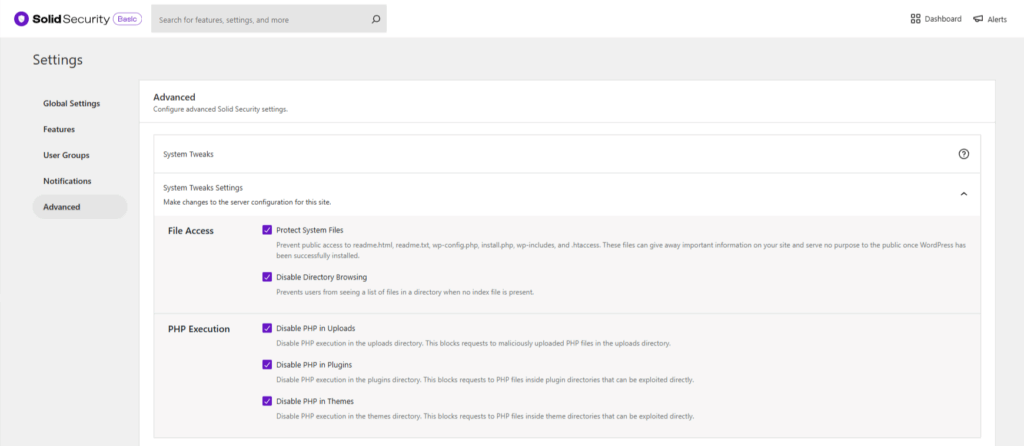
- System Files – Protects sensitive files from being viewed by the public.
- Directory Browsing – Prevents users from seeing the directory list of the site when an index.php file isn’t present.
- Disable PHP in Uploads – This does not affect functionality. It prevents outside sources from executing potentially malicious scripts.
- Disable PHP in Plugins – This does not affect functionality. It prevents outside sources from executing potentially malicious scripts.
- Disable PHP in Themes – This does not affect functionality. It prevents outside sources from executing potentially malicious scripts.
WordPress Tweaks
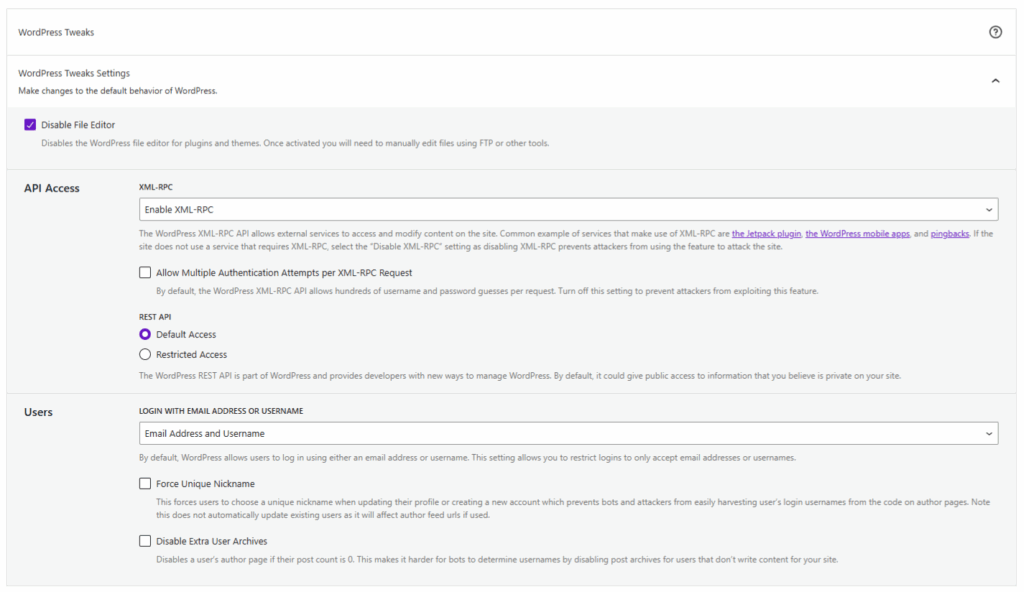
- File Editor – Enabling this disables the File Editor limiting editing the theme and plugins to only those who have direct access to the server.
- XML-RPC – This file can allow access to your site. If nothing on your site uses it, disable it. If you use Jetpack or the WordPress Mobile app, set it to Disable Pingbacks.
- Multiple Authentication Attempts per XML-RPC Request – The XML-RPC file can allow a brute force attack to make hundreds of attempts per request. This should be disabled.
- REST API – By default, the REST API can provide public access to posts, users and media. It should be restricted to only those logged in users that have access to this information.
- Force Unique Nickname – This helps combat user enumeration by forcing new users and users that update their profile to use a nickname to prevent harvesting of their usernames.
- Disable Extra User Archives – This makes it harder for bots to determine usernames by disabling post archives for users that don’t post to your site.
- Login with Email Address or Username – Choose if users are able to login with their username, email or both.
Hide Backend
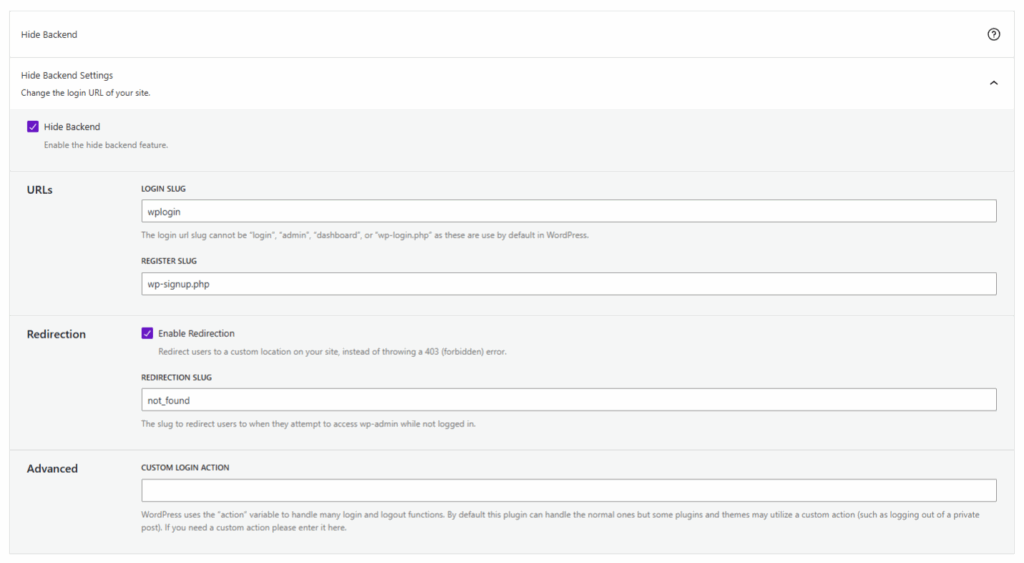
The Hide Backend feature allows you to change your login slug. Changing your WordPress admin URL adds a good extra layer of security, but it should not take place of Two-Factor and Strong Passwords. This feature is on the Advanced settings page due to its possibility of conflicting with other plugins and themes.
Solid Security Pro Features
Two-Factor Authentication
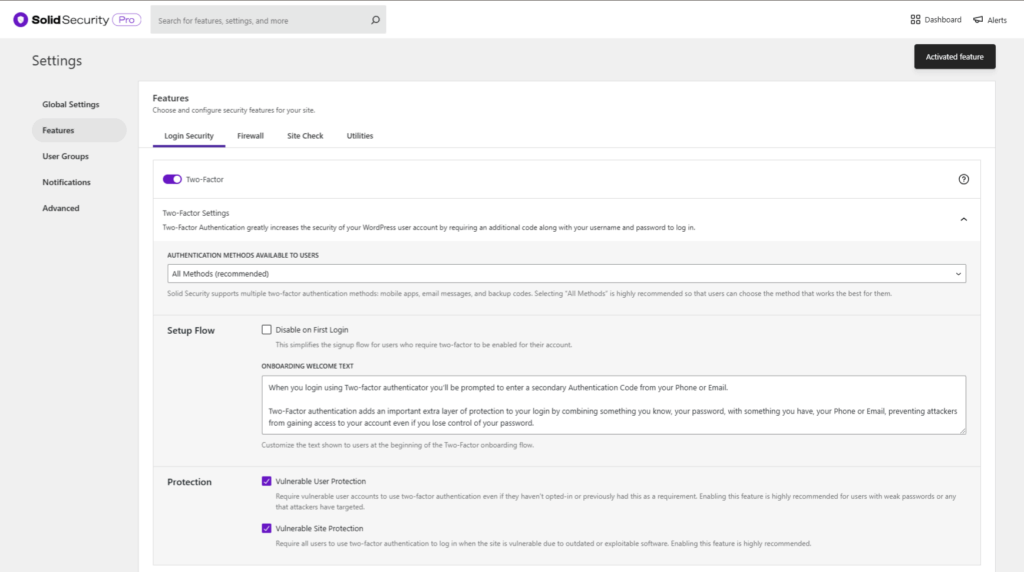
- This is one of the best, most secure features in the plugin. If an attacker somehow obtains your WordPress credentials they’ll also need your device, access to your email or your backup codes.
- Force users to use Two-Factor based on their roles or abilities. This can be applied to both the front end or back end of the site.
- If you have users that don’t use Two-Factor or a site with outdated software, you can force them to use it as well.
Passwordless Login Settings
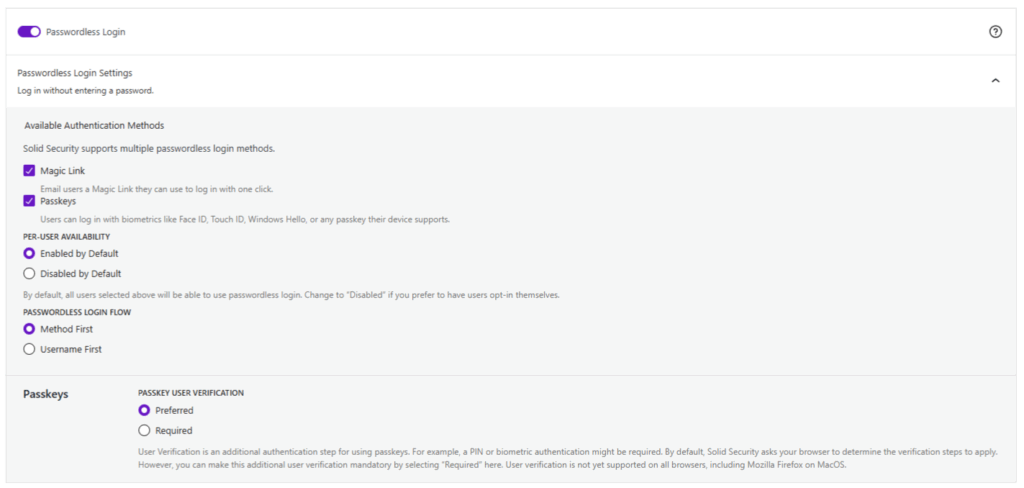
Log in without entering a password. Available Authentication methods include:
- Magic Links: Enable Magic Links to receive an email when an alternate link to use when your username has been locked out due to a brute force attack.
- Passkeys: Users can log in with biometrics like Face ID, Touch ID, Windows Hello, or any passkey their device supports.
You can choose whether the per-user availability is enable or disabled by default. You can also choose the passwordless login flow: method or username first. Choose preferred or required for Passkey user verification.
Privilege Escalation

- You can grant temporary Administrator privileges to any user and set it to expire in how many ever days you’d like.
Trusted Devices Settings

Trusted Devices identifies devices users use to login and can apply to additional restrictions to unknown devices.
- Restrict Capabilities: When a user is logged-in on an unrecognized device, restrict their administrator-level capabilities and prevent them from edited their login details.
- Session Hijacking Protection: Help protect against session hijacking by verifying that a user’s device does not change during a session.
Password Requirements
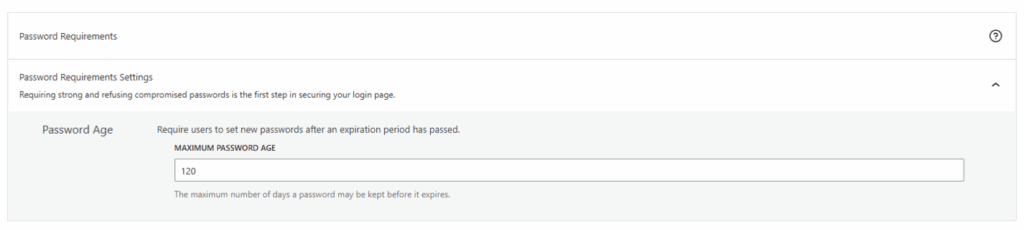
- Password Age: Require users to set new passwords after an expiration period has passed.
CAPTCHA
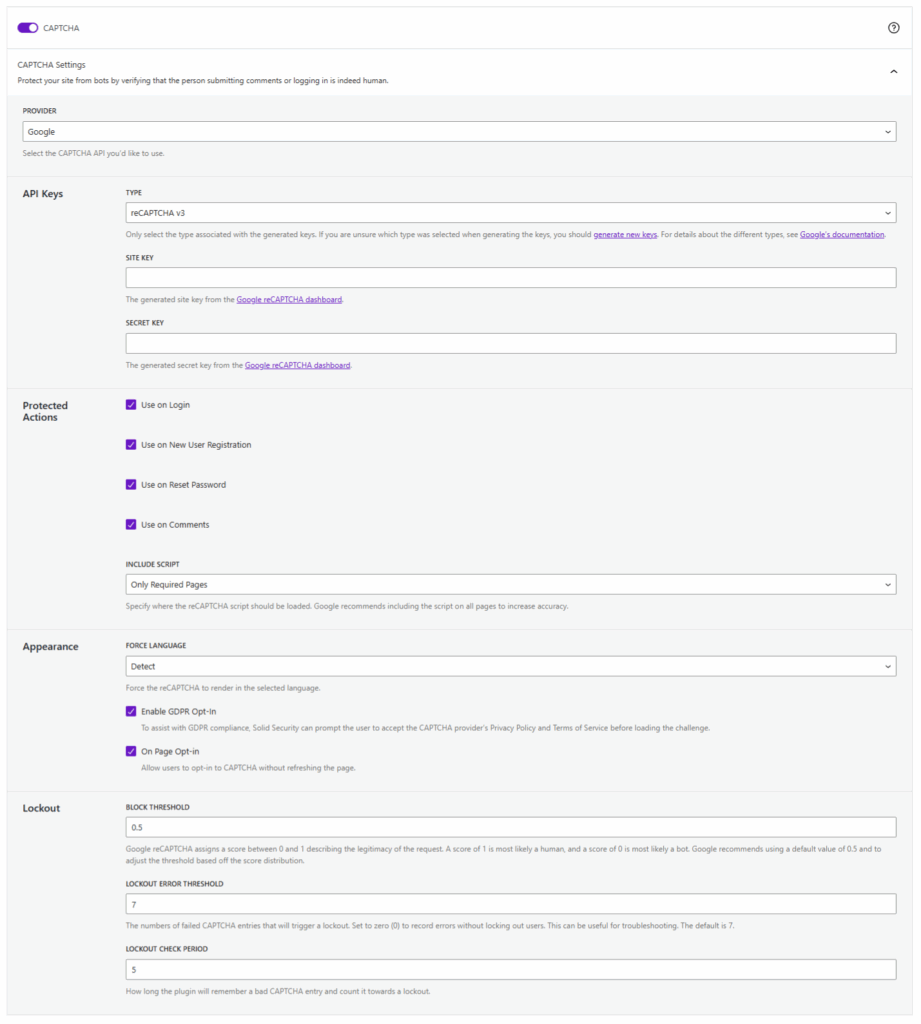
- With reCAPTCHA, you can add an extra layer of defense to your login page, registration and comments. You can choose between V2 or V3, which is the one most of us are familiar with, or the new Invisible reCAPTCHA that doesn’t even require a user to check a box.
- You can configure how many failed attempts will result in a lockout.
Site Scan Scheduling

The scanner will do a quick scan of your site.
- Enabling scheduling will set the scanner to scan your full site daily. You can configure a notification email when issues are found or check the logs.
User Logging

- This is useful for tracking user actions on the site such as logins and modifying content.
Version Management
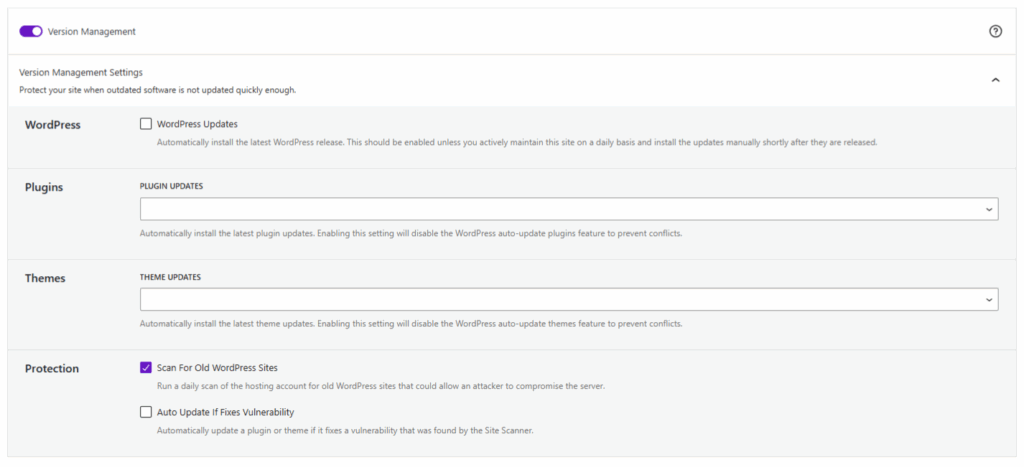
Keeping everything on your sites up to date is paramount. Software always has the chance to have a vulnerability and, if you don’t stay up to date, it can be exploited once it’s discovered. These features will allow you to automatically update WordPress Core, plugins and themes, and adds an extra layer of security when the site is running outdated software.
- Auto Update WordPress Core, Plugins and Themes – Configure automatic updates for all software on the site.
- Strengthen Site When Running Outdated Software – Enables extra security when available software updates haven’t been updated for at least a month.
- Scan For Old WordPress Sites – Set a scan to run a daily scan on your hosting account for old WordPress installations that could be compromised.
Solid Security Logs
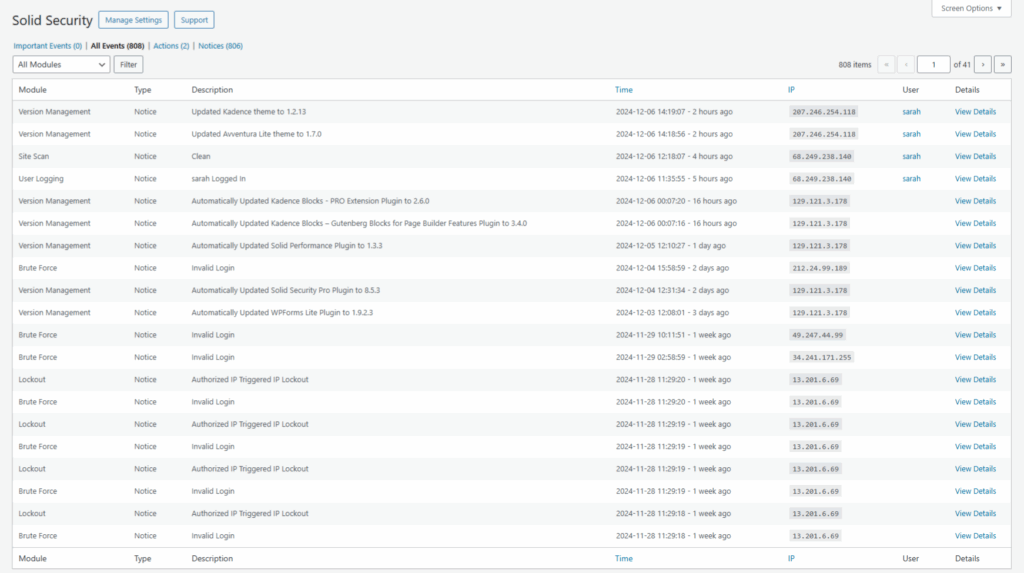
The Solid Security Logs gives you an overview of all logged actions on the site. The All Logged Data section gives you an overview of all actions.
- From the drop-down, you can select Brute Force, File Change, login-interstitial, Malware Scan, Notification Center, Two-Factor, User Logging, Version Management for more detailed Logs of the actions.
- Some have a details link that will show more specific information about the action.
Get Solid Security Pro
Get Solid Security Pro, our WordPress security plugin, with 30+ ways to secure and protect your WordPress site.
Join us for the next Solid Academy Webinar!
Free weekly webinars that will help you master WordPress and increase your business's bottom line.
What is a WordPress Phishing Attack?
Learn how to identify and prevent phishing attacks on WordPress websites.
Kiki SheldonWebsite Protection: 5 Ways to Keep Your Website Safe
Robust website protection is the shield that stands between your business and relentless cyber attacks. Prioritizing website protection enables businesses to fortify defenses to safeguard their online presence and preserve the trust of their customers in the face of ever-evolving cybersecurity threats.
Kiki Sheldon23 Ideas To Grow Your WordPress Business in 2023
WordPress is the most popular website-building platform worldwide, trusted by numerous brands. WordPress enables you to build a user-friendly and highly reliable site, together with tools and plugins to enhance your marketing and work like a lead magnet. All these features make WordPress the platform chosen by more than 43% of businesses globally.
SolidWP Editorial TeamSign up now — Get SolidWP updates and valuable content straight to your inbox
Sign up
Get started with confidence — risk free, guaranteed




