

What is a Canonical URL in WordPress?
A canonical URL is the preferred URL of a website's homepage. Most homepages can be found by typing multiple URLs into a browser's address bar. For example, all of the following URLs could contain the same homepage content for your website: http://yoursite.com https://yoursite.com http://www.

A canonical URL is the preferred URL of a website’s homepage. Most homepages can be found by typing multiple URLs into a browser’s address bar.
For example, all of the following URLs could contain the same homepage content for your website:
http://yoursite.com
https://yoursite.com
http://www.yoursite.com
https://www.yoursite.com
If you have set https://yoursite.com/ as the preferred URL, it becomes the canonical domain.
What is a Canonical URL in WordPress?
WordPress blog posts and pages have the same URL variation that we shared in our homepage example, and they can also be found using their post ID.
For example, this iThemes Security Pro Feature Spotlight: Site Scan blog post can be found using both of the following URLs:
https://solidwp.com/ithemes-security-pro-feature-spotlight-site-scan/
or by the post ID:
Why is it Important to Set Canonical URLS in WordPress?
While it is easy for us to see and treat both https://solidwp.com/ithemes-security-pro-feature-spotlight-site-scan/ and ithemes.com/?p=57051 as the same piece of content, a bot or webcrawler will treat it as two separate blog posts from two different websites.
The SEO Benefits of Defining Your Canonical URL and Domain
Defining the canonical URL for every set of URLs lets Google and other search engines know that these similar but different URLs are the same. This prevents a Googlebot from spending time crawling multiple pages for a single piece of content and reduces the time it takes for Google to find and surface new and updated content.
Another SEO benefit of setting the canonical URL is that it allows you to decide how a search engine presents your content to potential visitors.
Using our feature spotlight post example from earlier, https://solidwp.com/ithemes-security-pro-feature-spotlight-site-scan/ has the title of the blog post in the URL and is more descriptive and welcoming than ithemes.com/?p=57051.
The Site Authentication Benefit of Defining your Canonical URL
Many services use your website’s canonical domain for authentication. For example, our WordPress security plugin, iThemes Security Pro, uses your canonical domain.
Before using the iThemes Security Pro Site Scan, you must first activate your iThemes Security Pro license on your website. Let’s say you haven’t set the canonical domain and the URL used to license your site was yoursite.com.
Before the iThemes Security Pro Site Scan server will scan your website for known vulnerabilities, it will grab the website’s domain to confirm that it matches the domain used to activate your iThemes Security Pro license. Because the canonical domain isn’t defined, the Site Scan server detects that the URL is http://www.yoursite.com.
Just like Google, if the canonical domain is not set, iThemes Security Pro will not know to treat yoursite.com and yoursite.com as a single domain. This means the Site Scanner won’t be able to authenticate your site’s license and won’t scan your website for know vulnerabilities.
Defining the canonical domain for your WordPress website will prevent errors when the iThemes Security Pro Site Scanner and other services attempt to authenticate your domain.
How Do I Check If My Canonical URL is Defined?
The fastest way to check if you have defined your canonical domain is to view the page source of your website’s homepage. Load up your homepage in your favorite web browser and then right-click with your mouse and then select View Page Source.
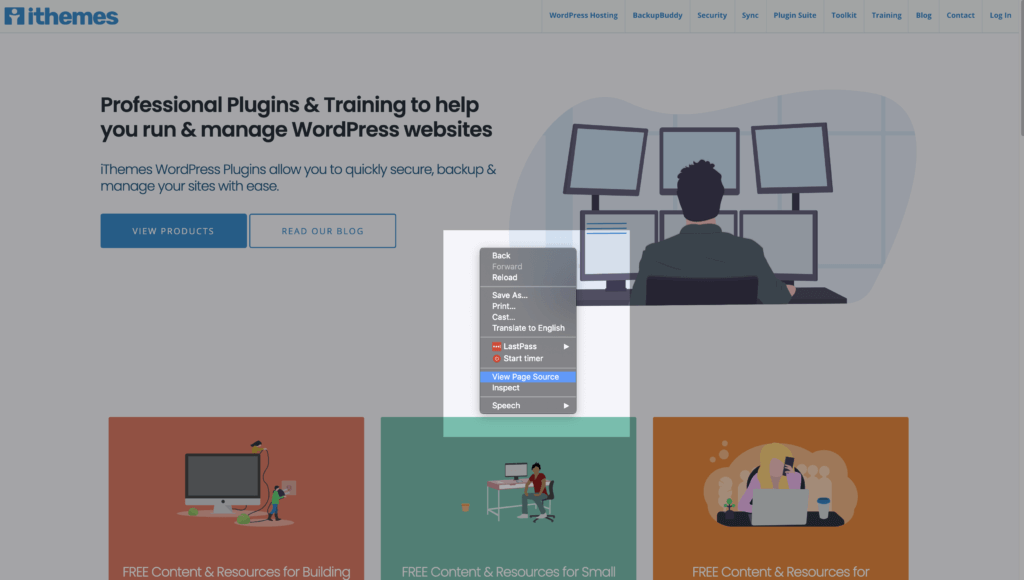
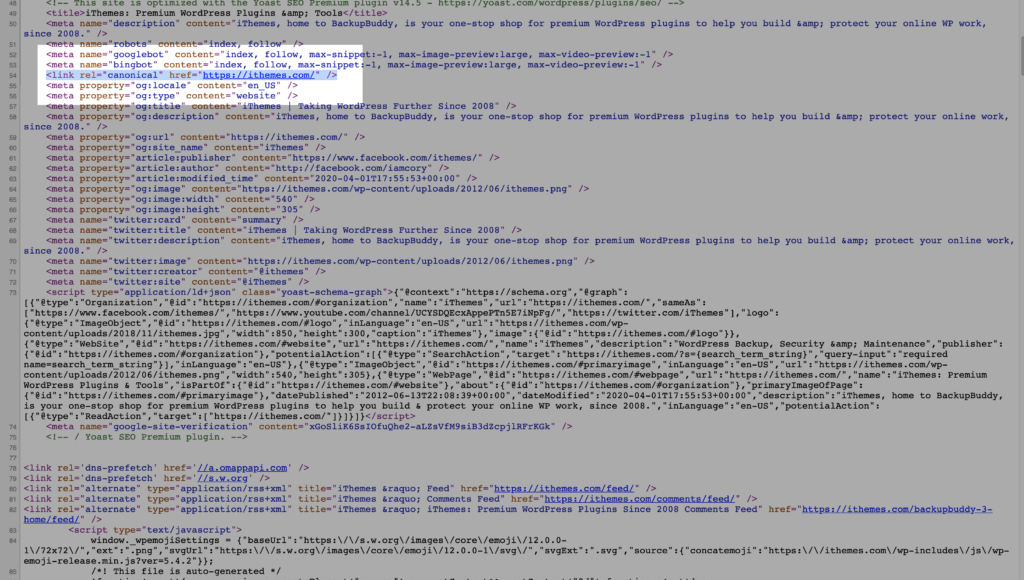
The source page will display all of the different sources the page is pulling from, and the various HTML and CSS elements used to create the page. The source page will also reveal if the canonical domain was set using the rel="canonical" link tag or HTTP header.
Looking at the iThemes.com source page, we can see that we set the canonical domain to https://solidwp.com using the rel="canonical" link tag. To set the canonical domain using the rel="canonical" HTTP header we could have added Link: [https://](<http://www.example.com/downloads/white-paper.pdf>)ithemes.com; rel="canonical" to the page’s header.
Another way to see if the canonical domain has been defined is to use Google’s URL Inspection Tool. You can find the tool inside your Google Search Console admin dashboard. Add your homepage URL in the search field and hit enter.

In the Coverage Summary summary, you will see the values of the User-declared canonical and Google-selected canonical. The User-declared canonical is the URL you set for your website. The Google-selected canonical is the URL selected by Google as the authoritative version of this page if you never defined the canonical URL for the page.
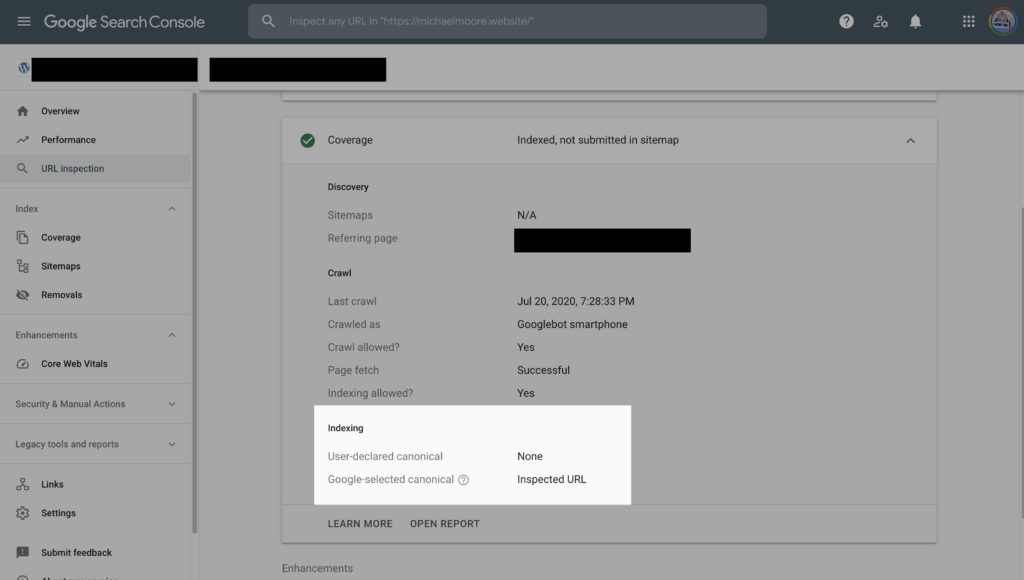
The screenshot above is the Google URL Inspection Tool results from a site that I have not defined the canonical domain, and that is so new Google hasn’t set a canonical domain.
How Can I Set the Canonical URL For My WordPress Website?
The easiest and fastest way to set the canonical URL is to use a WordPress SEO plugin like Yoast SEO or RankMath.
If you are using Yoast SEO, for posts, pages, and custom post types, you can edit the canonical URL in the advanced tab of the Yoast SEO metabox.
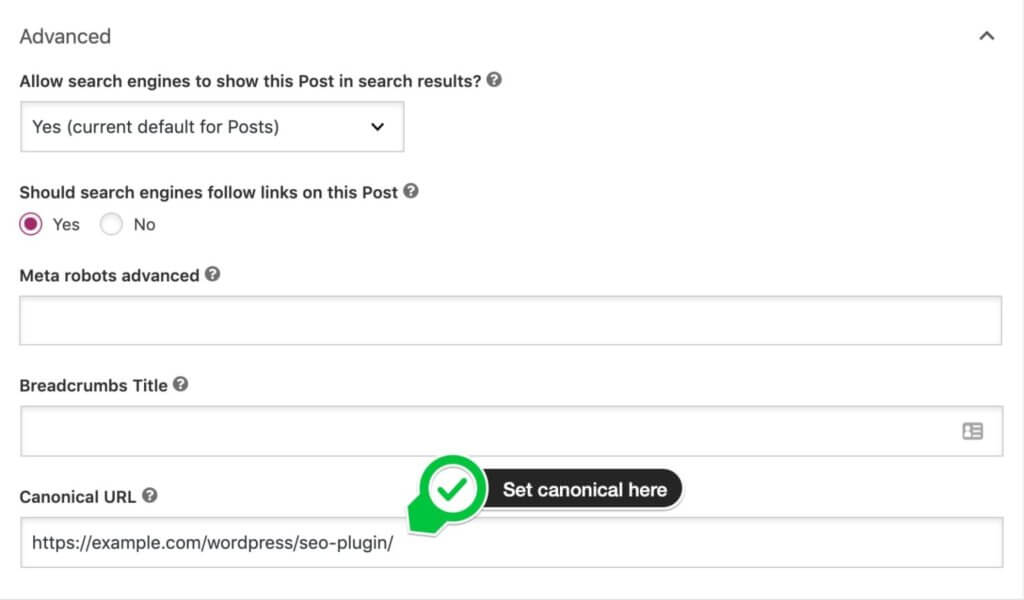
Yoast SEO does an excellent job of auto-selecting the correct canonical URL for most posts and pages, but the plugin makes it easy to change if needed.
If you are using the RankMath SEO plugin, you can edit the canonical URL in the advanced tab of the RankMath metabox.
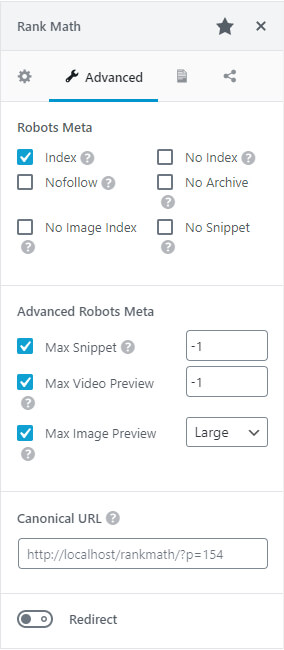
Like Yoast SEO, RankMath will auto-set canonical URLs for you, but it also gives you an option to update it as needed.
Wrapping Up
Defining your canonical domain and page URLs is a must to avoid SEO duplicate content and site domain authentication issues. Luckily for us, WordPress SEO plugins make it fast and easy to define our website’s canonical domains and URLs.
Join us for the next Solid Academy Webinar!
Free weekly webinars that will help you master WordPress and increase your business's bottom line.
What is a WordPress Phishing Attack?
Learn how to identify and prevent phishing attacks on WordPress websites.
Kiki SheldonWebsite Protection: 5 Ways to Keep Your Website Safe
Robust website protection is the shield that stands between your business and relentless cyber attacks. Prioritizing website protection enables businesses to fortify defenses to safeguard their online presence and preserve the trust of their customers in the face of ever-evolving cybersecurity threats.
Kiki Sheldon23 Ideas To Grow Your WordPress Business in 2023
WordPress is the most popular website-building platform worldwide, trusted by numerous brands. WordPress enables you to build a user-friendly and highly reliable site, together with tools and plugins to enhance your marketing and work like a lead magnet. All these features make WordPress the platform chosen by more than 43% of businesses globally.
SolidWP Editorial TeamSign up now — Get SolidWP updates and valuable content straight to your inbox
Sign up
Get started with confidence — risk free, guaranteed




