

Step-by-Step: Blocking IP Addresses in WordPress
Sophisticated security challenges require effective solutions, and IP blocking is a strategy every website owner should consider. Targeted brute force attacks and advanced bot networks pose significant risks to websites, with the Imperva Bad Bot Report revealing that nearly one-third of all internet traffic is now generated by malicious bots.

Sophisticated security challenges require effective solutions, and IP blocking is a strategy every website owner should consider. Targeted brute force attacks and advanced bot networks pose significant risks to websites, with the Imperva Bad Bot Report revealing that nearly one-third of all internet traffic is now generated by malicious bots.
So how best to deal with rising security threats? Thankfully, WordPress users have a number of options at their disposal, and we’ll detail them right here. From manual methods to advanced techniques — plus automating the process through a plugin like Solid Security — you’ll discover the best means of blocking malicious IPs without disrupting legitimate traffic.
Why blocking IP addresses is crucial for WordPress security
With WordPress powering over 40% of websites globally, the platform is naturally a prime target for cybercriminals. According to Statista, the global cost of cybercrime is expected to exceed $9 trillion in 2024, underscoring the financial stakes involved.
IP blocking acts as a proactive defense mechanism against brute force attacks and malicious login attempts, allowing site owners to keep their digital assets safe. As a further tactic, custom IP blacklisting enables targeted responses to specific threats, increasing overall security.
However, don’t let that make you complacent. Blocking harmful IPs should be used in addition to other security measures like enforcing strong passwords and Two-Factor Authentication (2FA). The other advantage here is that by reducing server load from malicious requests, IP blocking can also improve site performance.
Think of the method as ‘digital border control’ — selectively granting access while keeping out known threats, much like countries manage their physical borders.
How to block IP addresses in WordPress: 3 methods
Before blocking any IP addresses, it’s vital to identify which ones are problematic. If comments are enabled on your site, you can view the IP addresses of users who leave comments directly in your dashboard. You can also check your access logs through your hosting provider’s control panel for IPs generating unusual traffic or multiple failed login attempts.
We’ll first look at a simple manual method before detailing two advanced techniques.
1. Using the WordPress ‘Comment Blocklist’ feature
Once you’ve identified any spammy IPs from your comment section, you can block them directly from your WordPress dashboard:
- Go to Settings > Discussion in your admin area.
- Scroll down to the Disallowed Comment Keys section.
- Enter the IP addresses you want to block, one per line.
- Select Save Changes.

This method will prevent users with these IPs from leaving comments but will still allow them to visit your site. For site-wide blocking, you can use one of the advanced methods below.
2. Block IP addresses using cPanel
For those using cPanel, you can block specific IP addresses from accessing your entire site. However, tread carefully — one error can affect overall site performance, so always back up your files before making changes. Here’s how to do it:
- Log into your cPanel account.
- Locate the Security section and select IP Blocker.

- Enter the IP address you want to block in the Add an IP or Range field.
- Select Add — you can repeat this step for multiple IP addresses or ranges.
This method effectively restricts access at a server level, ensuring that unwanted visitors cannot reach your site.
3. Configuring .htaccess for IP restrictions
The .htaccess file is a critical component of the WordPress file structure that controls server behavior. To block IPs using this file:
- Access your server via an FTP or cPanel and locate the .htaccess file in your site’s root directory. Download the file to your local machine for editing.
- Before making any changes, create a backup of your existing .htaccess file. This ensures you can restore it if something goes wrong.
- Add the following line to block specific IPs:
Deny from xxx.xxx.xxx.xxx- To block multiple IPs, use:
Deny from xxx.xxx.xxx.xxx yyy.yyy.yyy.yyy zzz.zzz.zzz.zzz- Save the changes and upload the file back to the server.
Remember to be cautious, as incorrect edits can break your site.
Streamline IP blocking with Solid Security Pro

For WordPress site owners aiming to bolster their IP-blocking capabilities, Solid Security Pro provides a highly efficient, code-free solution. Given the critical role of IP blocking in preventing unauthorized access and potential IP attacks, Solid Security simplifies this process compared to manual methods or basic security plugins.
Three standout features make Solid Security Pro particularly effective for IP blocking:
- IP blacklisting and whitelisting: Easily manage which IPs can access your site, allowing for precise control over who is allowed in.
- Automated brute force protection: Automatically detects and blocks suspicious login attempts, significantly reducing the risk of unauthorized access.
- Brute Force Protection Network: Uses a community-driven database of known malicious IPs, providing real-time updates and proactive protection.
These features work in tandem to offer comprehensive security while saving time for website owners.
“Unlike manual solutions that require constant monitoring and updates, Solid Security Pro allows for a more ‘set-it-and-forget-it’ approach, enabling owners to focus on content creation and site growth.”
David Johnson, Product Owner, SolidWP
Setting up IP blacklisting and whitelisting
IP blacklisting involves blocking specific IP addresses from accessing your site, while whitelisting allows only selected IPs. Such granular control ensures that known threats are kept out while trusted users can still access your content.
To set up IP blacklisting and whitelisting in Solid Security Pro:
- Access Security > Firewall > IP Management.

- Add individual IP addresses or ranges to the Banned IPs blacklist or Authorized IPs whitelist.
- Use options for temporary or scheduled blocks as needed.
- The plugin will handle blocked IPs by displaying custom error messages to unauthorized users.
This process is far more user-friendly than manual .htaccess editing, reducing the risk of errors. Additionally, Solid Security Pro offers bulk import features for larger lists of IPs, making management even easier.
Automating the process with Brute Force Protection
Brute force attacks are a constant threat to WordPress sites, where attackers attempt to gain access by guessing login credentials. Solid Security Pro’s Brute Force Protection feature automatically detects and blocks suspicious login attempts, enhancing overall security without adding to your workload.

Key aspects of this feature include:
- Customizable failed login attempt thresholds: Set limits on how many failed attempts trigger a block.
- Adjustable lockout durations: Define how long an IP remains locked out after reaching the threshold.
- Integration with 2FA: 2FA further secures logins by requiring an additional verification step.
Leveraging the Brute Force Protection Network
The Brute Force Protection Network is a unique feature of Solid Security Pro that improves site security through community collaboration. This network consists of a database of known malicious IP addresses collected from over 1 million WordPress sites.

Integration works as follows:
- Automatic blocking: IPs flagged as malicious by the network are automatically blocked from accessing your site.
- Real-time updates: The network provides continuous updates, ensuring you stay ahead of new threats as they emerge.
- Community contribution: Users can contribute data to the network, strengthening collective defense against cyber threats.
This proactive protection means potential threats are blocked before they even attempt to access your site, contrasting sharply with traditional methods that rely solely on individual experience or manual updates. Furthermore, integration with Patchstack allows Pro users to gain the benefits of virtual patching for any vulnerabilities found.

With Solid Security Pro enabled, site owners can protect their assets without needing to become cybersecurity experts themselves.
Advanced IP blocking techniques and considerations
While basic IP blocking methods are effective, more advanced techniques can further harden WordPress security. One such approach involves using IP ranges and CIDR notation to efficiently block larger groups of addresses associated with malicious activity. By leveraging IP lookup tools, you can identify and block entire subnets known to be sources of spam, brute force attacks, or other threats.
Another advanced technique is to use dynamic IP blocklists from reputable security services. These lists are continuously updated with the latest threat intelligence, ensuring your site stays protected against emerging risks. However, be sure to balance the benefits of these lists with the potential for false positives and the impact on legitimate users.
Monitoring and adjusting IP blocking rules over time is also essential. As your site grows and evolves, so do the threats it faces. Regularly reviewing your blocking strategies and making necessary tweaks helps maintain a balance between security and accessibility for genuine visitors. Solid Security Pro’s Brute Force Protection Network complements advanced IP blocking by providing a community-driven layer of protection against known threats.
Implementing geoblocking and country-wide restrictions
Geoblocking is a powerful technique that restricts access to your WordPress site based on the visitor’s geographic location. This can be particularly useful for compliance requirements, such as GDPR, or for reducing spam and other malicious activities originating from specific regions.
Geoblocking works by cross-referencing a visitor’s IP address against databases, like MaxMind’s GeoIP2, which map IP ranges to geographic locations. While effective, geoblocking has limitations, such as the increasing use of VPNs and dynamic IP addresses that can bypass location-based restrictions.

To implement basic geoblocking, you can use dedicated WordPress plugins or server-level configurations. Before you authorize any restrictions, try to minimize negative impacts on legitimate users and SEO. For example, consider allowing access from blocked countries with additional verification steps, such as those available through Solid Security Pro’s user authentication features.
When implementing geoblocking, be mindful of legal considerations, such as GDPR compliance when blocking EU traffic. Consult with legal professionals to ensure your geoblocking strategies align with relevant regulations.
Best practices for maintaining your IP blocklist
Effectively managing an IP blocklist helps to maintain the security and functionality of your WordPress site. A good blocklist entry should include specific individual IPs rather than overly broad ranges, which can inadvertently block legitimate users. Regularly reviewing your blocklist — ideally on a monthly basis — ensures it remains current and relevant to emerging threats.
Using WordPress security logs is essential for identifying potential problems. These logs can reveal patterns of malicious activity, helping you decide which IPs to block. Implementing a system for temporary blocks, such as 24-hour bans, allows you to assess whether an IP is genuinely harmful before committing to a permanent ban.
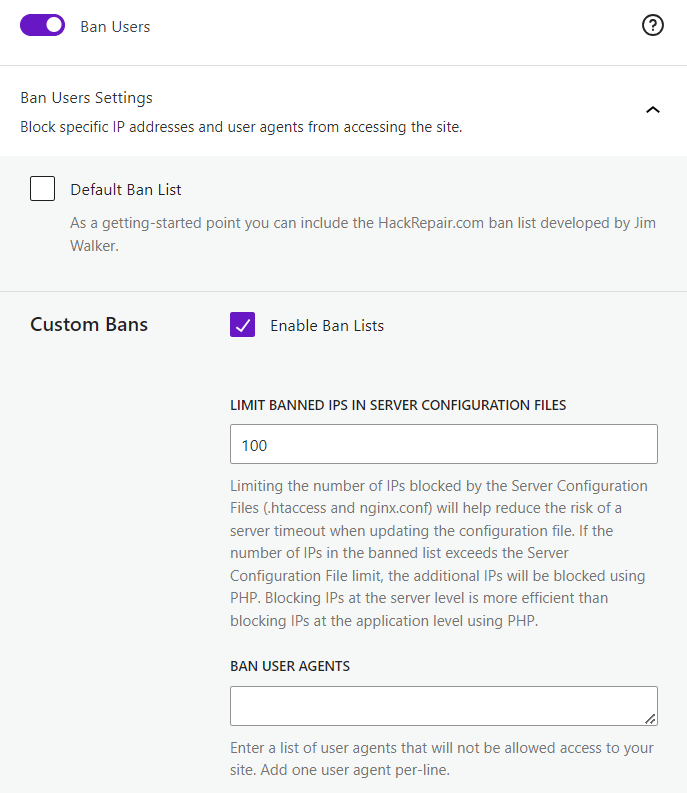
Keeping simple records of why specific IPs were blocked can help you track your decisions and make informed adjustments in the future. Periodically testing the blocklist also ensures it won’t disrupt site functionality.
Maintaining an effective blocklist requires ongoing attention, as IP blocking should be part of a broader security strategy. Solid Security Pro’s login security features work in harmony with IP blocking, strengthening overall protection. This approach balances stringent security with user-friendly access, allowing you to differentiate between malicious attacks and accidental lockouts effectively.
Take action: Enhance your WordPress security with SolidWP
While manual IP blocking is a good starting point, reliable WordPress security demands a more comprehensive approach. Solid Security takes the hassle out of protecting your site by automating and enhancing IP blocking through its powerful Brute Force Protection Network. This feature blocks malicious IPs based on your custom rules and also uses data from over 1 million websites to proactively defend against emerging threats.
Solid Security goes beyond basic IP blocking with:
- Custom user login security requirements.
- 2FA for additional login security.
- Vulnerability scanning and virtual patching (Pro version with Patchstack integration).
Think of our plugin as your website’s personal bodyguard, working 24/7 to fend off digital threats while you focus on growing your business! Try Solid Security today and take the first step towards a safer, more successful online presence.
Join us for the next Solid Academy Webinar!
Free weekly webinars that will help you master WordPress and increase your business's bottom line.
What is a WordPress Phishing Attack?
Learn how to identify and prevent phishing attacks on WordPress websites.
Kiki SheldonWebsite Protection: 5 Ways to Keep Your Website Safe
Robust website protection is the shield that stands between your business and relentless cyber attacks. Prioritizing website protection enables businesses to fortify defenses to safeguard their online presence and preserve the trust of their customers in the face of ever-evolving cybersecurity threats.
Kiki Sheldon23 Ideas To Grow Your WordPress Business in 2023
WordPress is the most popular website-building platform worldwide, trusted by numerous brands. WordPress enables you to build a user-friendly and highly reliable site, together with tools and plugins to enhance your marketing and work like a lead magnet. All these features make WordPress the platform chosen by more than 43% of businesses globally.
SolidWP Editorial TeamSign up now — Get SolidWP updates and valuable content straight to your inbox
Sign up
Get started with confidence — risk free, guaranteed




