

How to Limit Login Attempts in WordPress (Step-by-Step)
WordPress sites are often easy targets for cybercriminals because they allow unlimited login attempts by default. This vulnerability opens the door to brute force attacks, where hackers can repeatedly attempt to guess passwords, potentially compromising your site and sensitive data. This is a pressing concern for WordPress site owners, but thankfully one with bona fide solutions.

WordPress sites are often easy targets for cybercriminals because they allow unlimited login attempts by default. This vulnerability opens the door to brute force attacks, where hackers can repeatedly attempt to guess passwords, potentially compromising your site and sensitive data. This is a pressing concern for WordPress site owners, but thankfully one with bona fide solutions.
This guide details actionable strategies to limit login attempts effectively, from a simple manual technique to both free and premium plugins. You’ll learn quick setup instructions, optimal configuration settings, how to manage locked users, and additional security measures. By the close, you’ll have all you need to manage login security — without compromising the user experience.
Key points
- You can limit login attempts in WordPress using manual coding, dedicated plugins, and comprehensive security solutions like Solid Security Pro.
- Optimize your configurations to strike a balance between security and a great user experience.
- Features such as two-factor authentication, password strength enforcement, and protection against session hijacking are key to improving login security.
- Solid Security Pro offers advanced strategies for managing locked accounts and reducing instances of false positives in security protocols.
How to limit WordPress login attempts: Quick setup guide
As we’ve mentioned, there are several methods to limit login attempts — manually through code, using a dedicated login-related plugin, or opting for a comprehensive security solution that offers login protection alongside additional features.
1. Manual method
To limit login attempts manually, you can add custom code to your theme’s functions.php file. Keep in mind that manual coding requires some technical knowledge and may not be suitable for all users. Here’s a simple snippet to use:
function limit_login_attempts() {
    $attempts = 3; // Set the number of allowed attempts
    if (isset($_SESSION['login_attempts']) && $_SESSION['login_attempts'] >= $attempts) {
        wp_die('Too many login attempts. Please try again later.');
    }
}
add_action('wp_login_failed', 'limit_login_attempts');
This code restricts users to a specified number of failed login attempts before locking them out.
2. Using Limit Login Attempts Reloaded plugin

For those who prefer a plugin solution, free tools like the Limit Login Attempts Reloaded plugin are built for the job at hand. After installation, you can easily configure settings such as the number of allowed attempts and lockout duration through the plugin’s user-friendly interface. Such plugins are effective, but lack some advanced features found in comprehensive security solutions.
3. Using a dedicated security plugin

Using a dedicated security plugin like Solid Security Pro manages login security and much more. In addition to limiting login attempts, it offers features such as:
- Two-factor authentication (2FA): This adds an extra layer of security by requesting a second form of verification, often sent through a device such as a smartphone. Even if a password is compromised, a hacker would need the user’s device to gain access.
- Brute force protection: Local and network brute force protection automatically blocks IP addresses after multiple failed attempts.
- Password strength enforcement: This ensures users create strong passwords, reducing the risk of unauthorized access.
Choosing the right login attempt settings
With a comprehensive security solution like Solid Security Pro in your tech stack, you’ll be fully equipped to manage login security and much more. The next step is intelligent configuration — getting the balance right between high security without inconveniencing users.

Start by setting the maximum failed login attempts from 3–5, accompanied by progressive lockout durations. For instance, after the third failed attempt, consider implementing a lockout period that increases with each subsequent failure — similar to AI-driven security measures used by modern banking systems that adapt to threat patterns.
Ensure your site is GDPR compliant by enabling settings that manage IP logging appropriately. This protects user data and also enhances your site’s credibility.

Use Solid Security Pro’s Brute Force Protection Network for IP intelligence, which helps detect and counter malicious attempts effectively. This network uses data from over a million websites, blocking known malicious IPs across the community. And for sites with distributed teams, configure safelist/blocklist settings to manage IP ranges. This allows trusted users uninterrupted access while safeguarding against potential threats.
Employ Solid Security Pro’s Trusted Devices feature, which restricts admin capabilities from unrecognized devices. It supports biometric authentication through passkeys and enables synchronized lockouts across multiple domains for enterprise setups using Solid Central, our centralized management platform.
Finally, if your site is behind services like Cloudflare, configure custom IP origins support to ensure accurate tracking of user logins.
Managing locked users and false positives
Managing locked users while minimizing false positives is a delicate balance, best served by using the advanced methods found in Solid Security Pro.
Our platform provides an advanced dashboard that allows administrators to review blocked login attempts in real time. This interface simplifies the management of user access, enabling quick resolutions for those inadvertently locked out due to security measures.

The most stringent — yet user-experience-friendly — authentication methods include passkeys and biometrics combined with device recognition. And for those who do encounter access issues, configuring magic links as a fallback authentication method offers a convenient solution. This method allows users to receive a one-time link via email, granting them immediate access without the need for passwords.
In enterprise environments, integration with WP-CLI facilitates bulk management of locked accounts, streamlining the process for administrators. Strategies for temporary privilege escalation can restore access for legitimate users while maintaining security protocols.
What’s more, the Trusted Devices feature within Solid Security Pro identifies and remembers authorized devices, automatically granting access while safeguarding against session hijacking. This ensures that legitimate users can log in effortlessly without compromising security. Let’s take a closer look!
Trusted Devices by Solid Security Pro: Balancing security and user access
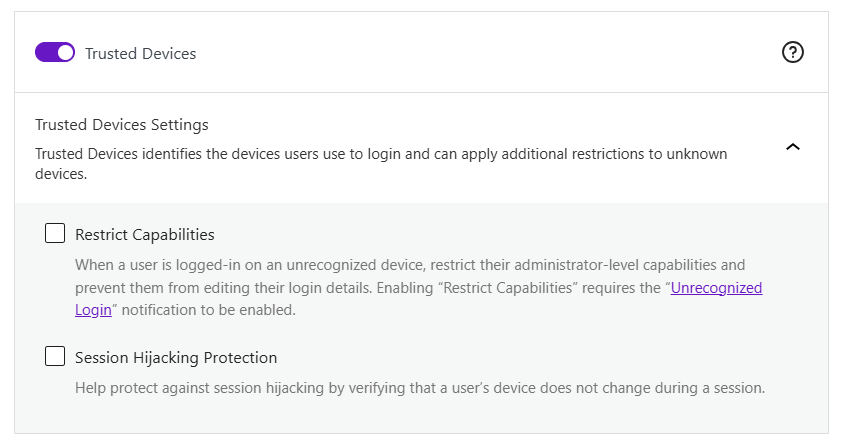
Solid Security Pro’s Trusted Devices feature acts as an invisible door attendant, allowing recognized devices access while remaining vigilant against potential threats.
“Unlike traditional security measures that require constant authentication, Trusted Devices intelligently identifies returning users, reducing the risk of session hijacking without affecting the online browsing experience.”
David Johnson, Product Owner, SolidWP
Hijacking occurs when a hacker takes over a user’s session by stealing their session cookies. It’s a vital consideration given that approximately 60% of hacked WordPress sites experience breaches due to this backdoor entry point. Worst of all, the risk is often unknown by site admins until it’s too late.
When configuring Trusted Devices, consider optimal device trust duration settings to balance security and usability. You can define how long a device remains trusted before requiring re-authentication. Furthermore, access level options allow you to tailor permissions based on user roles and device recognition, ensuring that sensitive operations are restricted even on trusted devices.
In real-world scenarios, such as multi-admin team setups or remote workforce configurations, Trusted Devices can optimize the user experience while maintaining stringent security protocols. For agencies working with clients, this feature ensures that client data remains secure without hindering collaboration.
For enterprise environments, managing devices at scale becomes effortless. The system monitors access patterns and integrates seamlessly with Single Sign-On (SSO) systems, providing a cohesive security framework across multiple platforms.
Solid Security Pro also includes an admin capability restriction for unrecognized devices, ensuring that only verified devices can perform sensitive actions. This adds an extra layer of security by limiting access to critical admin functions from unknown sources. Additionally, admins can receive email notifications whenever a new device logs in, keeping them informed and in control of their account security.
Combining login limits with advanced security features
Although hugely important, login limitations are just one piece of a comprehensive security strategy. By integrating these limitations with advanced security measures, you can create a defense system that protects your WordPress site from A to Z. This evolution in login security mirrors the advancements seen in banking security, transitioning from simple vault doors to complex, multi-layered systems.
Advanced device authentication systems
Building on the Trusted Devices feature, you can effectively manage admin access permissions by ensuring only recognized devices can perform sensitive actions. Simply set up automated email alerts for unauthorized device detection, immediately notifying administrators of potential security breaches. Implementing session management controls allows you to monitor active sessions and terminate any that appear suspicious.
Integration with vulnerability management

To bolster your defenses, configure automated vulnerability scanning alongside your login protections. This proactive approach identifies weaknesses before they can be exploited. Additionally, consider setting up virtual patching through Patchstack to address vulnerabilities in real time without waiting for official updates. Implementing version control management for plugins and themes ensures that your site remains up-to-date and less susceptible to known exploits.
Modern authentication methods
Configure WebAuthn passkey implementation to allow users to log in without traditional passwords, reducing the risk of credential theft. Setting up magic link authentication workflows provides a user-friendly alternative for secure access without the hassle of remembering passwords. Additionally, implement temporary privilege escalation protocols that allow users to gain elevated permissions for a limited time without compromising overall security.
Advanced monitoring integration

Finally, advanced monitoring integration is essential for maintaining a secure environment. Configure real-time security dashboard alerts to keep track of suspicious activities and potential threats. Set up user activity logging to maintain an audit trail of actions taken on your site, which can be invaluable for forensic analysis in case of an incident. Utilizing WP-CLI security commands allows for efficient bulk management and quick responses to emerging threats.
Secure your WordPress login now
Limiting login attempts to safeguard your WordPress site from brute force attacks is a critical consideration for site admins, and the most effective way to achieve this is through a dedicated security plugin like Solid Security Pro. Beyond merely limiting attempts, Solid Security Pro offers additional security measures to complement the login process, including the following:
- A Brute Force Protection Network that identifies and blocks any suspicious IPs from accessing your site in a collective security measure.
- Real-time security dashboard for monitoring threats and allowing for a swift response, ensuring your site remains secure.
- 2FA, passkeys, biometrics, and magic links give website owners the most up-to-date options for managing login security.
- Trusted Devices and session hijacking protection work to prevent unauthorized access, guarding against a lesser-known window for hackers.
Don’t leave it to chance — implement complete WordPress security alongside login protection by trying Solid Security Pro today.
Join us for the next Solid Academy Webinar!
Free weekly webinars that will help you master WordPress and increase your business's bottom line.
What is a WordPress Phishing Attack?
Learn how to identify and prevent phishing attacks on WordPress websites.
Kiki SheldonWebsite Protection: 5 Ways to Keep Your Website Safe
Robust website protection is the shield that stands between your business and relentless cyber attacks. Prioritizing website protection enables businesses to fortify defenses to safeguard their online presence and preserve the trust of their customers in the face of ever-evolving cybersecurity threats.
Kiki Sheldon23 Ideas To Grow Your WordPress Business in 2023
WordPress is the most popular website-building platform worldwide, trusted by numerous brands. WordPress enables you to build a user-friendly and highly reliable site, together with tools and plugins to enhance your marketing and work like a lead magnet. All these features make WordPress the platform chosen by more than 43% of businesses globally.
SolidWP Editorial TeamSign up now — Get SolidWP updates and valuable content straight to your inbox
Sign up
Get started with confidence — risk free, guaranteed



