

How to Conduct a WordPress Security Audit
When was the last time you conducted a WordPress security audit? WordPress vulnerabilities are now exploited in a matter of hours, not days. Conducting a regular security audit is a proactive best practice for protecting your site from hacks and cyberattacks. A security audit will help you identify potential weaknesses and vulnerabilities in your WordPress site.

When was the last time you conducted a WordPress security audit? WordPress vulnerabilities are now exploited in a matter of hours, not days. Conducting a regular security audit is a proactive best practice for protecting your site from hacks and cyberattacks.
A security audit will help you identify potential weaknesses and vulnerabilities in your WordPress site. Conduct an audit several times a year to ensure that your sensitive data is protected at all times.
What Is A WordPress Security Audit?
A WordPress security audit is a comprehensive review of your WordPress site’s setup, configuration, and activity to identify vulnerabilities, malicious activity, or security weaknesses. The goal is to ensure your site is secure against potential attacks and compliant with best practices. Performing a complete security audit does not need to be complicated or overwhelming.
Why Run a WordPress Security Audit?
With so many threats to your website, it’s important to make your WordPress site as secure as possible. Running a WordPress security audit of your website helps you prepare for and prevent successful attacks on your site. You can’t protect your site from every possible issue, but you can make sure you’re prepared for the most common threats by running a WordPress security audit.
At some point in time, nearly every website running on WordPress is going to face security issues. Themes and plugins have vulnerabilities that hackers can exploit and gain access to your site with malicious intent.
Once they’re in, they’ll be able to display unauthorized ads and content, divert your site traffic to another website, and compromise sensitive data.
How to Perform a WordPress Security Audit: 14 Questions to Answer
To keep things as simple as possible, here are the numbered steps you’ll want to take every time you run a full security audit of your website.
1. Is all software on your website up to date?
When going through your WordPress security audit, one easy but very important thing to check is whether or not everything is up to date on your website. This includes all plugins, themes and WordPress itself. Do you have any pending updates on your site for your plugins, themes, or WordPress itself?
With WordPress especially, version updates often include security fixes and improvements. If you’re running older versions, any security issues are typically known and can be exploited. That’s why it’s so important to keep everything on your WordPress site updated.
Updates are located in your WordPress admin dashboard in a few different places. (This is likely intentional, due to how important updates are to the health and security of your site.)
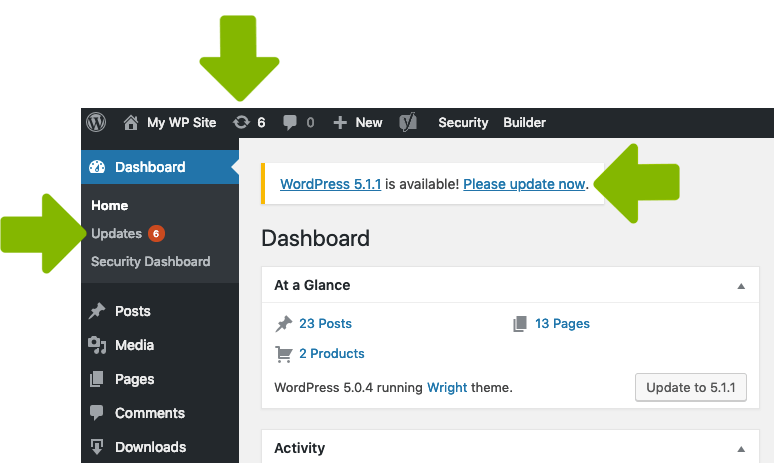
You can automate updates on your site using the Solid Security Pro WordPress version management feature. Automating your updates ensures you get the critical security patches that protect your site against WordPress security vulnerabilities and as a bonus, it reduces the amount of time you spend maintaining your WordPress site.
Tip: Use a service like Solid Central to quickly run updates if you manage multiple WordPress websites.
2. Who has admin level access to your site?
WordPress lets multiple users contribute and collaborate in site maintenance and development. But not every one of your users will require full administrative access to your website. [pullquote]Know the right user role for each of your users – not everyone will need full access. Limiting access limits security issues from users.[/pullquote]
A prime example is a writer. They’ll only need access that allows for writing and publishing content. They don’t, however, require access that allows them to make other site changes like updating themes or installing plugins.
To help you properly categorize your site users, WordPress offers six distinct user roles that you can assign to each of your users.
- Super Admin
- Administrator
- Editor
- Author
- Contributor
- Subscriber
Note that each one of these roles has its own unique site permissions.
When you conduct a WordPress security audit, you’ll first want to analyze each of the users you’ve added to the backend of your site.
- How many users have full admin access?
- How many users actually need admin access?
- Can you restrict site access by giving lower permissions for the ones who don’t require admin access?
- Do you recognize every user that has access to the dashboard? If not, delete the users that you don’t recognize because they could be rogue accounts that hackers have created on your site.
After you’re done, make sure that any individual who’s a site admin isn’t using the name, Admin. This is far and away the most common WordPress username, which hackers take advantage of to try to gain unauthorized site access.
If someone has an Admin account, you’ll first need to create a brand new account for the person and assign the existing content to the new user account.
After that’s done, simply delete the account called Admin.
3. Are you using two-factor authentication?
Adding WordPress two-factor authentication is one of the best methods to secure login access to your site. Two-factor authentication requires users to use an authentication token in addition to their username and password to login to WordPress.
Even if a correct username and password are phished directly from a user’s email, the malicious login attempt can still be prevented if the user is using the mobile application to receive their authentication token. Two-factor authentication adds an incredibly strong layer of security to your WordPress site, and can easily be added using a plugin like Solid Security.
In fact, recent research from Google confirms using two-factor authentication can stop 100% of automated bot attacks. I like those odds. Solid Security Pro makes it easy to add two-factor authentication to WordPress websites.
4. Do you have a backup solution for your WordPress site?
If anything goes wrong during a security audit, you’ll be happy that you have a full backup of your site that you can immediately put to use. This allows you to quickly restore your site and get it back to normal if something goes wrong.
But have you considered what you’d do if even your backup copy failed? What would you do if you couldn’t restore your site at all?
This is why it’s important to not only have a backup solution but to test it. If all you’re using for site backup is a tool from your host, many don’t allow you to run a test.
Instead, download and install the WordPress backup plugin called BackupBuddy. This plugin automatically takes complete backups of your entire website.
Keep in mind that the very first backup you take of your site could take a bit of time, as it copies your entire site onto a backup server. However, future backups will be a lot faster as they will only back up the changes you’ve made to your site since the prior backup.
Once you’ve used BackupBuddy to complete your site backup, you’ll be able to go into the dashboard and test how it will be restored.
5. Do you have any unused WordPress plugins?
Vulnerable plugins are the weak point for so many different WordPress hacks. Plugins are tools created by developers that also maintain them and keep them updated. But, as with all forms of software, different security vulnerabilities can become an issue over time.
Most plugin developers fix these issues quickly and release an update for users to download and install. Updates are often specific security patches that remove a vulnerability from your website.
It’s important to download these updates right when they become available.
During your WordPress security audit, take a look at the list of installed plugins on your site. Most WordPress site owners like to try out new plugins to see what they’ll do. But we’ll often not use them permanently and forget that we’ve installed them.
Take some time to delete the plugins you’re not using. This takes away all unneeded elements on your site and reduces the risk of a hacker breaking in.
Make sure that all of the plugins you’re running are familiar and that you recognize them. If you don’t recognize a plugin that’s running and you’re sure your team didn’t install it, it’s best to get rid of it post-haste. It could potentially contain malware that is infecting your site.
Hackers will often use pirated software to distribute malicious malware.
6. Do you have any unused WordPress themes?
As a WordPress site owner, it’s common to install many different themes to find the one that we want to stick with. However, if you forget to delete the ones you’re not using, you’ve opened your site up to dangerous vulnerabilities.
Because of this, it’s important to delete all of the themes that aren’t in use and only keep the theme that’s currently running. Regularly update all themes to the latest version.
7. Do you have any inactive users on your site?
Much like outdated plugins and themes on your site, inactive users can be exploited to attack your site.
Did you have a support person working on your site who you created a user for? Go ahead and delete that user. If they’re not active on your site, they don’t need a user account.
8. What does your web host do to secure your website?
Due to shared hosting technology, more people than ever can now create their own websites with a very minimal investment. These shared hosting plans are very inexpensive and are tailored mostly for small websites.
When you first launched your WordPress site, you probably went with one of these shared hosting plans. But as your site has grown, so have your hosting needs.
TIP: Evaluate your hosting needs on a seasonal basis or whenever you make a major change in your business.
Shared hosting means that you’re sharing a server with a lot of other sites. You don’t have any control over what these other sites that share your server are doing. If one of their sites gets hacked, it will probably consume a lot of server resources.
This issue will slow your site down and bring its performance down to a halt.
There’s also a chance that a malware infection can spread to your site from a different site running on your shared server. In other words, if you can afford to upgrade past shared hosting, it’s probably time to get on a dedicated server.
Remember that quality hosting doesn’t normally come in at $4 per month.
9. Are you limiting login attempts?
By default, there isn’t anything built into WordPress to limit the number of failed login attempts someone can make. Without a limit on the number of failed login attempts an attacker can make, they can keep trying a combination of different usernames and passwords until they find one that works.
By limiting login attempts, you greatly reduce the opportunity for brute force attacks. Brute force attacks refer to the trial and error method used to discover usernames and passwords in order to hack into a website. WordPress doesn’t track any user login activity, so there isn’t anything built into WordPress to protect you from a brute force attack.
The good news is that you can limit login attempts with the iTheme Security plugin. The Solid Security Pro Local Brute Force Protection feature keeps tracks of invalid login attempts made by a host or IP address and a username. Once an IP or username has made too many consecutive invalid login attempts, they will get locked out and will be prevented from making any more attempts for a set period of time.
10. Is your website HTTPS?
An easy way to tell if the website you are visiting has an SSL certificate installed is to look in your browser’s address bar to see if the URL starts with HTTP or HTTPS. If the URL begins with an HTTPS, you are safely browsing on a site using SSL.
The security benefits you gain from having an SSL certificate on your website is enough to make it a must-have for any website. However, to encourage everyone to protect their site visitors, web browsers and search engines have created negative incentives to encourage everyone to use SSL.
Here’s more information on what is SSL and how to install it on your site.
11. What users have FTP/sFTP access to your site?
FTP, or File Transfer Protocol, is a technology that allows you to connect your local workstation to your website’s server. With it, you can access all of the folders and files of your site and make necessary changes.
Because FTP access gives users the ability to delete and modify site files, you should only grant FTP access to people you trust and require this kind of site access.
It’s best to check your list of users, then reset the FTP passwords if you need to.
To change passwords, go into your WordPress hosting account and navigate to cPanel > FTP accounts.
Remember to delete any user that doesn’t need FTP access to your site files.
12. Are you monitoring security activity?
Monitoring security activity on your WordPress site tracks suspicious activity on your site. WordPress security logs provide detailed data and insights about activity on your WordPress website. If you know what to look for, you can quickly identify and stop malicious behavior on your site. You can spot activity that alerts you to a breach, assess how much damage was done, and inform efforts to repair a hacked site.
Use WordPress security logs to monitor these activities (and more):
- Brute Force Attacks – A brute force attack is generally easy to identify in your logs. You will need to record the username and IP that is attempting to login and whether or not the login was successful. If you see that a single username or IP has consecutive multiple failed login attempts, this can signal a brute force attack.
- File Changes – File change entries include files added and removed and modifications to existing files. Now that you have the changes recorded in your security logs, you should schedule the time to audit them. If you are a Solid Security Pro user, remember to enable File Change notifications to be notified when a file changes.
- User Activity – Having a record of user activity in your WordPress security logs can be your saving grace after a successful attack. If you are monitoring the correct user activity, it can guide you through the timeline of a hack and show everything the hacker changed, from adding new users to adding unwanted pharma ads on your site.
13. Are you implementing these WordPress hardening measures?
The WordPress platform gives you specific hardening measures to make your site a lot more secure from malicious hacks.
These measures include:
- Disable plugin installation
- Reset WordPress salts and keys
- Disable the file editor in themes and plugins
- Enforce strong passwords
- Implement 2FA (two-factor authorization)
- Limit login attempts
During the security audit, it’s important to check that this list of measures is fully in place. As an example, if you’re using a plugin that limits user login attempts and provides 2FA, take a look to see if the plugin is still working and is fully up to date.
Also see if there may be better or more current plugin options available.
Some hardening measures take a bit of technical knowledge to put into place. But if you’re using Solid Security, you will improve security with a few simple clicks.
14. Are you using a WordPress security plugin?
Many of the tasks on this WordPress security audit list can be accomplished with a WordPress security plugin like Solid Security.
If you aren’t running a WordPress security plugin, it’s time to download and install one right away. An effective security plugin such as Solid Security will protect your site from bots and hackers. Although there are a lot of different security plugins on the market, some are more effective than others. Some plugin developers, like SolidWP, offer a paid and a free version.
Take a look at this list of the features that an effective security plugin must bring to the table:
- Vulnerability scanning – Skilled hackers are constantly looking for vulnerable plugins. It’s important to use a security plugin that will run daily scans of your site while conducting deep checks and scans of every folder and file on your site, including the database.
- Login protection – Hackers will often try to attack your WP login page and attempt thousands of username and password combinations to gain unauthorized access to your site. This “brute force attack”, is something your security plugin needs to block.
- Security alerts in real-time – Whenever there’s any suspicious or malicious activity on your WordPress site, your security plugin needs to effectively detect it, then immediately let you know. You’ll then be able to take swift action to stop any damage.
- Security activity log – An audit log will track each user’s activity on your website, including who has logged in, the details of repeated failed login attempts, and what function a user performed on your site. Having an activity log is useful when you’re trying to determine how your site compromised.
Routine WordPress Security Audits Are Extremely Important
We’ve covered the eight most important security audit tasks that you should carry out regularly. Even if you’re running a security plugin, you’ll still want to run through this checklist once every three months.
Why not add a repeating reminder on your calendar right now?
We trust that this guide has helped you create a process you can repeat for keeping up to date with WordPress security audits. If you keep this process going on a rotating basis, you’ll go a long way toward bypassing the dangers that a hacker can bring to your site. Did you add a reminder to your calendar to run your security audit?
While a full audit can be a long process, the time and headaches it saves by preventing a hack are more than worth the trouble.
Download iThemes Security for Free Now
Join us for the next Solid Academy Webinar!
Free weekly webinars that will help you master WordPress and increase your business's bottom line.
What is a WordPress Phishing Attack?
Learn how to identify and prevent phishing attacks on WordPress websites.
Kiki SheldonWebsite Protection: 5 Ways to Keep Your Website Safe
Robust website protection is the shield that stands between your business and relentless cyber attacks. Prioritizing website protection enables businesses to fortify defenses to safeguard their online presence and preserve the trust of their customers in the face of ever-evolving cybersecurity threats.
Kiki Sheldon23 Ideas To Grow Your WordPress Business in 2023
WordPress is the most popular website-building platform worldwide, trusted by numerous brands. WordPress enables you to build a user-friendly and highly reliable site, together with tools and plugins to enhance your marketing and work like a lead magnet. All these features make WordPress the platform chosen by more than 43% of businesses globally.
SolidWP Editorial TeamSign up now — Get SolidWP updates and valuable content straight to your inbox
Sign up
Get started with confidence — risk free, guaranteed




