

Monitor and Analyze WordPress User Activity to Identify Breaches
Monitoring user activity is not just a precaution but an intelligent part of proper website management. By monitoring user actions, you can detect early signs of security threats, such as unauthorized access or suspicious behavior. It also helps you analyze the cause of a breach and troubleshoot issues related to user actions.

Monitoring user activity is not just a precaution but an intelligent part of proper website management. By monitoring user actions, you can detect early signs of security threats, such as unauthorized access or suspicious behavior. It also helps you analyze the cause of a breach and troubleshoot issues related to user actions.
For sites handling sensitive data, user activity monitoring is vital for compliance and accountability. A failure to monitor user activity can lead to data breaches, financial losses (averaging $2.98 million for small businesses), brand damage, and loss of customer trust.
In this article, we’ll cover the critical WordPress user activities to monitor and the best tools to help you stay protected.
Key user activities to track on your WordPress site
By tracking user activities across the entire website, site admins can proactively identify potential threats and mitigate them before they escalate. Here are the key user activities you should monitor regularly:
- Login attempts: Keeping track of login attempts, both successful and failed, is vital for detecting brute-force attacks and unauthorized access attempts. Tracking these activities can help identify suspicious patterns and prevent malicious actors from gaining entry to your site.
- User role and permission changes: Changes in user roles and permissions can grant access to sensitive areas of your site. Monitoring these modifications allows you to ensure that only authorized personnel have the necessary privileges and to quickly identify any unauthorized escalations of user rights.
- Content modifications: Monitoring content changes — including the creation, editing, and deletion of posts, pages, and custom post types — helps identify if there’s a bad actor with access to your site. Malicious modifications include changing, deleting, or adding content, potentially causing great harm to your brand.
- Plugin and theme management: Keeping an eye on plugin and theme installations, updates, and deletions helps you identify any changes and ensures that your site is running on the latest, most secure versions of your chosen extensions.
- Core WordPress updates: Monitoring updates to the WordPress core is just as important as keeping your plugins and themes updated. The latest versions often include important security patches and bug fixes.
- Settings alterations: Changes to your site’s settings can have a significant impact on its functionality and security. Tracking these alterations enables you to identify any inadvertent changes that could compromise your site’s performance or expose it to potential threats.
- File system changes: Monitoring changes to your site’s file system can help detect malicious code injections, maintain control over your site’s underlying structure, and quickly identify any suspicious activity.
Top WordPress user activity tracking plugins
When it comes to monitoring user activity on WordPress sites, several plugins stand out for their in-depth features and ease of use. Consider the following for your own user activity tracking needs:
Activity Log

The Activity Log plugin functions like an aircraft’s black box for your WordPress site, meticulously logging every action taken in the admin area. It tracks login attempts, content modifications, plugin and theme changes, and settings alterations, allowing you to identify unauthorized access and maintain accountability among users. Use cases include monitoring team activities in collaborative environments and ensuring compliance with data protection regulations.
Stream
Stream offers a real-time view of your WordPress site’s activity, tracking everything from user logins to post updates and plugin changes. Its highlights include detailed logs and an intuitive interface that allows administrators to filter and search through activities easily. This plugin is particularly useful for sites with multiple contributors.
Simple History
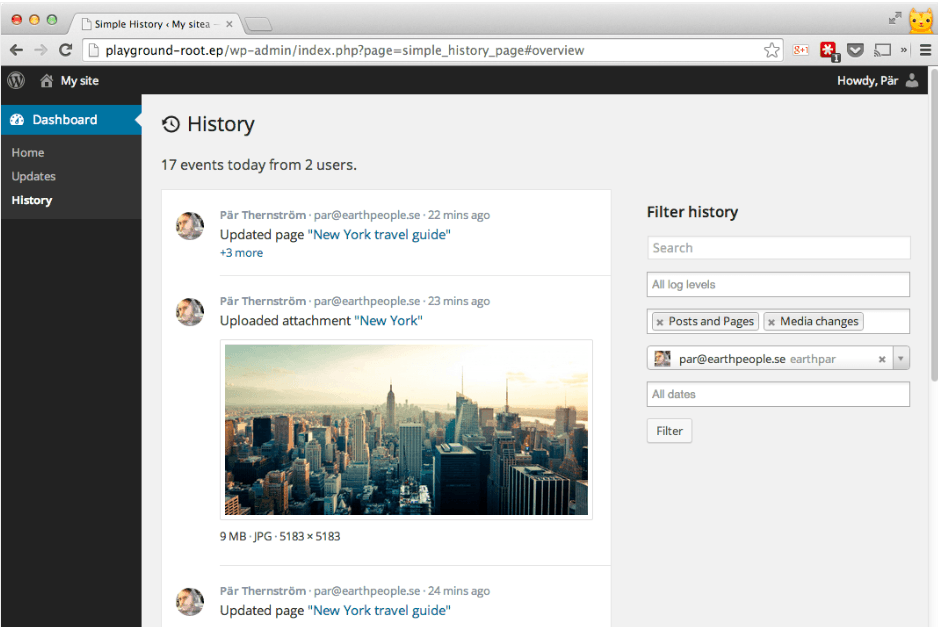
Simple History provides a straightforward way to view user actions on your site, including post edits, media uploads, and user logins. Its simplicity makes it an excellent choice for those who prefer a clean, easy-to-navigate interface. This plugin is ideal for smaller sites or those new to user activity tracking, allowing administrators to quickly identify changes.
WP Activity Log

One of the most comprehensive activity log plugins available, WP Activity Log tracks a wide array of user actions, including login attempts, content changes, and plugin updates. The plugin’s premium features include real-time monitoring, email notifications for specific events, and detailed reporting capabilities. This makes it an excellent choice for larger sites or multisite networks where a detailed oversight is needed.
Solid Security

Solid Security integrates user activity tracking into its in-depth security features. It logs critical events to allow administrators to respond quickly to potential threats:
- Logins and logouts.
- User creation and registration.
- Adding and removing plugins.
- Switching themes.
- Changes to posts and pages.
Should a change of any kind be made to your site, you’ll be the first to know about it. The tool also integrates with Solid Central for activity tracking across multiple sites from a single dashboard, adding efficiencies to your daily workflows. Given that 40% of data breaches involve data stored across multiple environments, stringent, centralized management can be a major step toward protecting your digital assets.
Unlike the other plugins on our list, activity tracking is just one facet of Solid Security’s performance, making it the logical choice for site admins and developers wanting to safeguard their data.
Step-by-step guide: Tracking user activity with Solid Security
Let’s take a look at how to set up user activity tracking with Solid Security. The process is straightforward and can be achieved in a matter of moments — simply follow these steps:
1. Installing and activating Solid Security Pro
- Begin by downloading the Solid Security Pro plugin from our official website.
- Log in to your WordPress dashboard, navigate to Plugins > Add New, and upload the plugin file.
- Once installed, activate the plugin.
- You’ll now have access to advanced security features, including user activity logging.
2. Configuring global logging options
- From the WordPress dashboard, go to Security > Settings.
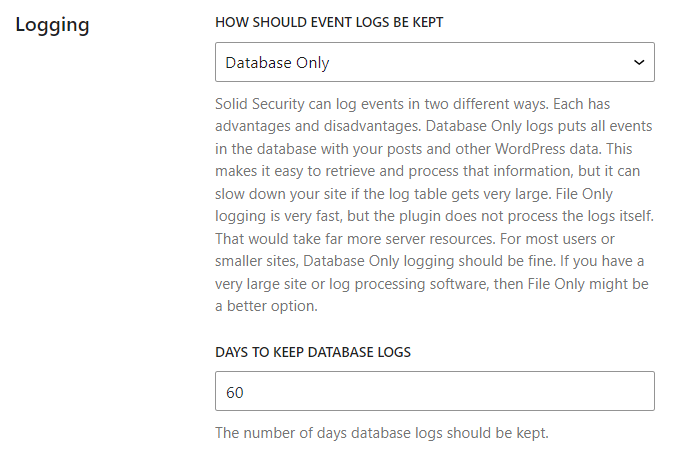
- In the Global Settings tab, scroll down to the Logging section.
- Here, you can configure how long event logs should be kept according to your preferences, ensuring that you retain logs for the desired duration while managing database size effectively.
- After making your selections, click Save Changes to apply your settings.
3. Configuring logging for specific user groups
- Next, navigate to Security > Settings and select the User Groups tab.
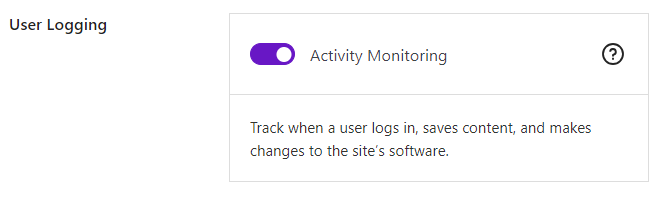
- For each user group listed, scroll down to the User Logging section.
- Here you can enable or disable Activity Monitoring based on your requirements, tailoring the logging features to specific user roles.
4. Viewing and analyzing logs
- To view logged activities, go to Security > Logs.
- This section displays a range of logged actions, including Version Management (updates for WordPress core and plugins), Site Scanner results, and User Logging activities.
- For a focused view of user activity, select User Logging from the dropdown menu.
- You will then see five types of user data logged: Log In/Log Out, User Creation/Registration, Adding and Removing Plugins, Switching Themes, and Changes to Posts & Pages.
Leveraging Solid Security for comprehensive data breach prevention
Beyond user activity tracking, Solid Security Pro comes with a vast collection of features designed to protect your WordPress site from malicious actors. As a first port of call, login security is improved through Two-Factor Authentication (2FA) and passkeys, significantly reducing the risk of unauthorized access by adding an extra verification step to your logins.

Another critical component is vulnerability scanning and automatic patching — powered by Patchstack integration. This feature continuously monitors your site for known vulnerabilities and applies patches automatically, ensuring your site remains secure without requiring constant manual intervention.

Additionally, Solid Security includes built-in brute force attack prevention. Brute force attacks pose a significant threat to WordPress sites, as hackers use automated scripts to guess usernames and passwords, compromising security and degrading performance. This feature blocks malicious login attempts, providing an extra layer of security against common attack vectors.

And remember — the plugin’s integration with Solid Central allows you to monitor activity across your entire site network, so administrators can manage multiple site security from a single dashboard.
Boost your WordPress security today with Solid Security
Solid Security stands out as the premium option for tracking user activity, offering comprehensive logging capabilities alongside a host of other powerful security features.
“Tracking user activity is essential for maintaining the security of your WordPress site. By monitoring user actions, administrators can identify potential threats, troubleshoot issues, and ensure compliance with best practices. There’s no better way to achieve this than by using a dedicated plugin.”
— Ben Meredith, Director of Technical Support, Solid WP
Ensure a safe online environment for both you and your users by getting started with Solid Security today.
Join us for the next Solid Academy Webinar!
Free weekly webinars that will help you master WordPress and increase your business's bottom line.
What is a WordPress Phishing Attack?
Learn how to identify and prevent phishing attacks on WordPress websites.
Kiki SheldonWebsite Protection: 5 Ways to Keep Your Website Safe
Robust website protection is the shield that stands between your business and relentless cyber attacks. Prioritizing website protection enables businesses to fortify defenses to safeguard their online presence and preserve the trust of their customers in the face of ever-evolving cybersecurity threats.
Kiki Sheldon23 Ideas To Grow Your WordPress Business in 2023
WordPress is the most popular website-building platform worldwide, trusted by numerous brands. WordPress enables you to build a user-friendly and highly reliable site, together with tools and plugins to enhance your marketing and work like a lead magnet. All these features make WordPress the platform chosen by more than 43% of businesses globally.
SolidWP Editorial TeamSign up now — Get SolidWP updates and valuable content straight to your inbox
Sign up
Get started with confidence — risk free, guaranteed




