
WordPress Privilege Escalation
With Solid Security Pro, you can enable WordPress Privilege Escalation to temporarily grant extra access to a user of the site for a specified period of time.
This feature is helpful for allowing contractors to have Administrator or Editor privileges for a set period of time, after which their escalated privileges are automatically revoked. Note: When this setting is in place, the user’s displayed role will still be the same only their privileges are updated.
How to Enable WordPress Privilege Escalation
Go to Security > Settings > Features, and toggle the Privilege Escalation button to enable this feature.

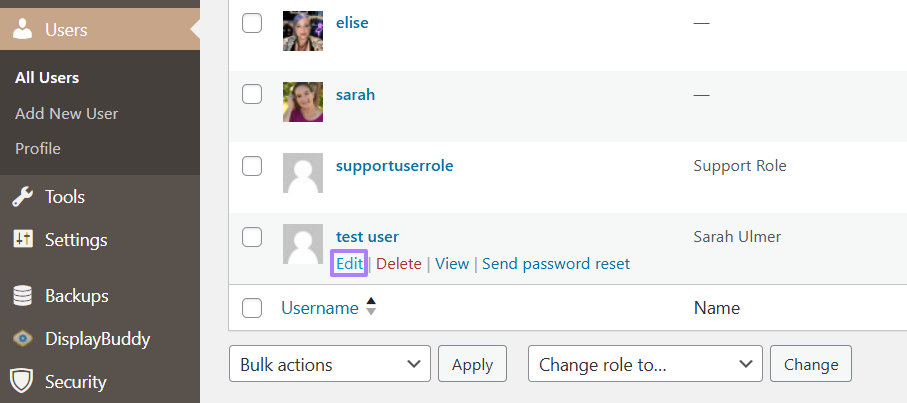
In the WordPress Dashboard, Select Users, and then Edit under the Username you wish to escalate.
A section titled Temporary Privilege Escalation near the bottom of the User Profile will allow you to select which role you would like to select either Administrator or Editor, and select the number of days to allow Escalated Privileges.

Select Update User. The user will now have temporary Administrator or Editor access to the site, and then will be returned to their prior role automatically at the end of the time selected.
Get Privilege Escalation with Solid Security Pro Now
With Solid Security Pro, you can seamlessly grant temporary elevated privileges to users, allowing you to enhance flexibility without compromising security. Whether you’re working with contractors or need to assign temporary Administrator or Editor roles, this feature ensures that the user’s privileges are automatically revoked after the designated period. Start using this powerful tool today to simplify user management and boost your site’s security.



