

Overview #
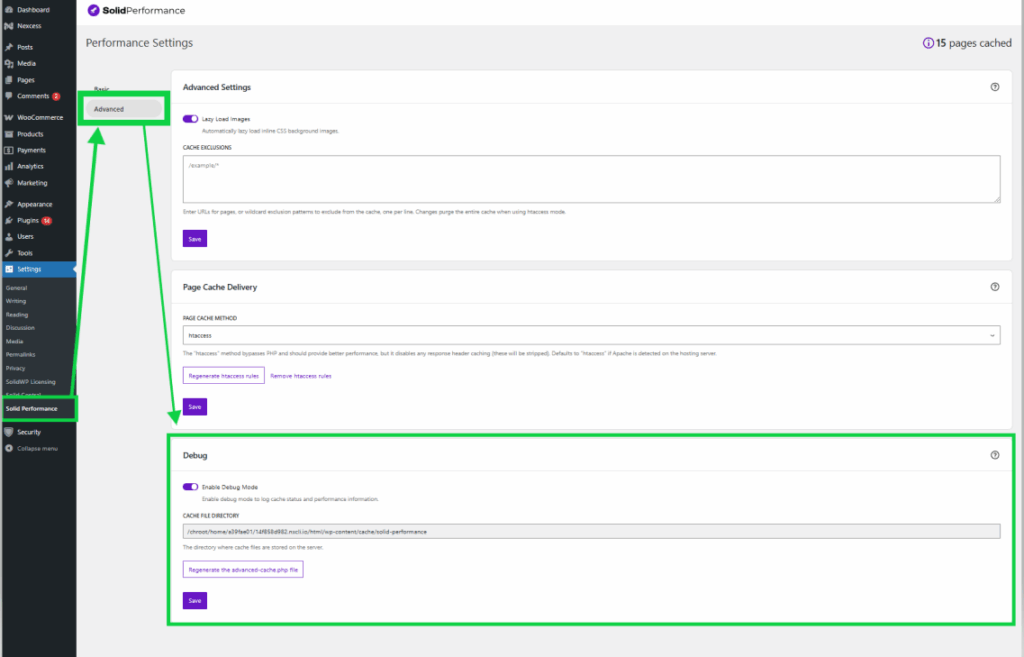
The Debug Feature in Settings > Solid Performance > Advanced is designed to help you diagnose caching and performance issues by logging your cache status and performance information. This feature provides insight into how caching functions on the site and offers tools for troubleshooting.
Features #
1. Enable Debug Mode
 #
#
What It Does: #
The Debug Mode provides detailed insights into how the caching mechanism functions, making it easier to identify potential problems. When debug mode is enabled, the logs will be added at the top of the cache file upon the cache file’s creation, in an HTML comment, like so:
<!--
Solid Performance page optimization. Learn more: https://solidwp.com/performance

Page cache debug info:

Engine:                Disk
Creation Time:         0.89274s
Compression Algorithm: gzip

Header Info:


Served from: your.site @ 2025-03-04 16:30:16 GMT+0000 by Solid Performance
-->
When to Use It: #
If your changes are not appearing despite clearing the cache, enabling the Debug Mode to check if caching is overriding updates is a good troubleshooting step. It is also useful when caching is suspected of affecting website performance or when troubleshooting plugin or server compatibility issues.
How to Enable: #
To enable Debug Mode, navigate to Solid Performance > Advanced, locate the Debug Feature section, and toggle on Enable Debug Mode. Once enabled, you can monitor the debug.log file for relevant performance data.
2. Cached File Directory #

What It Does: #
The Cached File Directory displays the server path where Solid Performance stores cached files. This gives you the ability to locate and inspect cached files for troubleshooting purposes.
When to Use It: #
You should check the Cached File Directory to verify whether cached files are being generated correctly. It is also useful when manually clearing specific cached files or investigating disk space usage related to caching.
3. Regenerate advanced-cache.php File
 #
#
What It Does: #
Regenerating the advanced-cache.php file ensures that caching settings and optimizations are correctly applied. This file controls advanced caching behavior, and regenerating it can help resolve caching-related issues.
Why Regenerate It? #
You should regenerate the advanced-cache.php file if cache-related issues persist even after clearing the cache. It is also recommended after modifying caching settings to ensure changes take effect. Additionally, regenerating the file can restore proper caching functionality if the file has been modified or corrupted by other plugins or server changes.
How to Regenerate: #
To regenerate the advanced-cache.php file, go to Solid Performance > Advanced > Debug and select Regenerate advanced-cache.php. After completing this step, users should refresh the site and check if the issue is resolved.
Best Practices #
You should only temporarily enable Debug Mode, as continuous logging can impact performance. If caching behavior appears inconsistent, checking the Cached File Directory can help identify potential issues. If cache settings do not apply correctly, regenerating the advanced-cache.php file can often resolve the problem.
By leveraging the Debug Feature, you can gain valuable insights into caching behavior, diagnose issues, and optimize website performance effectively. If you’re encountering a caching issue, remember to temporarily enable Debug Mode, check the Cached File Directory, and regenerate the advanced-cache.php file as needed.



