

Solid Backups — NextGen offers a range of settings to help you customize and optimize your backups. This guide provides an overview of each option to help you decide how to configure the backups performance and storage according to your needs.
Storage Option #
Storage Estimation #
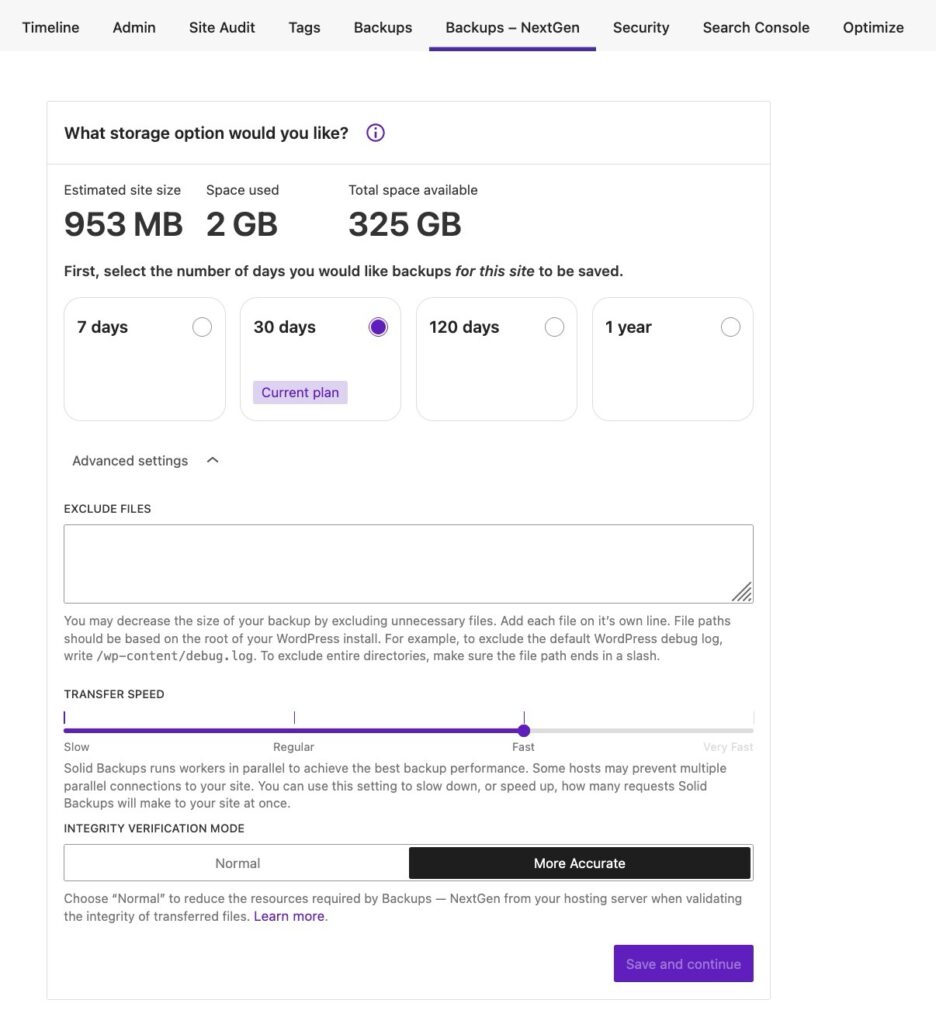
This area displays the total estimated backup size, the total space used, and the total available space for your NextGen storage to keep you informed and help you choose the best option.
Backup Retention #
This lets you choose how long backups should be stored:
- 7 Days – Choose this option if you need short-term storage for frequent updates.
- 30 Days – Choose this option if you prefer to maintain balanced storage for regular backups.
- 120 Days – Choose this option if you want long-term retention for added security.
- 1 Year – Choose this option if you need long-term retention for archiving and compliance purposes.
Advanced Settings #
Exclude Files #
This field lets you add the file paths of those you don’t want to include in the backup. For example, to exclude the default WordPress debug log, write /wp-content/debug.log. Make sure to add each file path in a new line.
To exclude entire directories, make sure the file path ends in a slash. If WordPress is installed in /public_html/, to exclude /public_html/staging-site/, use: /staging-site/.
Transfer Speed #
The Transfer Speed setting lets you adjust the speed at which backup data is transferred. This is useful for optimizing the backup process by balancing its performance based on server capabilities.
There are four different speed settings:
- Slow – low server impact
- Regular – moderate transfer speed
- Fast – faster transfer speed
- Very Fast – fastest transfer speed, high server impact
When you configure your server credentials, Solid Backups — NextGen will automatically set a default transfer speed based on the your host’s typical performance characteristics.
The recommended setting is “Fast“, but this might be restricted by some hosts, so you can reduce it to “Regular” or “Slower” to reduce server load for better compatibility.
Integrity Verification Module #
The Integrity Verification Module controls how files are compared during backup transfers, ensuring that only changed files are transferred to remote storage. This is useful for balancing accuracy and performance based on server capabilities.
Solid Backups — NextGen uses three methods (comparison modes) to determine whether a file needs to be transferred:
- File Time: Compares the last modified time of the file.
- File Size: Checks if the file size has changed.
- Checksums: Computes a unique “digital fingerprint” for the file to detect minor changes.
Choosing “More Accurate” uses all comparison modes for maximum accuracy. This is the default setting.
Choosing “Normal” disables checksum to reduce server resource usage.
Additional Notes on Server Environments #
On some low-resource or shared hosting environments, setting the Transfer Speed to “Very Fast” can cause backup failures (e.g. MD5 checksum errors, size mismatches, etc.), which would show as Solid Backups could not complete the requested backup. Solid Backups did not complete backing up your database. on your end. These errors often happen because the backup worker exceeds the host’s parallel process or connection limits.
Recommendation: If these errors occur, try lowering Transfer Speed to Regular or Slow. Additionally, consider adjusting the Integrity Verification Module to reduce checksum usage.



