

Solid Backups — NextGen provides powerful backup capabilities for your WordPress sites, but understanding how to monitor and troubleshoot your backups is crucial for maintaining site security and reliability. This guide covers everything you need to know about managing your backups effectively.
How to monitor backups? #
Ensuring your backups are working properly and spotting potential issues early is essential for maintaining a reliable backup strategy. Here are the key methods to monitor your backups:
1) View Your Backup Timeline in Solid Central Dashboard
The easiest method to monitor your backups is through the Solid Central Timeline page, which lists all activities made on your sites by Central and Backups — NextGen. To learn more about the Timeline feature, see this guide.
How to check:
- Navigate to your Solid Central dashboard
- Go to the Timeline page: https://central.solidwp.com/timeline or open your individual site’s Timeline tab
- Filter the “Type” to “Site Backup” to focus on backup activities
- Check for any errors or failed backup attempts
2) Check Connection Status in WordPress Admin
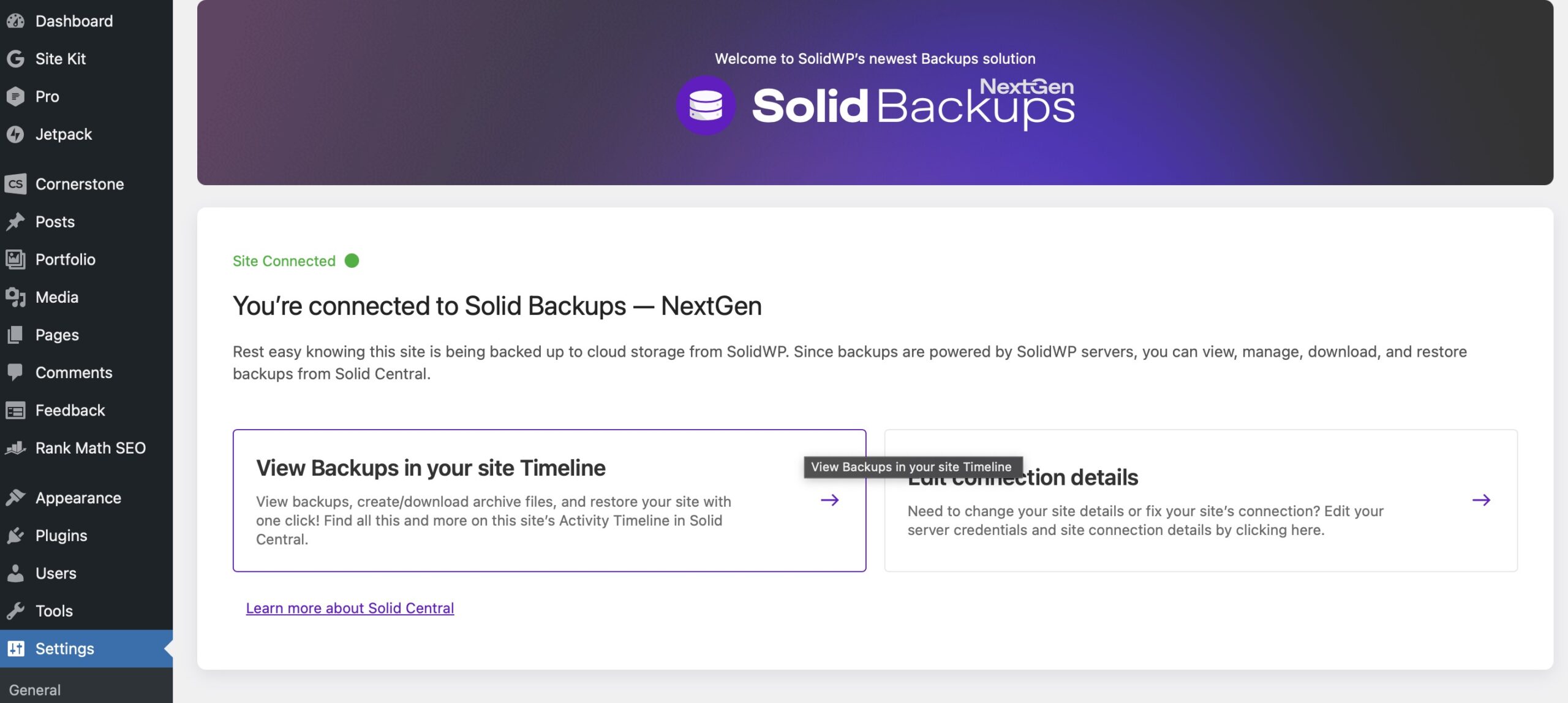
When logged into a site’s WordPress admin backend, you can verify the connection status directly by going to Settings > Solid Backups:
Status Indicators:
- Green “Site Connected”: The site is properly connected to Backups — NextGen and ready for backup operations
- Red “Site Disconnected”: There’s a connection problem that needs immediate attention
- Gray “Checking Connection: = The system is currently verifying the connection status
Example:
3) Check Your Email Inbox
Solid Central automatically sends email notifications for critical backup-related events:
- Site disconnection from Solid Backups — NextGen
- Authentication failures (SSH/SFTP credential issues)
- Backup creation failures due to connection problems
Lookout for these emails as they provide early warning of potential backup system issues.
What Gets Backed Up #
Solid Backups — NextGen creates comprehensive backups of your entire WordPress site:
- Database: All WordPress tables and data
- Files: Plugins, themes, uploads, media, and custom files
- WordPress Core: Essential WordPress system files
- Configuration files: wp-config.php, .htaccess, and other critical configuration files
This ensures that every aspect of your site is protected and can be fully restored if needed.
Viewing and Managing Your Backups #
To view and access your backups, log into your Solid Central Dashboard and head to the Timeline page or open your individual site’s Timeline tab.
In Timeline, you can do the following:
- View backup details and monitor its status completion and any error messages.
- Generate archives on-demand from your completed backups
- Download backup archives directly to your local machine for safekeeping

Recommended Monitoring Frequency #
Establishing a regular monitoring routine helps you catch backup issues early and maintain confidence in your backup system. The following regular checks are recommended for a clear monitoring of the backups processes:
Daily Checks:
- Review the Solid Central Timeline page to verify that latest backups appear in your timeline
- Check for any error messages or failed backup attempts
Regular Checks:
- Monitor connection status in WordPress admin whenever you’re logged into the site
- Review email notifications for any backup-related alerts
Weekly Reviews:
- Assess backup success rates and identify any recurring issues
- Verify backup retention policies are working as expected
Troubleshooting Common Issues #
If you encounter connection issues, follow the recommendations found in these guides:
Backup Management Best Practices #
- Monitor proactively: Establish a routine for checking backup status, and address connection issues before they affect backup schedules.
- Document: Keep records of any configuration changes or troubleshooting steps.
- Reach out to SolidWP team: Always check the error messages in your Timeline for specific failure reasons and reference numbers to provide to support. Make sure to provide detailed error information and steps to help narrow down the cause of the issue.



