

Client Dashboard: Simplifying WordPress Management with Solid Central
The Client Dashboard is crafted to streamline WordPress management for both developers and their clients. It allows you to customize the WordPress dashboard experience to meet your client's exact requirements, removing clutter and confusion for a smoother user experience.

At Solid Central, we’re thrilled to highlight one of the standout features: the Client Dashboard. Designed to streamline WordPress management for both developers and their clients, our Client Dashboard empowers you to tailor the WordPress dashboard experience precisely to your client’s needs, eliminating clutter and confusion.
Say Goodbye to Overwhelming WordPress Dashboards
Ever felt overwhelmed by the multitude of options and menus in the WordPress dashboard? With Solid Central’s Client Dashboard, that’s a thing of the past. Now, you have complete control over what your clients see when they log in, ensuring they only access the essentials tailored to their role and requirements.
Client Dashboard Controls:
- WordPress dashboard menu items – The items located on the right side of the WordPress dashboard, including all the default WordPress menu items (Posts, Pages, Settings, Appearance, Plugins, Tools, etc.) and any menu items added by installed plugins or themes.
- WordPress admin bar menu items – The items located in the top bar of the WordPress dashboard, including all the default WordPress admin bar items (Site Title, Updates, Comments, etc.) and any menu items added by plugins or themes.
- Dashboard Widgets – The dashboard widgets like default WordPress widgets (Welcome, Activity, Quick Draft, WordPress News, etc.) and any additional widgets added by plugins.
- Admin notices – The messages that some plugins insert into the Dashboard.
How It Works
Getting started with Client Dashboard is a breeze. Simply log in to the Solid Central dashboard, navigate to the specific site, and select the Admin tab.
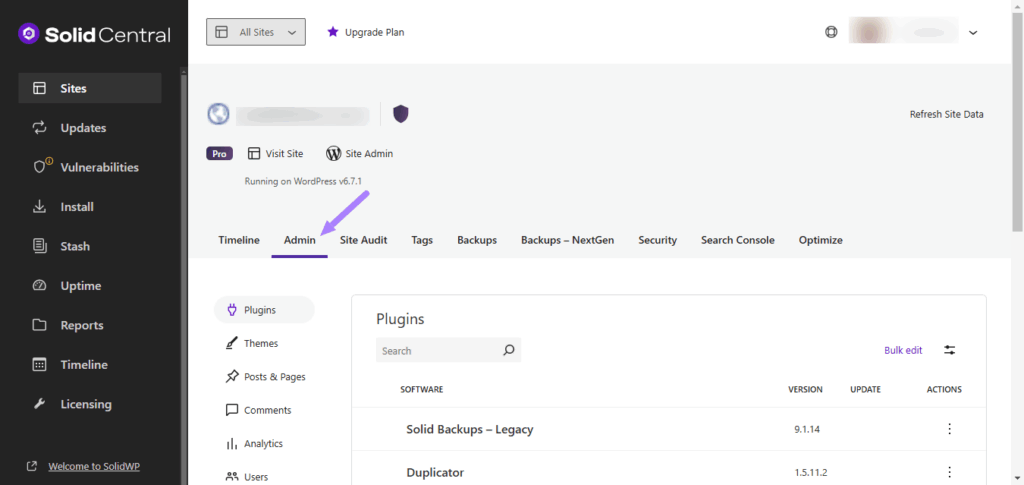
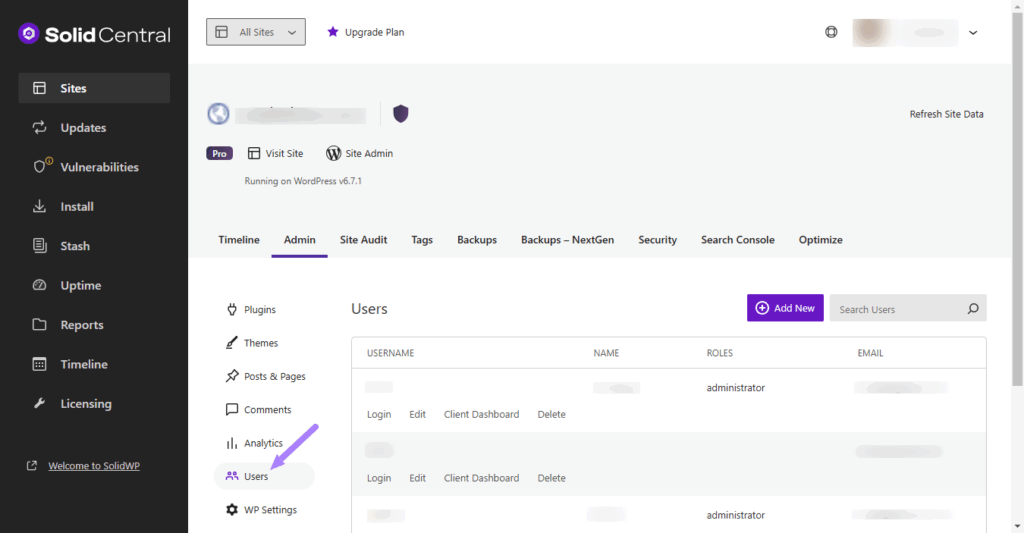
From there, select the Users tab to see the users on that site.
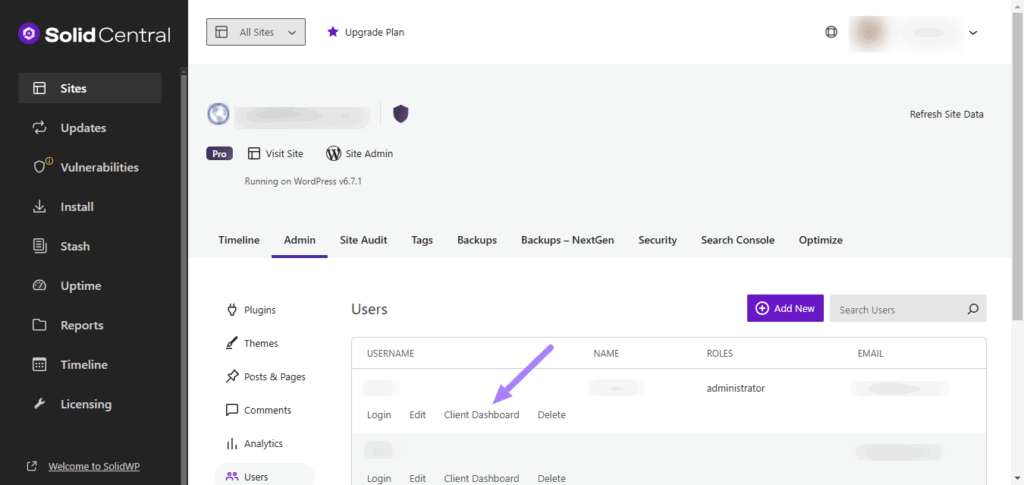
Select Client Dashboard under the particular user to manage user access and customize the dashboard to show or hide specific menu items, admin bar elements, dashboard widgets, and even admin notices.
Toggle the on button to enable client mode.
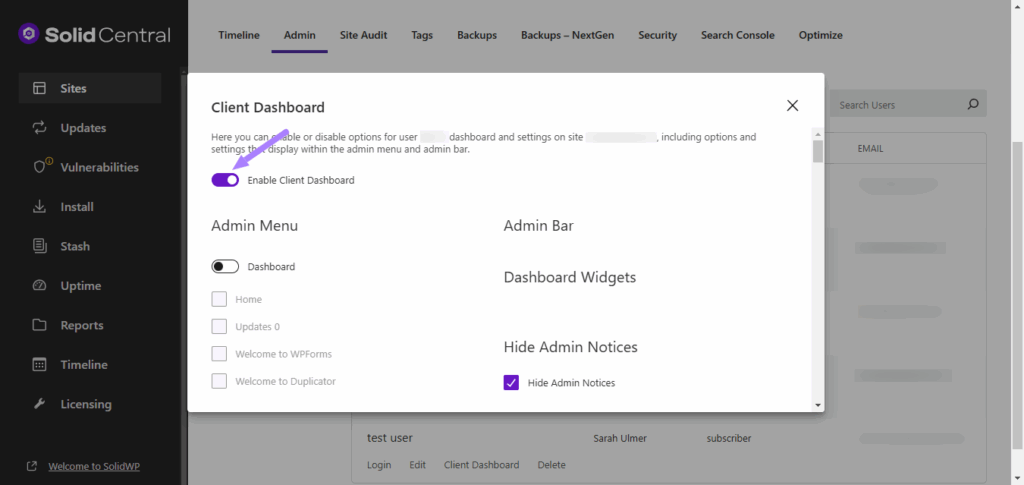
Toggle the on button to enable each section. Then check the box next to each item you want your client to view in their dashboard.

You can even hide admin notices — or the messages that some plugins insert into the Dashboard that could allow a user to access a page you have hidden. Once you’ve made your selections, click Save.

Now, when a client logs in to their site, they’ll see the custom WordPress dashboard view that you created for them.
Enhanced User Experience
With Client Dashboard, you can create a clean, intuitive WordPress dashboard tailored to each client’s preferences. Whether you’re simplifying menu options, decluttering the admin bar, or removing distracting widgets, Client Dashboard allows you to fine-tune the user experience to perfection.
Take It Further with Solid Central
Ready to elevate your WordPress management game? Get Solid Central and unlock a host of powerful features, including Client Dashboard, Uptime Monitoring, Google Analytics integration, and more. Plus, with the Solid Suite, you’ll receive Solid Central, complete with Client Dashboard functionality, ensuring you have everything you need to manage your WordPress sites efficiently.
Get Started Today
Experience the difference with the Client Dashboard in Solid Central. Simplify WordPress management, enhance client satisfaction, and take control of your WordPress dashboard like never before. Join the Solid Central community today and revolutionize how you manage WordPress sites.
Join us for the next Solid Academy Webinar!
Free weekly webinars that will help you master WordPress and increase your business's bottom line.
What is a WordPress Phishing Attack?
Learn how to identify and prevent phishing attacks on WordPress websites.
Kiki SheldonWebsite Protection: 5 Ways to Keep Your Website Safe
Robust website protection is the shield that stands between your business and relentless cyber attacks. Prioritizing website protection enables businesses to fortify defenses to safeguard their online presence and preserve the trust of their customers in the face of ever-evolving cybersecurity threats.
Kiki Sheldon23 Ideas To Grow Your WordPress Business in 2023
WordPress is the most popular website-building platform worldwide, trusted by numerous brands. WordPress enables you to build a user-friendly and highly reliable site, together with tools and plugins to enhance your marketing and work like a lead magnet. All these features make WordPress the platform chosen by more than 43% of businesses globally.
SolidWP Editorial TeamSign up now — Get SolidWP updates and valuable content straight to your inbox
Sign up
Get started with confidence — risk free, guaranteed




