

Restoring Your WordPress Site: A Comprehensive Guide
Hacks, server crashes, failed updates, site migrations, and human errors have one thing in common — they can all lead to that dreaded moment when you realize your WordPress site needs to be restored. In this situation, speed is of the essence. A faulty or slow site can quickly put off visitors, affecting your revenue, reputation, and SEO.

Hacks, server crashes, failed updates, site migrations, and human errors have one thing in common — they can all lead to that dreaded moment when you realize your WordPress site needs to be restored.
In this situation, speed is of the essence. A faulty or slow site can quickly put off visitors, affecting your revenue, reputation, and SEO. Having a recovery plan in place can accelerate the restoration process, minimizing downtime and allowing you to resume business as normal.
Fortunately, solutions are available! Restorations can be performed manually, or simplified with dedicated software like Solid Backups — NextGen. Let’s take a look at both methods, along with how to handle any challenges that arise during the process.
Types of WordPress backups
When it comes to WordPress backups, both manual and automated approaches have their pros and cons:
Manual backups
Manual backups often involve using tools like SSH and MySQL commands. This approach offers full control over the backup and restore process, allowing you to customize your backups and have direct access to the files.
However, manual backups require technical expertise and can be time-consuming, especially for larger websites. There’s also a higher potential for human error, which could lead to incomplete or corrupted backups. While manual backups provide flexibility, they may not be the most efficient option for those without technical skills or need to restore quickly.
Automated backups
Automated backups can be added to your tech stack by using software or a plugin. Depending on your needs, software and plugins serve different purposes in the digital ecosystem. Software is hosted on remote servers and accessed via the internet. Plugins, on the other hand, are extensions that add specific functionalities to existing applications or platforms. Cloud-based software is a complete solution accessed online, while plugins are add-ons that enhance existing applications.
Our own Solid Backups — NextGen is a cloud-based software solution that allows you to schedule regular backups at intervals that suit your needs, and by utilizing SolidWP’s own servers, your site’s performance remains at max capacity. Backups can be stored securely off-site and accessed in case of an emergency.
Remember that, despite their advantages, it’s important to consider potential issues when using automated backup software or plugins. Check to ensure that a solution is compatible with your WordPress version and has been tested on your hosting server.
Relying on third-party services for backup storage may also raise concerns about data privacy and security. Furthermore, some premium backup solutions come with unexpected or add-on charges, so site admins will need to factor this into their marketing budget. (Psst! While we’re on the subject of budgeting, website and agency owners may find our eBook on WordPress Care Plans useful — it’s got everything you need to effectively package and position your pricing strategies for clients.)
Regarding backups themselves, every website owner has a few different options at their disposal:
- Full backups: These include all files, databases, media, plugins, themes, and settings. This is the most comprehensive type of backup and is ideal for complete restorations in case of a total site failure or data loss.
- Partial backups: These backups resemble full database backups but do not include all of the file groups. Partial backups can be useful for restoring specific elements of your site without overwriting the entire installation.
- Incremental backups: If you want to save only the changes made since the last backup of any kind, these are for you. This approach saves storage space and reduces timescales as they won’t duplicate any info that’s been previously backed up.
- Differential backups: The differential variety captures all changes made since the last full backup. They strike a balance between speed and detail, as they include more data than incremental backups but are still faster than full backups.

Solid Backups — NextGen offers automated scheduling to ensure regular backups are created without manual intervention. Once your first full backup has been made and saved in the cloud, subsequent backups will be incremental. This cuts down on waste, as the same information won’t be backed up time and time again. You’ll only be backing up new or altered info, making the most of your resources and ensuring backups are super-fast.
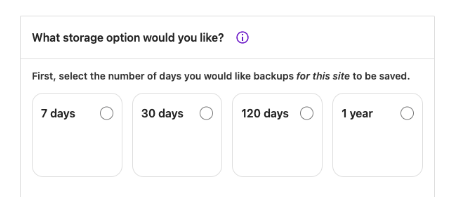
- Regular backup schedule: Establish a regular backup schedule to keep your backups current.
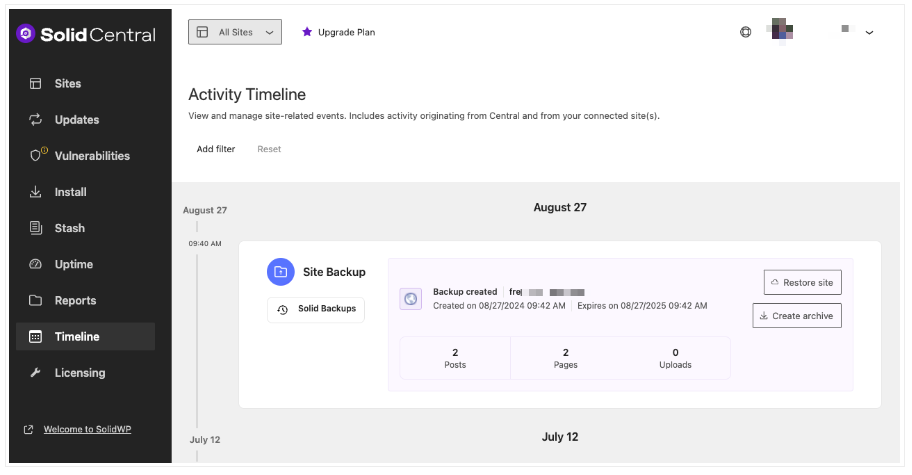
- Activity Timeline: Maintain detailed documentation of your backup processes. The Timeline tab on your centralized dashboard provides info about any significant changes to your website — such as plugin updates — making it easy to identify which backup you need to restore.
Option 1: Manually restoring from a backup
While automated backups are essential for convenience, manual backups still play a valuable role when more direct control is needed. Those confident in their development skills can use the following guide to manually restore their WordPress site from a backup:
Step 1: Restore WordPress database
- Log in to your hosting account and open phpMyAdmin.
- Select the database you want to restore the backup to. You can select an existing database or create a new one.
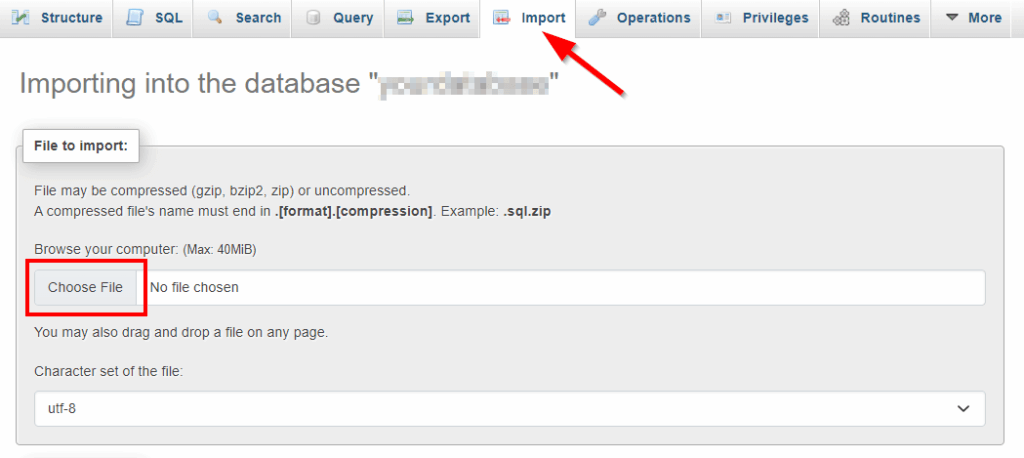
- Click on the Import tab at the top of the screen.
- Under File to Import, click Choose File and select your backup database file, which can be uncompressed or compressed using gzip, bzip2, or zip.
- Select SQL as the format and click Go to import the database backup.

Step 2: Access the WordPress files
Use your web host’s File Manager or an SFTP client like FileZilla to access your site’s files. You can access this by logging into your host’s control panel, such as cPanel.
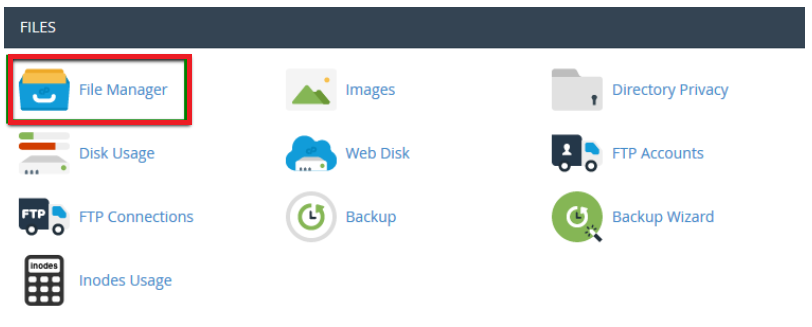
Ensure you have the correct credentials to access the server, such as your hosting account’s username and password or SSH keys. Familiarize yourself with the file structure and locate your site’s root directory, usually public_html.
Step 2: Delete current files
Remove all current files and folders from your site’s root directory. Be cautious, as deleting files can have unintended consequences – take a backup of the current state before proceeding.
Replace the existing wp-config.php with the one from your backup only if you want the database credentials or settings from the backup version. Make sure they match your current server environment so your restored site doesn’t break or won’t connect to the database properly.
Alternatively, you can keep the existing wp-content directory and selectively restore individual files or subdirectories from your backup as needed. This preserves any new content while allowing you to recover specific files that may have been lost or damaged. Use secure deletion methods to avoid partial deletions, such as using FileZilla’s Delete function.
Step 3: Upload backup files

Upload the backup files to your site’s root directory via the File Manager or SFTP client. A typical WordPress backup includes the wp-content, wp-includes, and wp-admin folders, along with files like wp-config.php and .htaccess.
However, as we mentioned, it’s often best to keep your existing wp-content and wp-config.php directories and selectively restore individual files or subdirectories as needed. Ensure all files are uploaded correctly to avoid incomplete restorations.
Step 4: Update the wp-config.php file
Update the wp-config.php file with the restored database details. Ensure the following lines are correct:
define('DB_NAME', 'your_database_name');
define('DB_USER', 'your_database_username');
define('DB_PASSWORD', 'your_database_password');
define('DB_HOST', 'localhost');
Replace the placeholders with your actual database information. Double-check for accuracy to avoid connection errors.
Step 5: Clear caches
Clear any caches to ensure that the correct version of your site loads correctly:
- Browser cache: In your browser settings, find the option to clear browsing data and select Cached Images and Files.
- Server-side cache: Consult your hosting provider’s documentation to clear server caches like Nginx FastCGI cache or Apache’s mod_cache.
- WordPress caching plugins: Popular plugins like W3 Total Cache or WP Rocket have options to purge the cache through a Clear Cache button.

Step 6: Check the restored site
- Visit your restored site to make sure it is functioning correctly. Check pages, posts, media, plugins, and themes. Re-upload any missing media files that did not restore properly.
- Update and configure your theme and plugins as needed. Deactivate and reactivate plugins to resolve conflicts.
- Verify user accounts and permissions are set up correctly.
- Perform a security scan to check for any malware or compromised files.
Option 2: Restoring WordPress files and databases with Solid Backups — NextGen
Although manual backups have their time and place, dedicated automated backup software like Solid Backups — NextGen is by far the easiest option for restoring your WordPress site.
Step 1: Access Solid Backups — NextGen
Once you’ve activated Solid Backups — NextGen, you can access the software via your centralized management dashboard.
Step 2: Select the backup for restoration
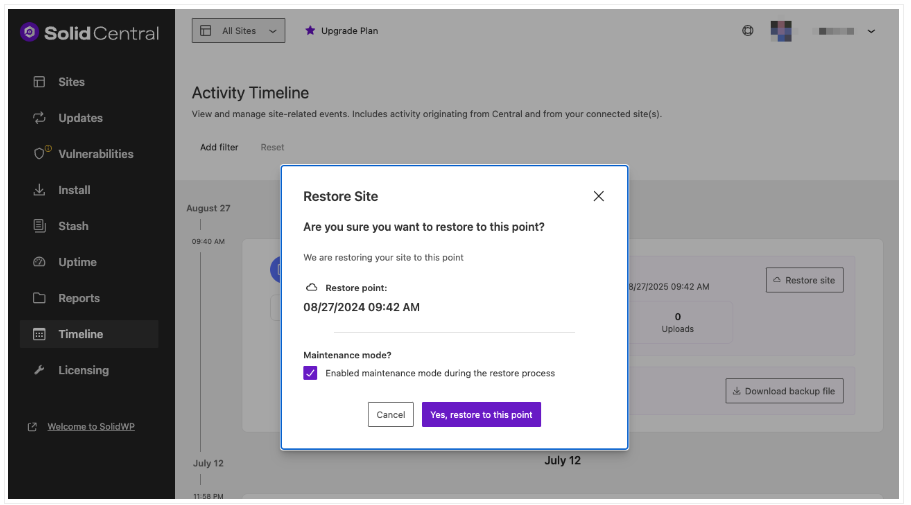
Go to the Timeline tab within your dashboard. Review the list of available backups, including their dates and times. Select the most appropriate backup file based on when the site was last known to be functioning correctly, and click on Restore Site.
Step 3: Initiate the restoration process
Once you’ve selected your backup, you’ll receive a popup message to double-check you want to proceed – click Yes, restore to this point — note that this will overwrite the current site data. Solid Backups — NextGen will then begin the restoration process, which includes both files and the database.
Step 4: Monitor the restoration progress
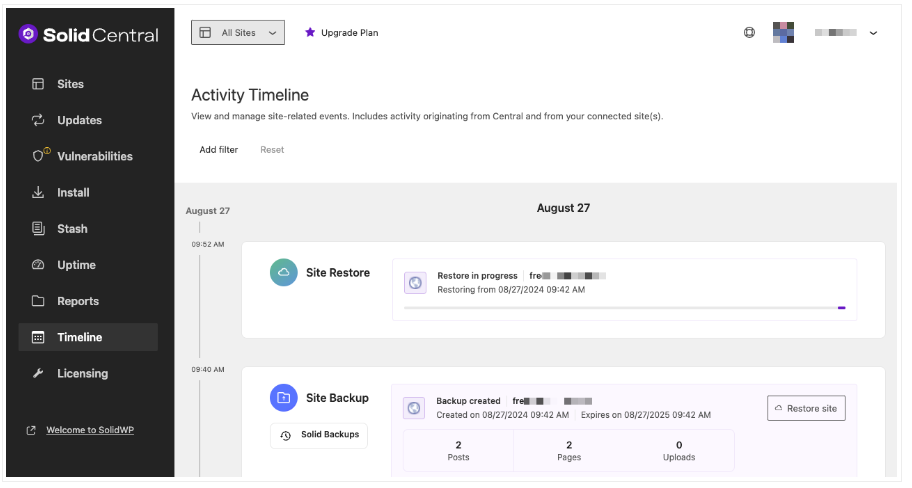
You can monitor restoration progress through the Timeline tab. Monitor the progress to ensure the restoration is completed successfully. If any errors occur, refer to the troubleshooting section below or contact support.
Step 6: Post-restoration checks
Once the restoration is complete, thoroughly check your site to ensure everything is functioning as expected. Verify that all pages, posts, plugins, and themes are intact. Check the database to ensure all data has been restored correctly, then make a fresh backup.
A Solid solution
In summary, Solid Backups — NextGen is the ultimate solution for restoring backups to your WordPress site. As we’ve seen, using dedicated software enables you to manage restorations in just a few clicks, minus the need for any coding.
When it comes to the issue of restoration, reducing the need for them is the best strategy of all. Adding the Solid Security plugin to your portfolio can help guard against future problems by automating updates and patching vulnerabilities through Patchstack integration. Additional features like brute force protection reduce the possibility of successful hacking attacks and the likelihood of needing future restorations.

Furthermore, those managing multiple sites can do so with ease, thanks to the centralized dashboard. Backups and security — plus access to the Solid Academy — are available for a discounted price as part of the Solid Suite. This bundle provides a solid foundation for WordPress websites, ensuring security, reliable backups, and multi-site management tools.
Troubleshooting common restoration challenges
Be aware that occasional challenges may arise during the WordPress restoration process. To ensure a smooth restoration, consider the following troubleshooting tips:
- Identifying the problem: Take note of any error messages or unusual behavior during the restoration process, as these can provide clues to the underlying problem. Common issues include theme incompatibility, plugin conflicts, database connection errors, file permission issues, and incomplete restorations.
- Theme incompatibility: If you suspect a theme-related problem, try switching to a default WordPress theme, such as Twenty Twenty-One. If the problem persists, contact the theme developer for support or consider updating to a premium theme that is compatible with the latest WordPress version.
- Plugin conflicts: To identify a problematic plugin, deactivate all plugins and then reactivate them one by one, checking your site after each activation. Keep your plugins updated to avoid conflicts, and consider using Solid Security Pro’s automated updates and Patchstack integration to ensure your plugins remain secure.
- Database connection errors: Common causes of database connection errors include incorrect database credentials or corrupted database files. To troubleshoot, verify your database credentials in the wp-config.php file, ensuring that the database name, username, password, and host are correct. If the issue persists, use phpMyAdmin to repair the database or contact your hosting provider for assistance.
- File permission issues: Use an SFTP client or your hosting control panel to check and correct file permissions. Folders should typically be set to 755, while files should be set to 644. Ensure that your web server has the necessary permissions to read and write files in your WordPress directory.
- Incomplete restorations: Always verify the integrity of your backup files before attempting a restoration. If you encounter issues with incomplete restorations, consider using a reliable backup solution like Solid Backups — NextGen, which offers automated backups and reduces the risk of corruption.
Simplify future recoveries with Solid Backups — NextGen
“As a means of preventing data loss and ensuring quick recovery, a dependable backup solution is worth its weight in gold! Why spend time on manual tasks when a dedicated tool can do it all in a fraction of the time?”
David G. Johnson, Product Owner, SolidWP
With Solid Backups — NextGen on your site, you can enjoy peace of mind, knowing your data is safe and any necessary restorations can be handled with ease:
- One-click restore: Restore your site with just a single click, minimizing downtime.
- Automated backups: Set daily, incremental backups to run on a schedule that suits your needs.
- Secure offsite storage: Store your backups securely on SolidWP’s servers.
- Comprehensive support: Enjoy access to a knowledgeable support team.
In addition to Solid Backups — NextGen, consider adding Solid Security to harden your site’s defenses, reducing the need for future restorations. And for those managing multiple sites, our software enables you to handle backups, updates, and security from a single dashboard.
Don’t leave your site’s recovery to chance! Choose Solid Backups — NextGen for reliable, secure backups and easy restorations.
Join us for the next Solid Academy Webinar!
Free weekly webinars that will help you master WordPress and increase your business's bottom line.
What is a WordPress Phishing Attack?
Learn how to identify and prevent phishing attacks on WordPress websites.
Kiki SheldonWebsite Protection: 5 Ways to Keep Your Website Safe
Robust website protection is the shield that stands between your business and relentless cyber attacks. Prioritizing website protection enables businesses to fortify defenses to safeguard their online presence and preserve the trust of their customers in the face of ever-evolving cybersecurity threats.
Kiki Sheldon23 Ideas To Grow Your WordPress Business in 2023
WordPress is the most popular website-building platform worldwide, trusted by numerous brands. WordPress enables you to build a user-friendly and highly reliable site, together with tools and plugins to enhance your marketing and work like a lead magnet. All these features make WordPress the platform chosen by more than 43% of businesses globally.
SolidWP Editorial TeamSign up now — Get SolidWP updates and valuable content straight to your inbox
Sign up
Get started with confidence — risk free, guaranteed





