

Skip to content
  • Pricing
  • Products & Services
      Save 25%

      Solid Suite

      Secure your sites, keep them safely backed up, and grow your business… all while saving time and money.

      • Solid Security
      • Solid Backups
      • Solid Central
      • Solid Academy
      See pricing

      Protect

      Shield your site from cyberattacks and prevent security vulnerabilities

      A cloud-first solution for rocket fast backups and one-click restore.

      Repair

      Hacked website? Let our WordPress security experts clean up malicious code, remove threats and restore your site.

      Manage

      Maximize and amplify your admin with remote multi-site management.

      Ensure delivery of every email sent from your site.

      Free Plugins

  • Resources
      Save 25%

      Solid Suite

      Secure your sites, keep them safely backed up, and grow your business… all while saving time and money.

      • Solid Security
      • Solid Backups
      • Solid Central
      • Solid Academy
      See pricing

      Academy

      Solid Academy

      For anyone who wants to start or grow a business around WordPress.

      Guides

      Dive deeper into our free WordPress and business guides.

      Livestreams

      Free livestreams to help you discover new tools and work more efficiently

      Tutorials Academy

      Learn WordPress with our beginner WordPress tutorials

      Resources

      Blog

      Catch up on the latest news from our WordPress security experts

      Vulnerability Report

      Keep track of every new plugin and theme vulnerability

      Support

      Your success with Security, Backups and Central is our highest priority.

      Documentation

      Learn everything you need to know about our products & services.

Sign In Get Solid Suite
SolidWP Logo Black
  • Pricing
  • Products & Services
    • Solid Security Pro
    • Solid Backups — NextGen
    • Solid Fix
    • Solid Central
    • Free Plugins
    • Solid Security
    • Solid Performance
    • Solid Mail
  • Resources
    • Solid Academy
    • Guides
    • Livestreams
    • Tutorials
    • Blog
    • Vulnerability Report
    • Support
    • Documentation

How It Works

8
  • Solid Environments 101
  • Solid Deployments 101
  • Vulnerabilities in Solid Central
  • Solid Migrations 101
  • Managing Reports
  • Tips for troubleshooting Solid Central
  • Central Account Settings
  • Managing Individual Sites

Learn More

2
  • Solid Deployments 101
  • What is an Application Password?
View Categories
  • Home
  • SolidWP Documentation
  • Solid Central
  • How It Works
  • Managing Reports

Managing Reports

3 min read

Solid Central’s Reports feature gives you the ability to generate reports of your website activities and updates with ease. The reports can be customized, scheduled, and even white-labeled for sharing with clients or team members.
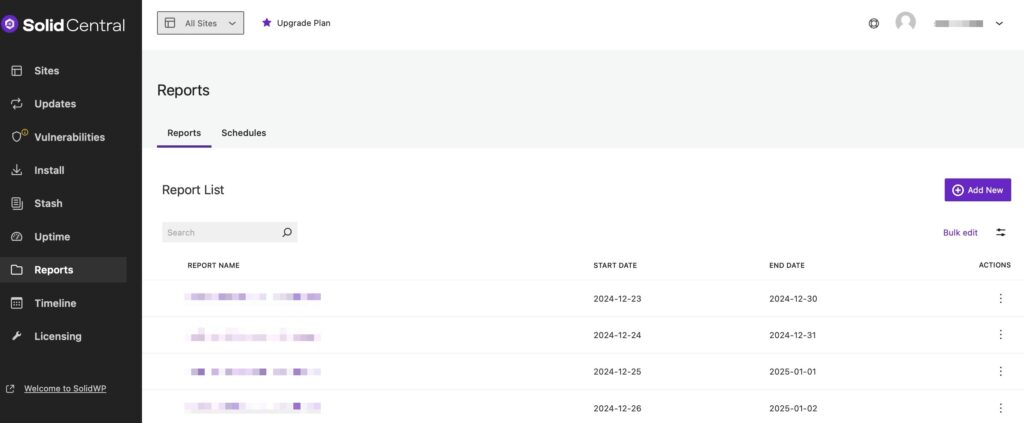
This guide covers everything you need to know when managing reports in Solid Central.

Creating a Report #

To create a new Report, head to your Solid Central Dashboard’s Reports screen and the Reports tab. Select the “Add New” button to start working on your first report.

Fill-in Report Details #
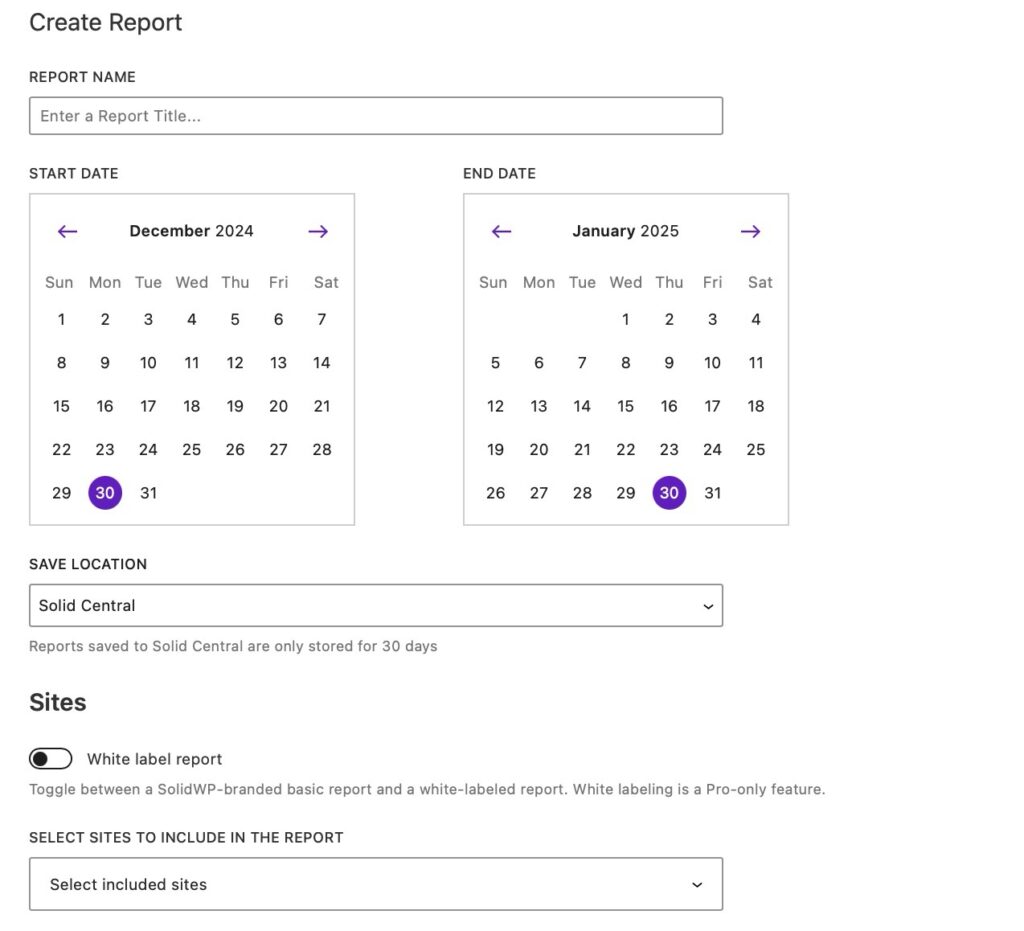
Report Name #

Provide a title for the report to easily identify it later.

Start Date & End Date #

Use the date pickers to specify the reporting period.

Choose a Save Location #

Choose where you want to save the reports, which can be either in your Solid Central account (where they will be stored for 30 days) or within a website’s filesystem.

White Label Reports #

Premium license holders can enable the “White label report” toggle to remove SolidWP branding and use your custom white-labeled design.

Select Sites to Include #

Choose which websites will be covered in the report.

Choose Report Contents: #

Solid Central offers different report types to suit various needs:
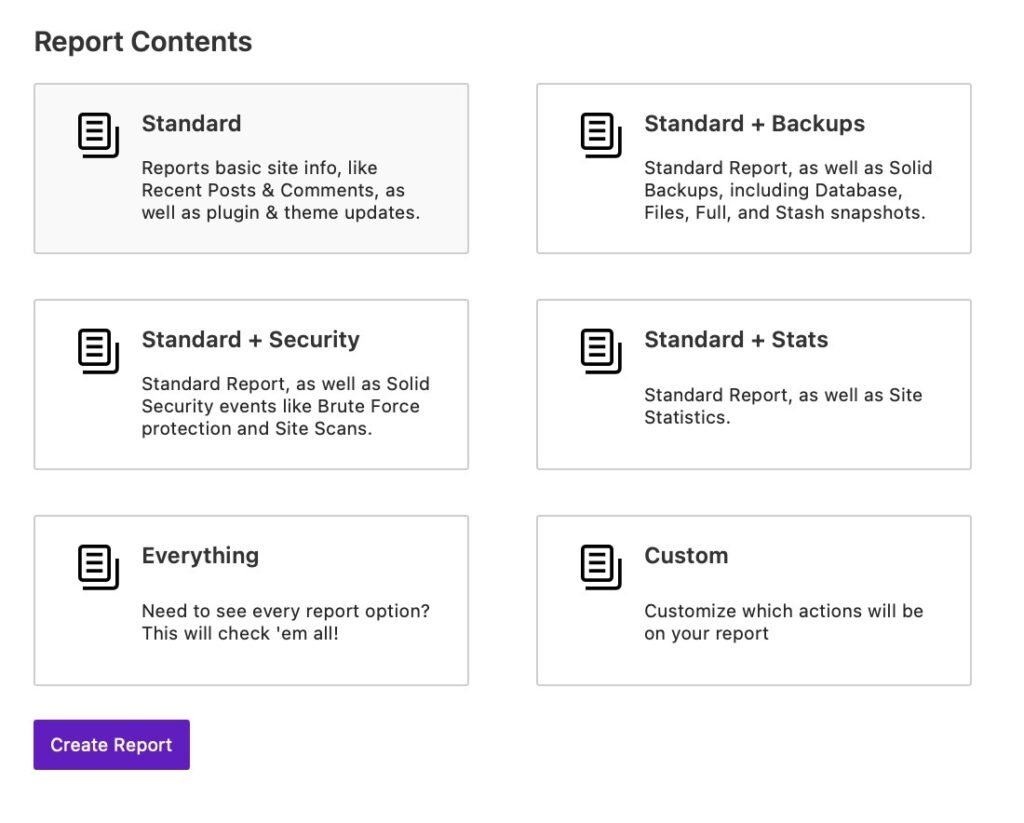
  • Standard: Basic site details, including recent posts, comments, and plugin/theme updates.
  • Standard + Backups: Includes Solid Backups – Legacy data like database and file backups.
  • Standard + Security: Adds security-related insights, including brute force protection and site scans.
  • Standard + Stats: Includes website statistics.
  • Everything: A comprehensive report with all available data.
  • Custom: Allows you to manually select which elements to include.

Generate the Report #

Click Create Report to finalize and create your report.

Scheduling a Report #

Scheduling your reports allows you to automate the generation and delivery of the reports at specified intervals. This helps you and your clients stay on top of website activities.

To start, head to the Schedules tab and select the “Add New” button to start creating a scheduled report.
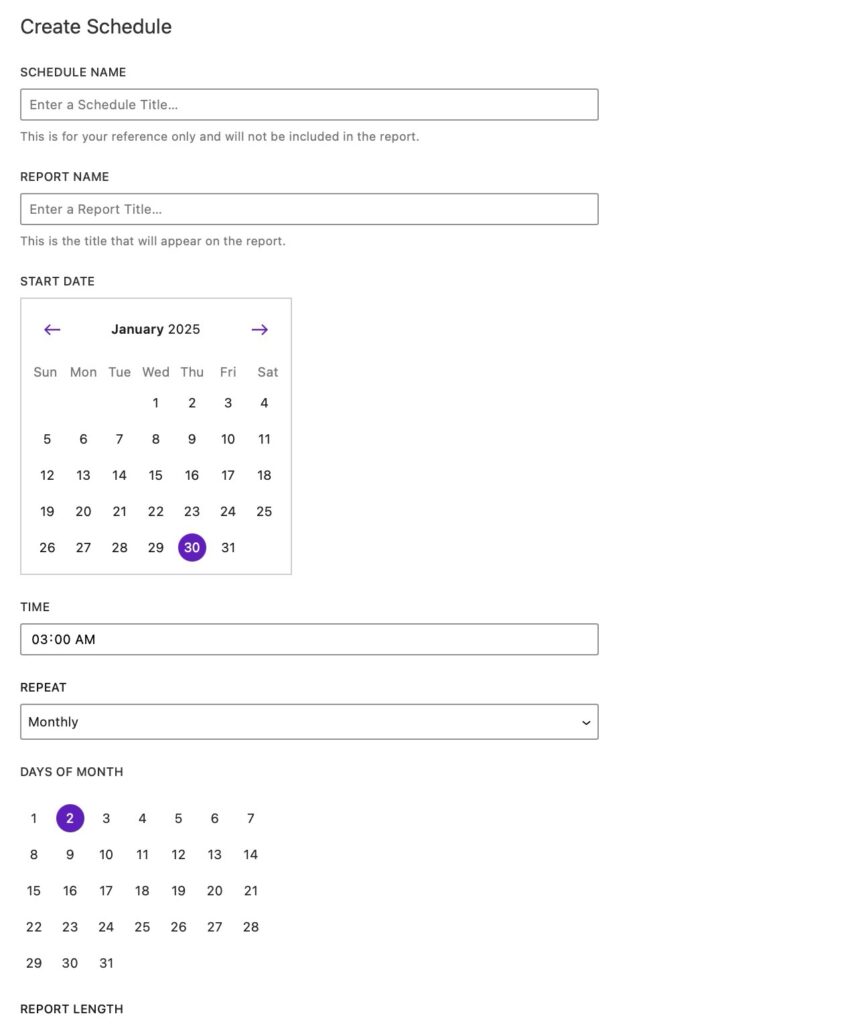
Fill-in Report Details #

The settings you’ll see when creating a scheduled report are mostly the same settings when manually creating one, with the following added:

Choose Start Date & Time #

Select the Start Date when the scheduled reporting should begin and specify the Time when it will be generated.

Set Report Frequency #

  • Repeat: Choose how often the report should be generated – None, Daily, Weekly, Monthly, Quarterly, Semi-Annually, and Annually.
  • Days of Month: If selecting Monthly, choose a specific day (1 – 31) for report generation.
  • Report Length: Select the data timeframe for each report – 7 days, 14 days, Last month, Last quarter, Last 6 months, Last year.

Activate the Schedule #

Click Create Schedule to finalize your schedule setup.

Customizing Reports #

Solid Central allows you to brand reports for a custom look and ensures your reports reflect your brand when shared with clients, team members, or stakeholders.

To apply branding, navigate to your Account Settings > White Label page.

General Settings #
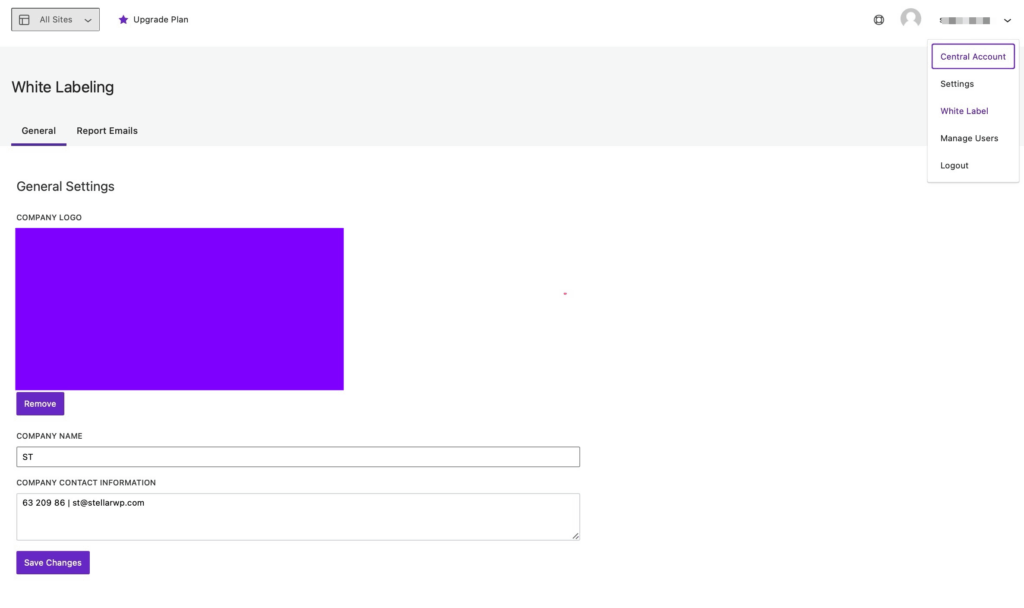
In the General tab, you can find options to enter your custom Company Logo, Company Name, and Company Contact Information.

Report Emails Settings #
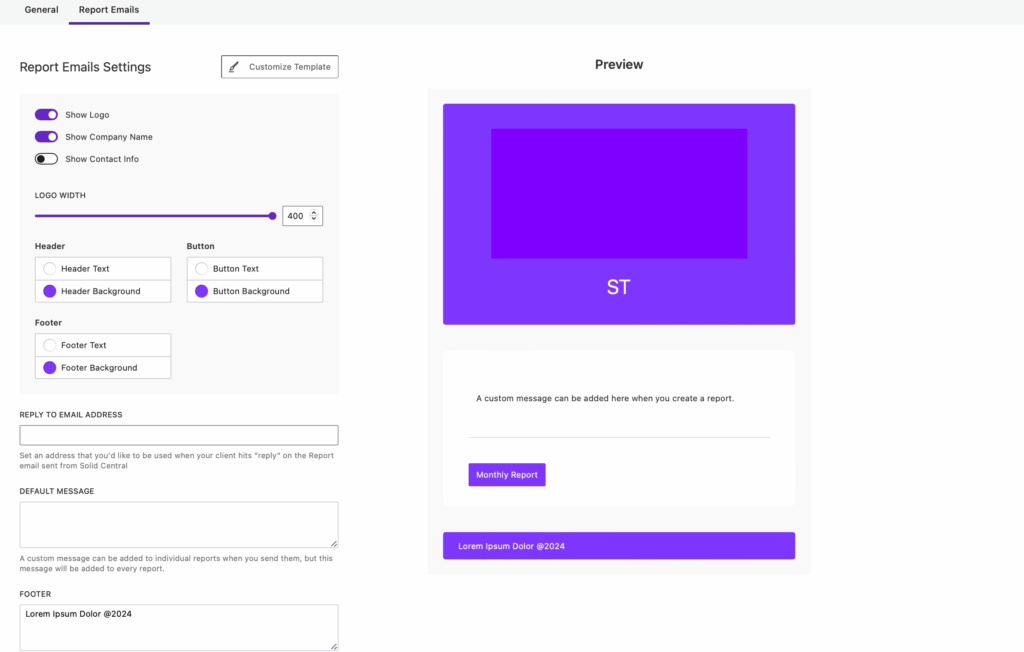
In the Report Emails tab, you can find settings that lets you Customize the Template of the reports and a Preview of how it looks on the emails.

Conclusion #

The Reports feature of Solid Central simplifies your website management by keeping you updated on performance and maintenance activities in a structured, easy-to-read format. By scheduling reports and customizing branding, you can keep your clients, team members, or stakeholders informed while maintaining a professional appearance.


Updated on April 22, 2026

Was this doc helpful?

  • Happy
  • Normal
  • Sad
Table of Contents
  • Creating a Report
    • Fill-in Report Details
      • Report Name
      • Start Date & End Date
      • Choose a Save Location
      • White Label Reports
      • Select Sites to Include
      • Choose Report Contents:
      • Generate the Report
  • Scheduling a Report
    • Fill-in Report Details
    • Choose Start Date & Time
    • Set Report Frequency
    • Activate the Schedule
  • Customizing Reports
    • General Settings
    • Report Emails Settings
  • Conclusion
SolidWP
  • Pricing
  • Products
    • Solid Suite – save 25%
    • Solid Security
    • Solid Backups — NextGen
    • Solid Central Pro
  • Resources
    • Blog
    • Academy
    • Guides
    • Tutorials
    • Vulnerability report
  • Support
    • Documentation
  • My account
  • Contact us
    • Terms
    • Refund policy
    • Privacy policy
    • Change Cookie Preferences
  • About SolidWP
    • FAQ
    • Looking for iThemes?
    • Affiliates
    • Press
  • Our Partner Brands
    • GiveWP
    • Iconic
    • KadenceWP
    • LearnDash
    • MemberDash
    • Orderable
    • The Events Calendar

Get Solid Suite bundled with hosting.

Explore StellarSites
  • X
  • YouTube
  • Facebook

A Liquid Web Brand
Hosting for WordPress
© 2025 All Rights Reserved

StellarWP logo
Liquid Web logo