

Solid Environments is a Solid Central Pro feature.
When you are designing and building sites for clients, or managing multiple web properties within your organization, it’s not uncommon for each Live or “Production” site to have an accompanying Staging and/or Development site or “environment”, forming a pipeline that site updates can move through.
This workflow is tried and tested, and ensures that changes can be prepared, reviewed and signed off in Development and/or Staging before eventually making their way to the Production environment.
Common examples of this workflow in action are releasing a new or re-designed site after building and testing in Development/Staging, or testing WordPress core, theme, and plugin updates on Staging for any issues that may negatively impact the site ahead of updating them in Production.
With Solid Environments, you can organize these related Environments into Environment Groups. Let’s briefly recap these concepts:
- Environment: a site that is either labelled as Production, Staging or Development
- Environment Group: a collection of related environments, linked together for quick and easy environment switching.
This guide will walk you through the process of configuring, using and managing environment groups. By the end of this document, you’ll know how to confidently use Solid Environments as part of your workflow.
What are Environment Groups? #
Environment Groups provide Solid Central Pro customers with a means of organizing your Production sites, and any number of related Staging and Development sites into a single group, reducing the number of sites listed in Central, while giving you a quick way to switch between related sites in a group.
Think of an environment group as a set of relationships between multiple sites that you have connected in Solid Central.
Each group will have a “primary” environment. In most cases this will be your Production site, but depending on your use case, this could be your Staging or Development site i.e. at the beginning of a site rebuild project, the Development site.
Configuring Environment Groups #
Note: this guide assumes that you have already connected at least two sites to Solid Central.
To configure an environment group, navigate to “Sites” in your Solid Central Dashboard, and select the first site that you wish to use to create the environment group; we recommend that you start with the Production site.
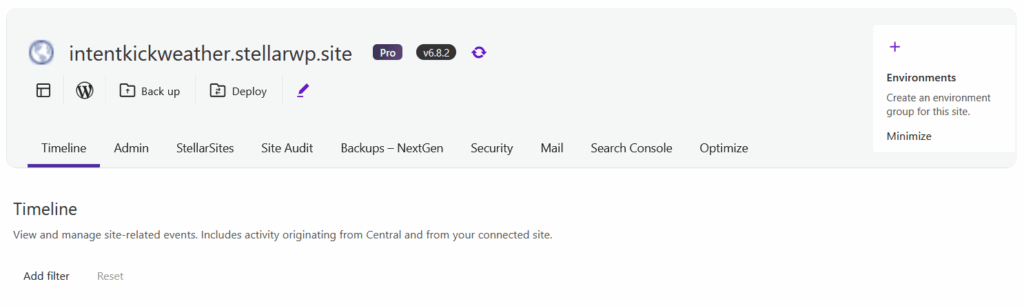
Once you land on the single site management page, click on the “+” icon in the Environments section in the top right.
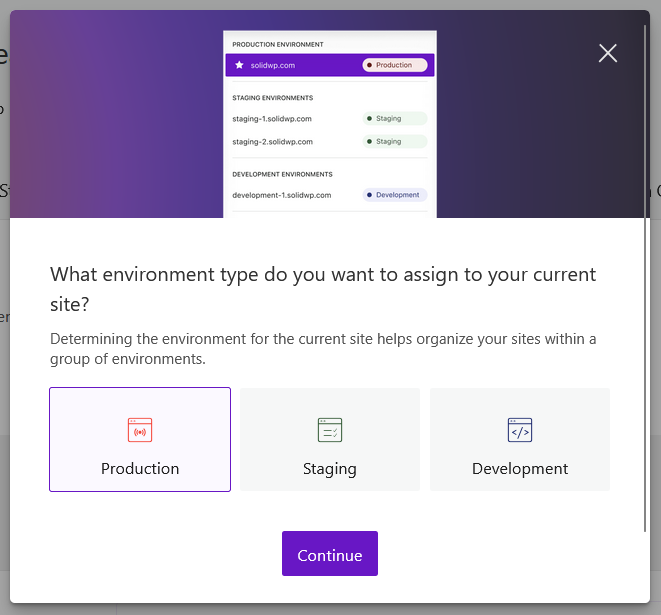
You will then be prompted to confirm which type of environment this site is.
After confirming the first environment, you’ll be prompted to select another site to add to the environment group.
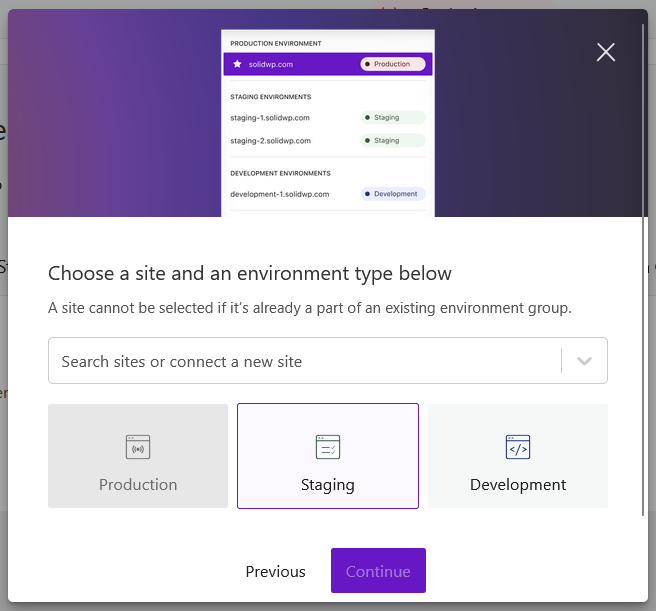
Using the field provided, select or search for a site to add as the next environment in the group, then select the type of environment you wish to add. If there is already a Production site in the group, this option will be disabled, leaving the Staging or Development options available. You can add multiple Staging or Development environments to a group, but only one Production.
You will now receive confirmation that the group has been setup, along with “Connect Another Environment” prompt to add more environments to the group. Click on this button to add additional environments to the group.
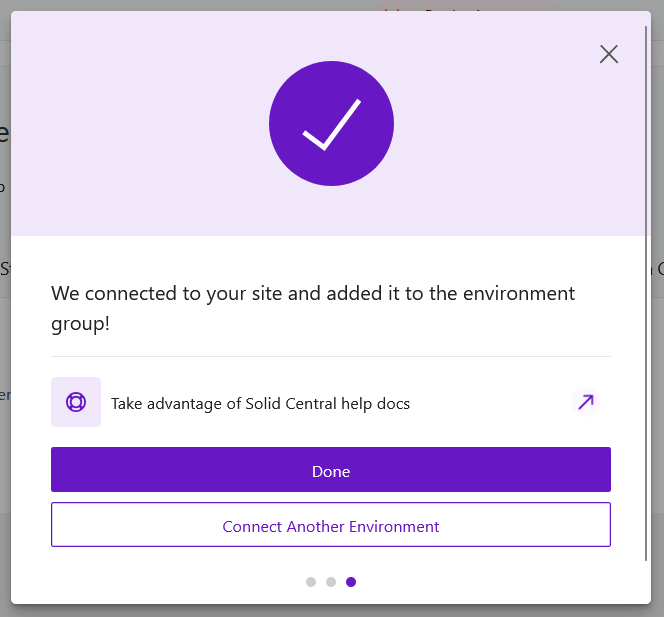
Once you have completed the initial group setup, the window will close, and you will see that a new section has appeared at the top of the page containing the Environments Switcher and several icons to manage your groups. If you wish to add more environments into a group, click on the “+” icon to the right of the switcher to repeat the process.
Using Environment Groups #
When a site belongs to an Environment Group, your list of sites presented in the “Sites” section of Solid Central will look a little different; any sites that belong to an environment group, but are not the primary environment, will be hidden from view.
For example, if you have a Production (mysite.com), Staging (staging.mysite.com) and Development (dev.mysite.com) site, and the Production site is the primary, you will not see the Staging and Development sites in the list; the only site visible from that environment group will be Production (mysite.com).
This allows you to focus your attention on the sites that are important to you, while still retaining a way to access those non-primary environments.
Once you click into a primary environment from the list of sites, you will then see the Environments Switcher at the top of the page, which will display the currently selected environment. The “star” icon clearly identifies this environment as the primary, and icons to manage and add environments are present to the right of the switcher.
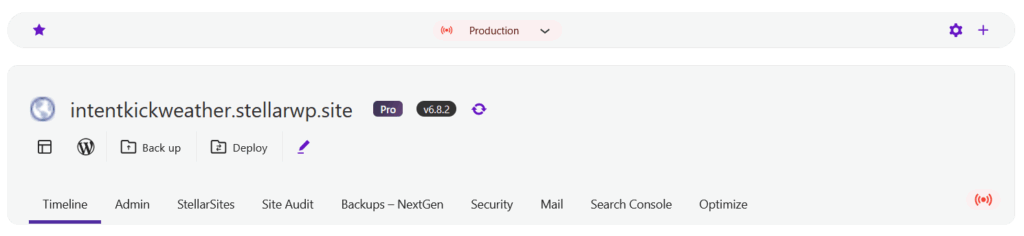
Upon clicking on the switcher, you will be presented with a list of all the other environments in the environment group.
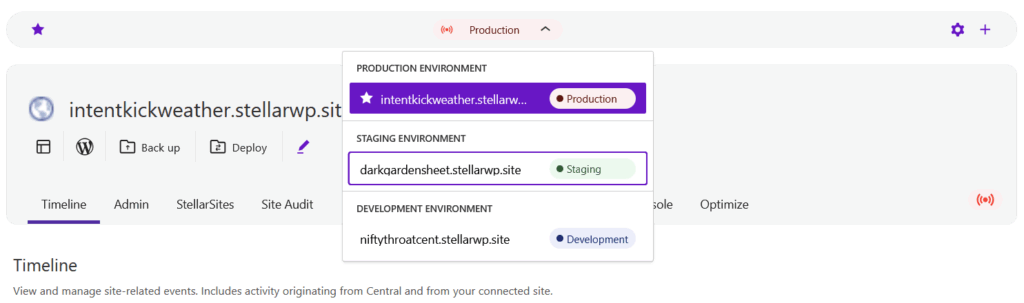
Selecting a different site from the list will immediately update the contents of the page to reflect the new environment you have selected, allowing you to quickly switch between the different environments with ease.
Managing Environment Groups #
When you are viewing the single site dashboard for an environment, you can manage all of the environments in the group by clicking on the “cog” icon to the right of the Environments Switcher.
You will then be presented with a list of all the environments in current group, with the primary clearly marked with a star icon, with clear labeling to indicate what type of environment each one is. You can also use a free text search to discover a specific environment you’re looking to manage, and you can change the way that the environments list is sorted/presented using the settings icon.
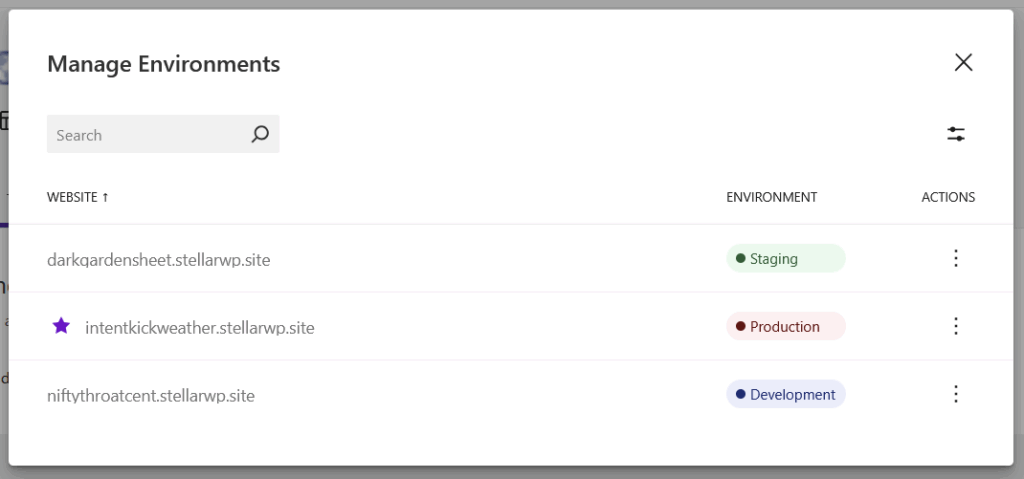
At this point, there are two actions that you can take by clicking the three dots to the right of each environment in the list.
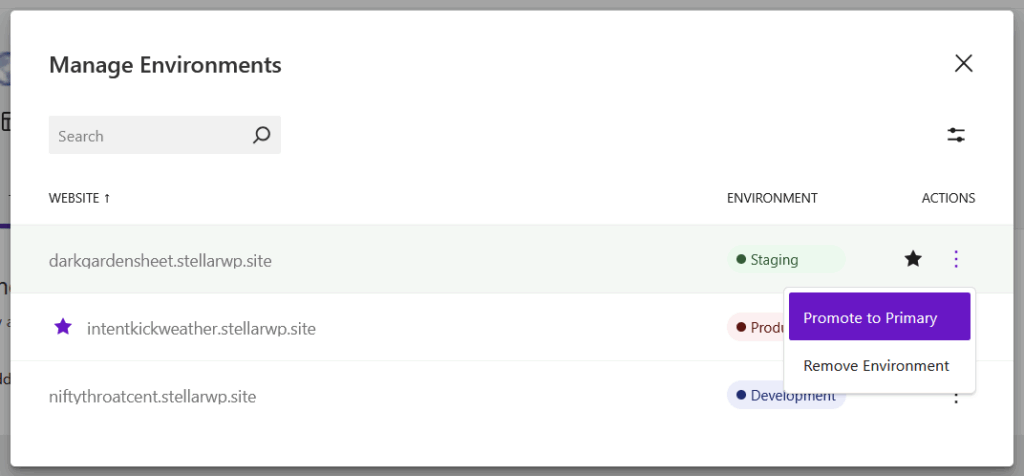
First, you can mark the environment as the new Primary environment in the group, meaning that this site will be the one that shows up in the Sites list in Central.
Second, you can remove the environment from the group, which means the relationship between this site and other sites in the group will be removed, and the site will now appear in the Sites list in Central. If this environment was the only one present in the group at the time of removal, this will disband the environment group.
A Quick Recap of Environments #
Let’s take a moment to revisit some of the key concepts we’ve covered in this guide:
Environment:
A site that is connected to Solid Central, and is labelled as either a Production, Staging or Development site.
Environment Group
A collection of related environments, linked together for quick and easy environment switching, that can be accessed and managed from the single site dashboard in Solid Central.
Environment Switcher
The drop down element that appears at the top of the single site dashboard in Solid Central, allowing you to quickly switch between the different environments in the group.
Primary Environment
This is the environment in the group that will appear in the list of sites in Solid Central, and will be listed first in the environment switcher. You can change the primary site in an environment group in the Manage Environments screen, accessible via the “cog” icon.
Conclusion #
Solid Environments is a useful productivity tool for customers managing multiple environments for their sites, giving you the ability to more effectively organize collections of related sites using Environment Groups, de-clutter your site list and quickly switch between environments.



