

Managing Vulnerabilities in Solid Central #
Solid Central’s Vulnerabilities page helps identify, review, and resolve security issues reported by your connected sites. This guide explains what the page shows, how to use it, and what to do when a vulnerability is detected.
What to see on the Vulnerabilities page #
When you navigate to Solid Central dashboard > Vulnerabilities page, you’ll primarily see a list of known vulnerabilities affecting your connected sites, grouped by plugin, theme, or WordPress core.
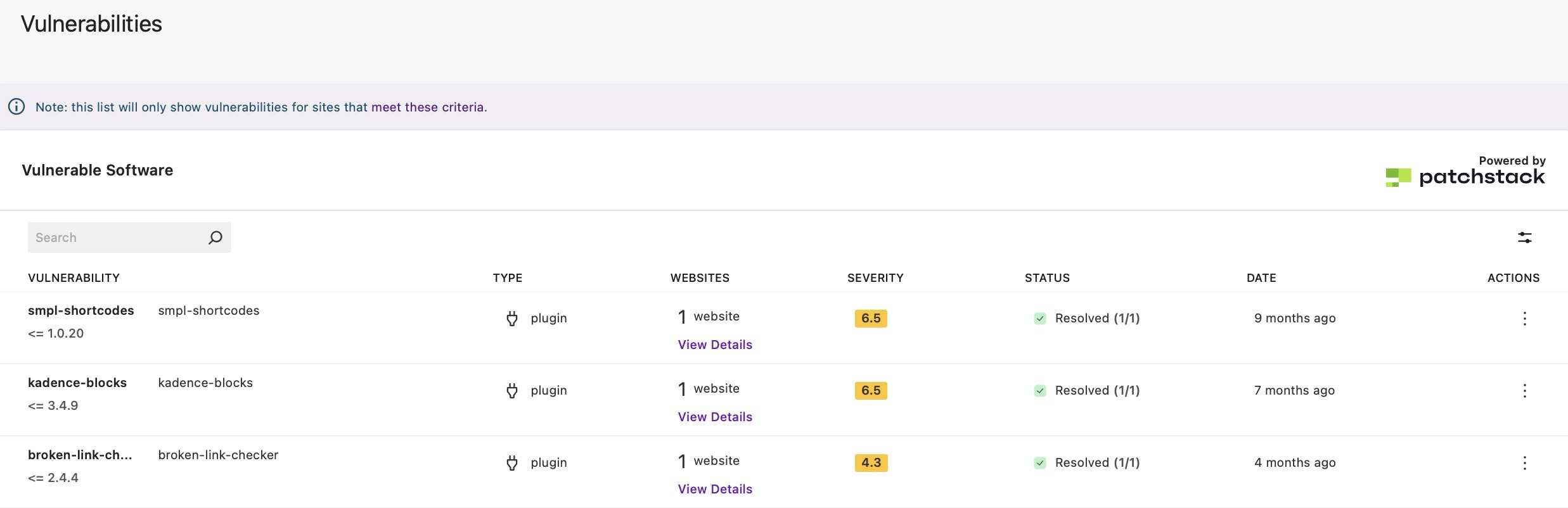
You’ll also see key details of each vulnerability that would help you prioritize action such as:
- affected software
- severity and status
- affected sites
- suggested fixes
Viewing and understanding vulnerabilities #
The Vulnerabilities page lets you view any vulnerability to see its complete details, impacted sites, if Virtual Patching is applied (for Solid Security Pro users) and recommended action.
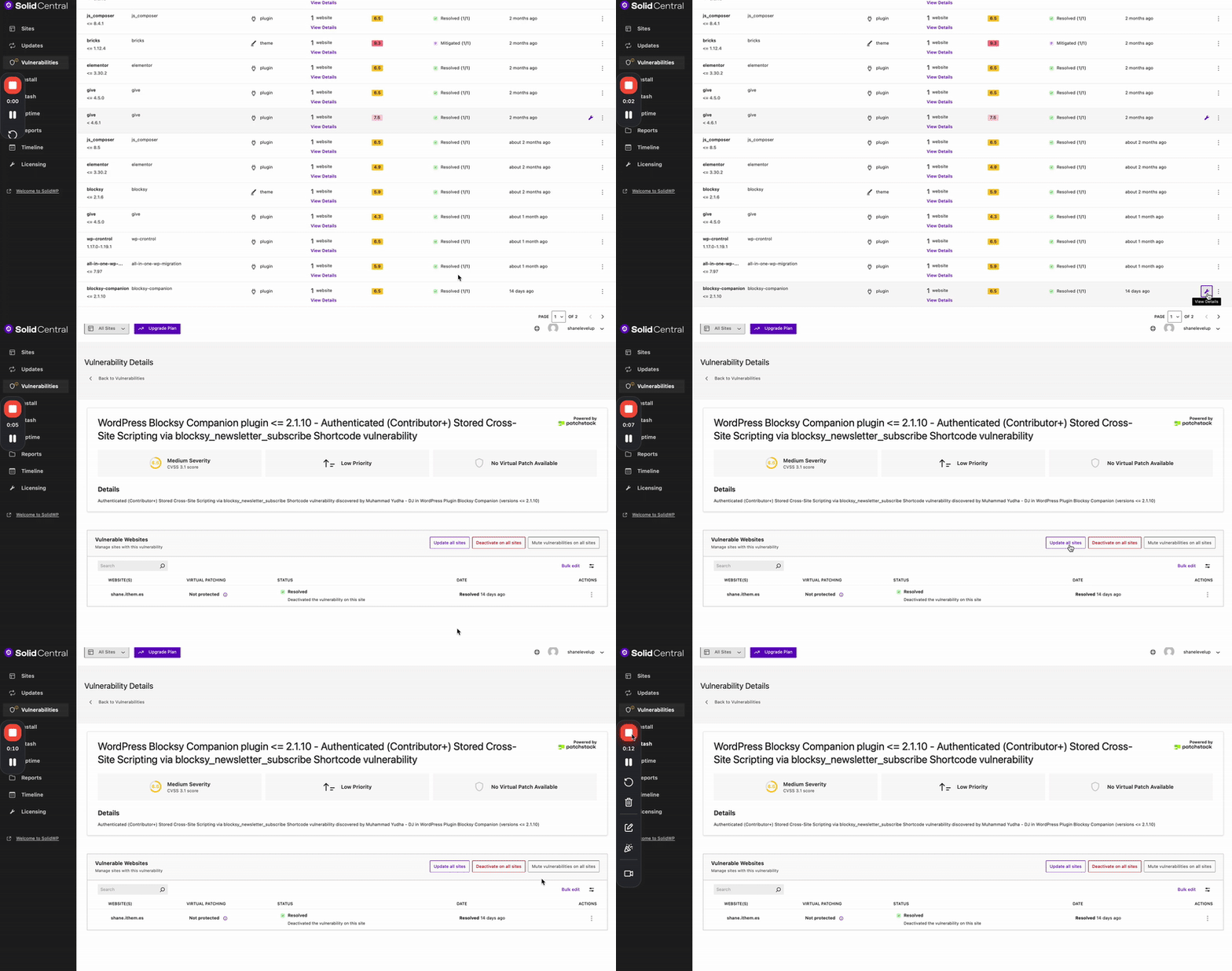
Upon viewing a listed vulnerability, use these details to decide what to do next, which is usually updating the software to a safe/patched version or deactivating/removing the vulnerable software from the site.
- Affected software: The plugin/theme/core name, including version info when available.
- Severity and priority: A CVSS score (e.g., 6.5 Medium) and a priority indicator to help triage work.
- Virtual patching: Whether a virtual patch is available and the protection status for each site.
- Details: A brief summary of the issue and discovery credits.
- Impacted sites: The number of connected sites still affected.
- Status:
- Active: The vulnerability is currently detected on at least one site.
- Resolved: A subsequent update or site scan confirmed the issue is no longer present or is “not seen” anymore (via Solid Security). This can happen after updating to a safe version, removing the plugin, or deactivating the plugin on the affected site.
- Mitigated: The site is protected by a virtual patching, but the vulnerable software version is still installed. The risk is reduced in this case, but not removed. Update to a patched version when possible.
Minimum Site Requirements #
Cannot see any vulnerabilities on the page? Make sure your connected sites meet these requirements:
- The site has the Solid Central plugin version 3.1.0 or newer installed and activated
- The site has Solid Security Basic version 9.0.0 or newer OR Solid Security Pro version 8.0.0 or newer activated
- The site appears in the “Sites” screen of your Solid Central account
How vulnerability status updates work #
First, Solid Security on each site does the checking. When it sees a vulnerability is gone (because you updated or removed the plugin), it pushes an “all clear” signal to Solid Central.
When this happens, the Solid Central plugin on that site then confirms the details and sends a “resolved” update to your Central dashboard.
Note that the Refresh feature in Central updates general site info, but the vulnerability status only changes after the site sends in that “resolved” update.
So why does a resolved vulnerability still appears? #
If the site hasn’t sent the “resolved” update yet (or couldn’t), Central will still show the vulnerability on the dashboard’s Vulnerabilities page until the next successful check. Here are the causes on why the site can’t push the signal:
- Solid Security is turned off on the site.
- A scan hasn’t run yet to confirm the fix.
- The site hit a temporary error while sending the update (e.g. REST call failing).
- The event to push the signal fired during scan-complete, where the Solid Central plugin skips sending the resolution notice.
What to do if something still shows #
- Ensure Solid Security is active on the site.
- Run a manual Solid Security Site Scan on the site where the vulnerability is detected and refresh your Central page (including the browser).
- This should trigger the vulnerability resolution flow outside of the scan-complete suppression, allowing a resolution notice to be sent.
- If it does not refresh the expected data, check for:
- Check for failed resolution notices or REST errors in the site’s logs.
- Verify that scheduled tasks (cron) are running so queued notices can send.
- If WP CLI is available, you can run:
wp option get solid_central_notice_queue | grep vulnerability-resolutionand check if you seesecurity/vulnerability-resolution-failednotices, which indicates the site tried to notify Central but failed (e.g., admin impersonation or REST error).
- If WP CLI is available, you can run:



