

Introduction #
Introduced in WordPress 5.6, Application Passwords offer a secure way for external services to communicate with your WordPress website. In contrast to traditional passwords, application passwords are unique, site-specific, and associated with a particular user account. These passwords are generated through the WordPress user profile interface and can be used to authenticate API requests without the need to use your primary WordPress account password.
For an in-depth technical dive into how Application Passwords are integrated into WordPress, see the WordPress Core Integration Guide. This article will describe how to create an Application Password in WordPress for use with SolidWP, specifically the Solid Central service.
Why use Application Passwords? #
Application Passwords make it possible for external services such as Solid Central to perform specific actions on your site by utilizing the role and permissions of the associated WordPress user.
By using application passwords you ensure better security practices by removing the need for direct access to the user’s login credentials and making it simple to revoke access when it’s no longer required, thus making it easier to integrate third-party services with your WordPress website.
What type of systems use Application Passwords? #
Site management applications (like Solid Central): By creating an application password for third-party applications/services, you can grant the application secure access to your WordPress website to do things like updating plugins or other permission-based actions without needing the login credentials of the associated user account.
Custom CRM Integration: If you use a custom CRM (Customer Relationship Management) system that syncs data from your WordPress site, you can generate an application password for the CRM to access the data it needs safely.
Mobile App Access: If you have connected your WordPress website to a mobile application that retrieves or posts data, you can create an application password to authenticate requests between the app and your website.
How to Create an Application Password with WordPress #
Creating an application password in WordPress is done via the WordPress User Profile page. Follow these steps on how to create one:
1. Log into your WordPress Admin Dashboard. Make sure you are logged in as a user with the correct permissions (Administrator or Editor roles).
2. Navigate to the Users -> Profile page and scroll down until you find the “Application Passwords” section.
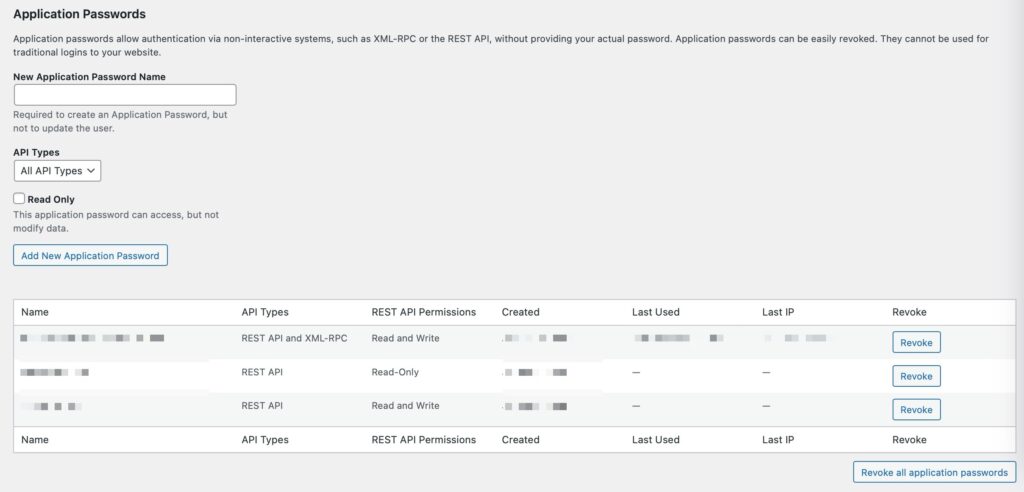
3. Add a name for your application password in the “New Application Password Name” field. It’s recommended to make it descriptive to help you identify what it is connected to (the name is used for internal purposes only).
4. Select the “Add New Application Password” button to create your password.
5. Copy the generated application password and make sure to save it in a secure location.
6. You can now use the application password to authenticate a third-party application that is connected to your WordPress website using REST API.
Note that while you can create an unlimited number of application passwords, it’s recommended to generate one per external application, so you can easily revoke it when you want to or when it’s compromised.
How to Create an Application Password with Solid Central #
Solid Central by SolidWP is a central hub that manages multiple WordPress sites under one unified interface. It offers various security features, including firewall management, performance optimizations, and more.
Generating an application password for Solid Central is straightforward and it happens when you connect a website from your Solid Central Dashboard during the Smart Site Connection process and will be named as “SolidWP” within Users -> Profile -> Application Passwords.
Why Are WordPress Application Passwords Important for Solid Central by SolidWP? #
WordPress Application Passwords play a crucial role in the security and functionality of Solid Central for several reasons:
- Enhanced Security for Integrations: Solid Central requires access to your WordPress sites to provide security insights, updates, and performance reports. By using application passwords, Solid Central can securely authenticate and communicate with your WordPress sites without exposing or using your primary login credentials. This minimizes the risk of password theft or misuse.
- Granular Control Over Permissions: With WordPress Application Passwords, you can define specific access rights for Solid Central. This means Solid Central can only interact with the WordPress sites based on the permissions granted by the application password, enhancing security and limiting unnecessary access.
- Seamless, Secure API Access: Solid Central relies on secure API calls to collect data, push updates, and manage configurations across multiple WordPress sites. Application passwords allow these API calls to happen securely and reliably without relying on traditional user login methods. Only authorized services (like Solid Central) can interact with your site.
- No Shared Credentials: Using WordPress Application Passwords prevents the need to share your personal WordPress credentials. This is particularly important for security plugins like Solid Security and managing multiple sites, as it helps prevent unauthorized access from malicious parties.
- Easy Management: Application passwords can be easily generated, viewed, and revoked from the WordPress dashboard. This allows administrators to efficiently manage integrations with Solid Central or any other third-party applications. If an integration is no longer required or if there’s a security breach, you can quickly revoke access to protect your site.
How to unblock Application Passwords when Solid Security’s Two-Factor Authentication (2FA) is active #
When Two-Factor Authentication (2FA) is enabled on Solid Security (LINK) or other security plugins, it can sometimes block the use of Application Passwords by users attempting to authenticate via external applications or services. This is because 2FA requires additional security steps beyond the password, and as a result, Solid Security may block non-interactive login methods like application passwords.
However, you can easily unblock Application Passwords for users with appropriate privileges. Here’s how you can allow Application Passwords even when 2FA is enabled.
Steps to Unblock Application Passwords #
- Navigate to the Security Settings:
- In your WordPress dashboard, go to Security (found in the left-hand sidebar).
- Under the Solid Security plugin settings, click on Settings.
- Access User Groups:
- Once in the Settings area, navigate to the User Groups section.
- Here, you’ll see a list of user groups with specific privileges and access control.
- Select the User Group:
- Identify and select the user group for the user who is trying to use Application Passwords. This should be the group associated with the user who requires access to the API or external service.
- Scroll to the Two-Factor Section:
- Scroll down the page until you find the section titled Two-Factor.
- This section controls how Two-Factor Authentication interacts with user permissions and other features, such as Application Passwords.
- Enable Application Passwords:
- In the Two-Factor section, you’ll find an option to toggle on Application Passwords.
- Toggle this setting to enabled, which will allow users in this group to use application passwords even with 2FA active.
- Save Your Changes:
- After toggling on the Application Passwords option, don’t forget to click the Save button at the bottom of the page to apply the changes.

By following these steps, you can unblock Application Passwords for users in specific user groups while Two-Factor Authentication (2FA) is enabled. This ensures that users can securely authenticate through external applications or services using application passwords without compromising the additional security provided by 2FA.
The Importance of REST API Access for Using Application Passwords #
For Application Passwords to function properly in WordPress, the REST API must be accessible. The REST API serves as the communication channel between WordPress and external applications, allowing them to interact with the site’s data and perform tasks like creating posts, managing settings, or integrating security features. When an application password is used, it authenticates API requests made by third-party services without requiring the main user password. However, this process relies heavily on the REST API, as it ensures secure, programmatic access to the site’s functionalities. If the REST API is disabled or restricted, application passwords won’t work effectively, preventing external tools—like Solid Central—from interacting with the WordPress site. Ensuring the REST API is accessible is crucial for maintaining smooth, secure integration with external applications while keeping the site’s data safe and protected.
Read more about REST API restrictions with Solid Security here.
Conclusion #
Application passwords are a powerful tool for securely integrating external applications with your WordPress site. By utilizing this feature, you can grant secure access to your site without sharing login details, thus reducing security risks. Following the above best practices, you can ensure seamless functionality of Application Passwords to Solid Central, while still being protected by Solid Security.



