

Once you’ve selected an individual site from the sites screen in Solid Central, you’ve opened up a powerful portal into managing essentially every aspect of that connected site, all without having to leave the Solid Central interface. This article walks you through each tab and section of the individual sites screen, and by the end of it you’ll be all set to manage sites in Solid Central.
Primary Action Buttons #
Before diving into the individual tabs, each site in Solid Central features several primary action buttons at the top that provide quick access to essential functions:

Site Access:
- Visit Site: Direct link to view your live website in a new tab that allows you to quickly check the frontend of your site without leaving Solid Central.
- Site Admin: Quick access to the WordPress admin dashboard for this specific site. This will log you directly into the WordPress backend of the selected site.
Backup and Deployment:
- Back Up: Initiate an immediate backup of your site using Solid Backups – NextGen.
- Deploy/Migrate: Deploy your site to a new location or migrate it to different hosting. This button appears as either “Deploy” or “Migrate” depending on the context and available actions.
Site Management:
- Edit Tags: Manage tags for organizing and categorizing your site.
- Refresh Site Data: Update site information and sync with the latest data from your WordPress installation. This ensures you have the most current information about your site’s status, plugins, themes, and other details.
Status Indicators:
- Pro Badge: Shows your current SolidWP plan level.
- WP Version Badge: Displays the current WordPress version running on your site.
- Solid Security Pro Badge: Indicates if Solid Security Pro is installed and active on the site. This badge shows the security status at a glance.
Advanced Features:
- Environments: Create environment groups for managing development, staging, and production versions of your site. This helps you organize multiple versions of the same site across different environments.
Individual Tabs #
Timeline #
The Timeline tab provides a comprehensive view of all site-related events and activities. This powerful feature tracks both activity originating from Solid Central and from your connected WordPress site, giving you complete visibility into your site’s operations.
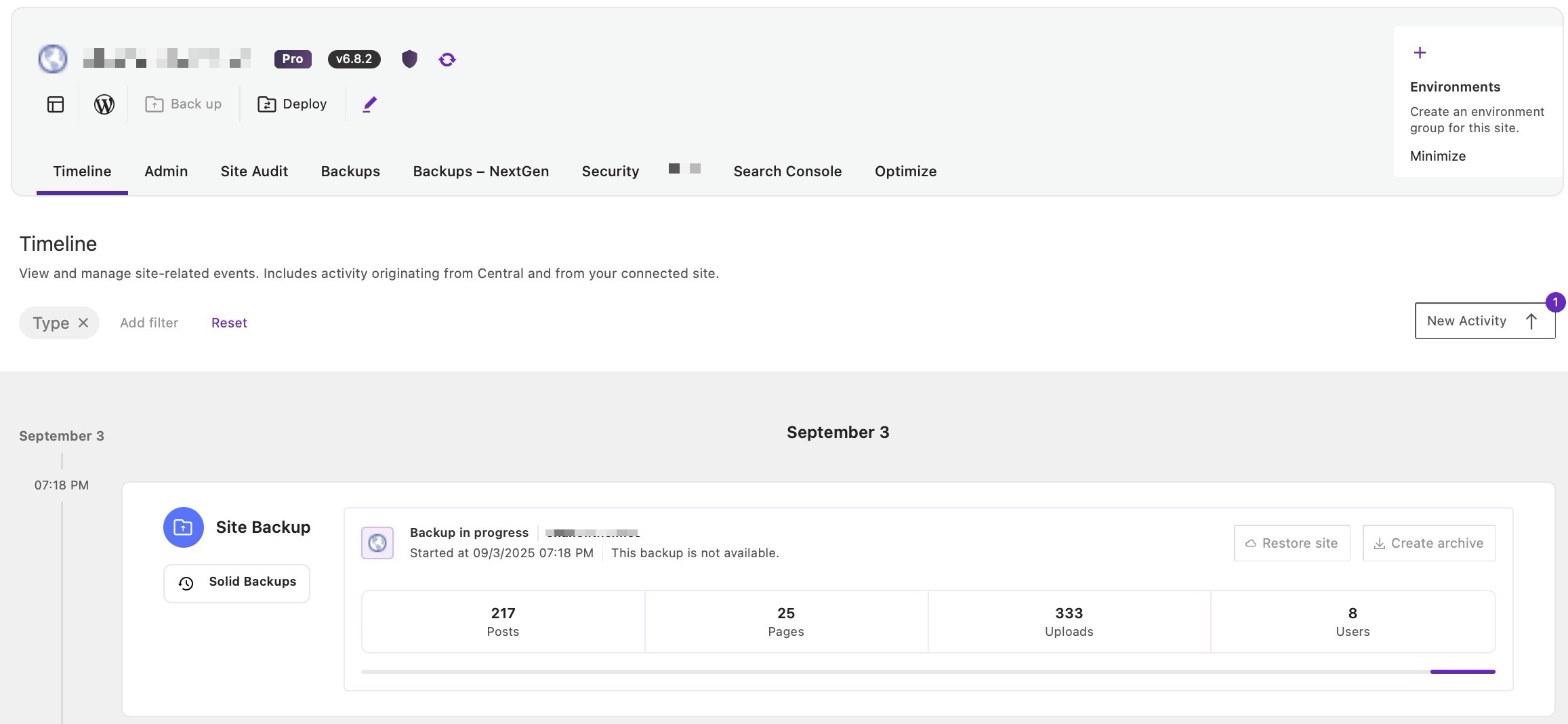
Key Timeline features:
- Activity Log/Central Activities: View chronological records of site events and activities done in Central
- Backup History: Track Backups — NextGen backup creation, completion, and restoration events
- Backup Management: Create, download, and restore backup archive files directly from the Timeline
The Timeline tab serves as your central command center for backup management and site activity monitoring, making it easier for you to keep track backup operations and maintain oversight of your managed sites.
Admin #
Think of the admin screen of an individual site within Solid Central like the admin dashboard of WordPress itself, because it’s nearly as powerful. You can see and update plugins, theme, posts/pages, users, comments, and even engage with analytics on the site.
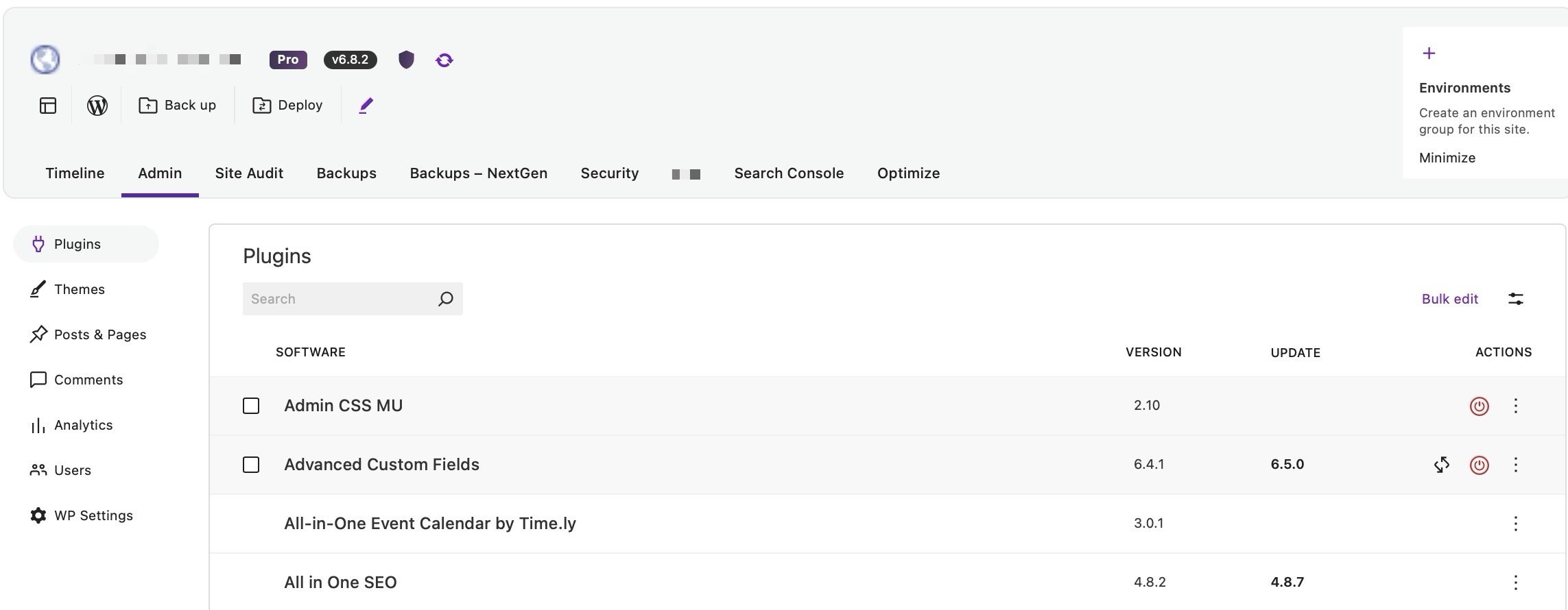
The Admin tab provides access to WordPress management capabilities through Solid Central, allowing you to manage your site’s core functionality from a centralized interface.
Site Audit #
Site Audits are a powerful feature of Solid Central that allows for one-time or regular reports outlining how the site is performing.
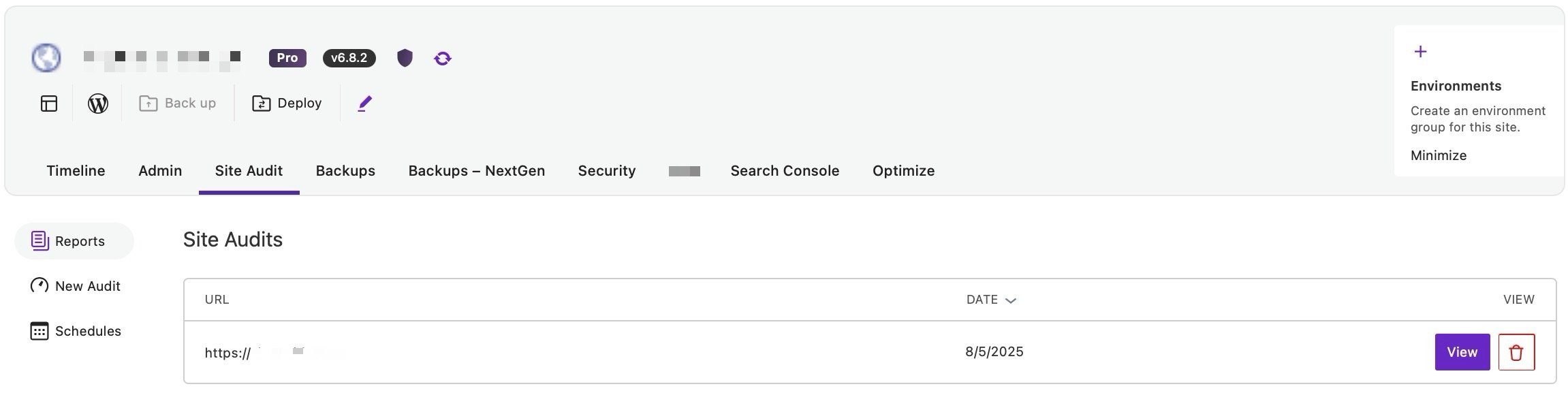
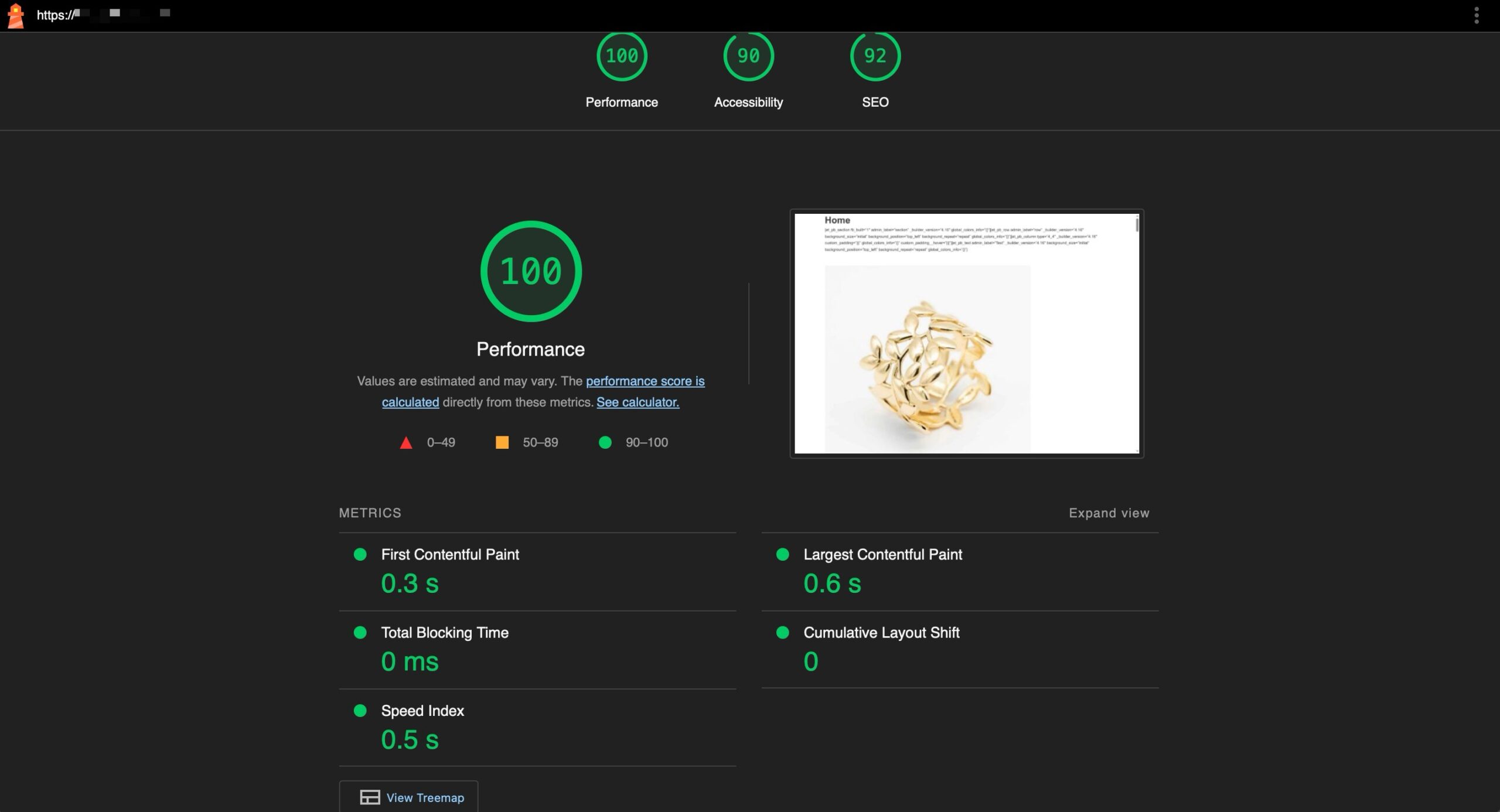
Under the hood, it uses Google’s Lighthouse reporting, showcasing Performance, Accessibility, SEO, and other metrics that you can use to evaluate how the site is doing. This is a massive value-add for agencies looking for ways to provide more value to clients.
Site Audits provide comprehensive reports on site performance and optimization opportunities. Example preview of a site audit:
Backups — NextGen #
The backups tab houses the most powerful backup system known to WordPress, Solid Backups — NextGen. This cloud-first solution creates complete backups of your entire WordPress site including the database, all files, plugins, themes, uploads, and configuration files.
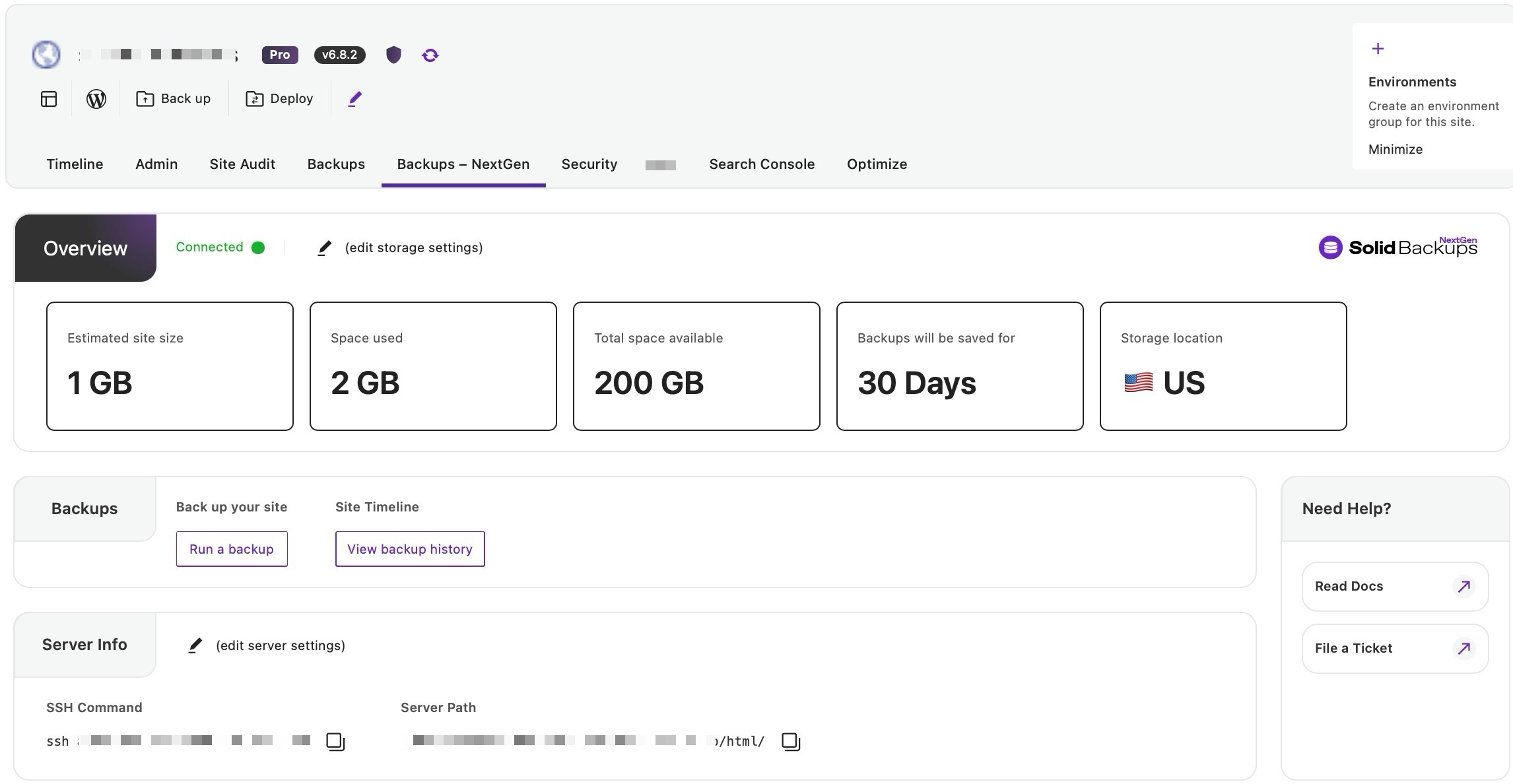
This is the current, recommended backup solution that replaces the legacy Solid Backups plugin. You should be using it, immediately. Get started today.
Note for connected sites with the legacy Solid Backups plugin activated: A separate “Backups” tab will show on Solid Central.
Security #
Speaking of powerful WordPress solutions: Solid Security is a must-have for all WordPress sites. Once you have it installed, you can manage some of its settings from this tab of the sites screen.
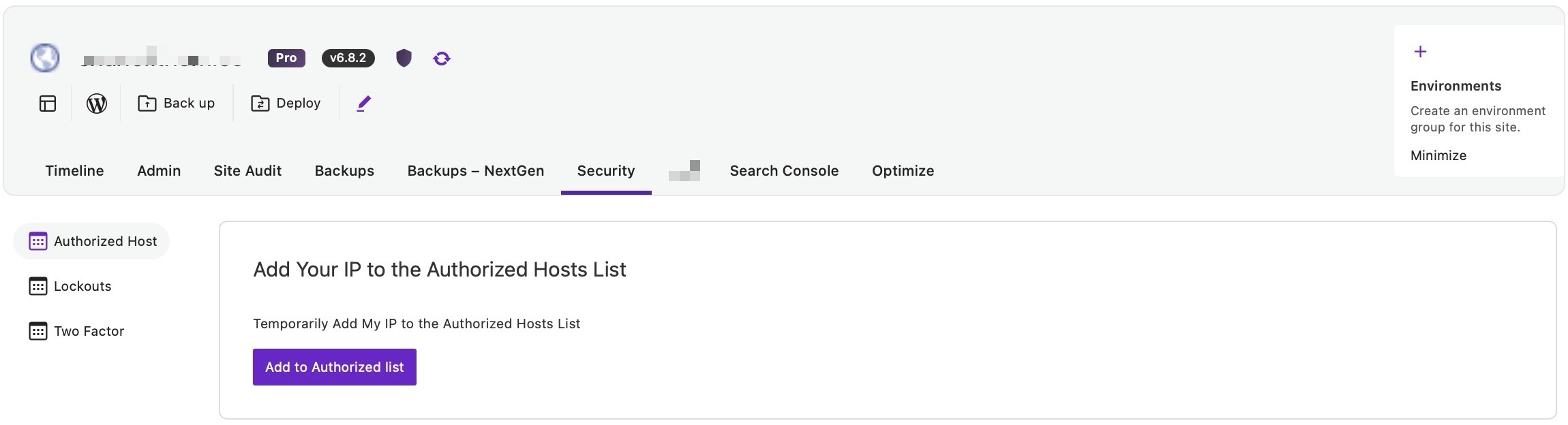
Security Management Features:
- Authorized Hosts: Manage IP addresses that are allowed to access your site, helping prevent unauthorized access from unknown locations
- Lockouts: View and manage user accounts that have been temporarily locked due to failed login attempts or suspicious activity
- Two-Factor Authentication: Configure and manage two-factor authentication settings for enhanced user account security
Search Console #
Connect your Google Analytics account on the Search Console tab to get access to Google’s powerful search console features. Specific capabilities may vary based on your setup and configuration.
Optimize #
The optimize tab has various options that can help to “trim” unnecessary bits of a WordPress site that can sometimes bloat the database.
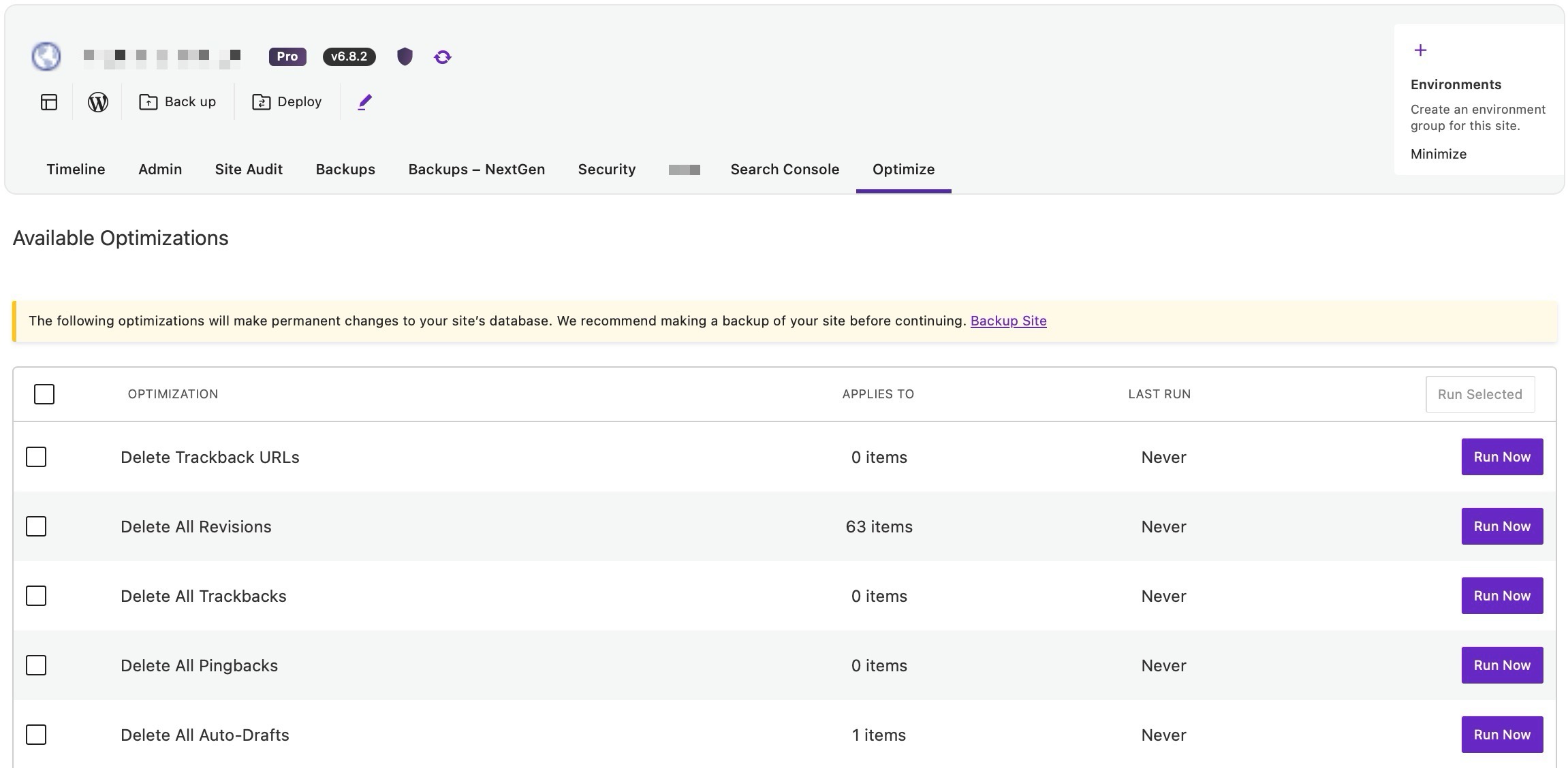
Note that this is a relatively blunt tool, and while it should not affect the site negatively, you should always have a backup that you can confidently restore to on hand before optimizing your site.
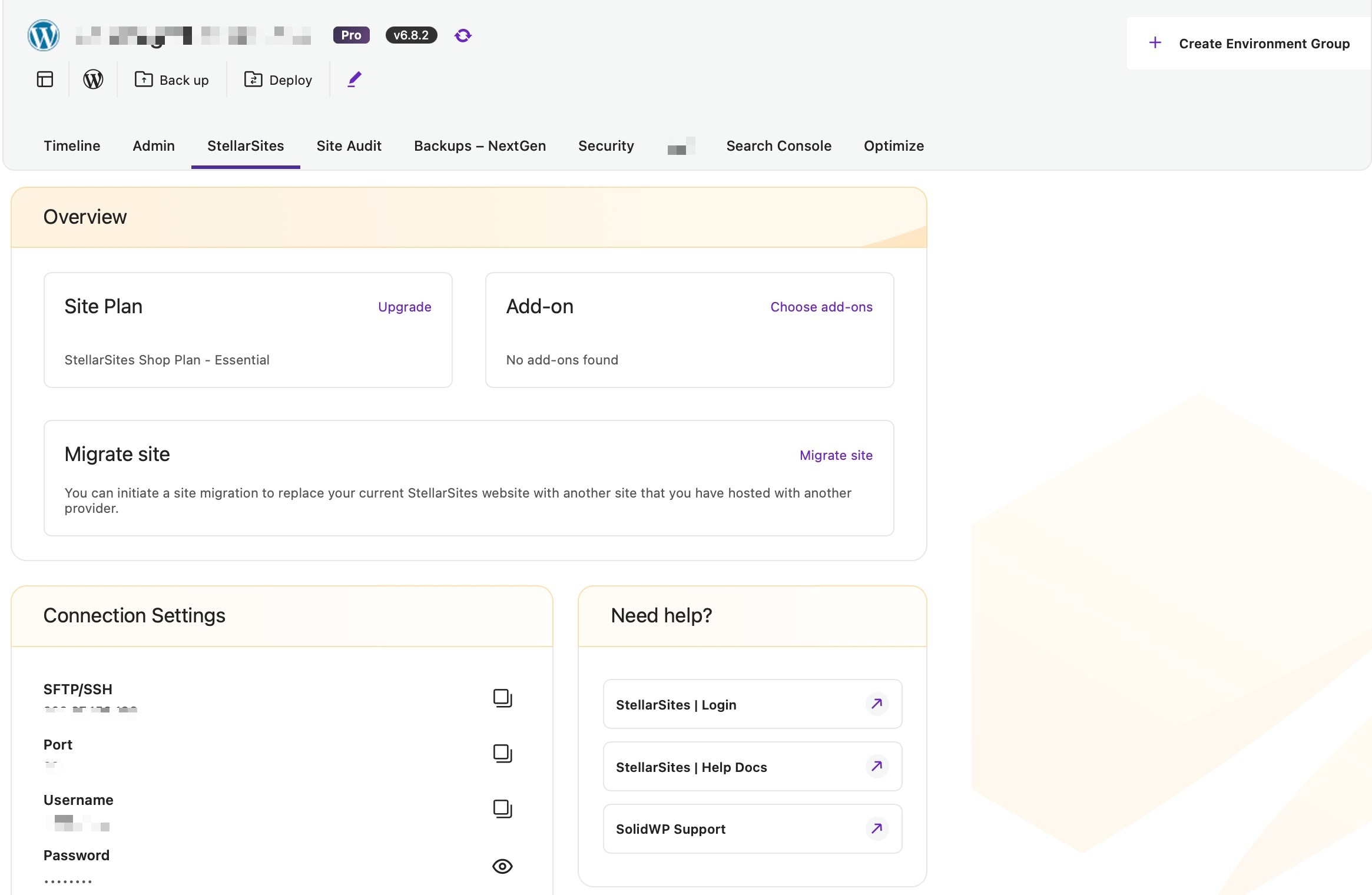
StellarSites #
This tab will appear if the site is hosted on our StellarSites platform, and will contain connection settings information and links to manage your plan, add-ons and migrate an external site into your account.
Managing Solid Central via WP-CLI #
Solid Central offers limited WP-CLI support for licensing-related actions, which are useful when automating site setup or managing licenses across multiple environments.
Available commands:
wp ithemes-licensing showDisplays the current licensing status for SolidWP products installed on the site.
wp ithemes-licensing activateActivates the license for installed SolidWP products.
wp ithemes-licensing deactivateDeactivates the active license for SolidWP products.
wp ithemes-licensing set-licensed-urlSets or updates the licensed site URL associated with the product.
Note: Currently, WP-CLI does not support installing or updating SolidWP plugins. Vote on the existing feature request here.



