


The fact that WordPress powers over 40% of global websites is a testament to its reliability and security as a platform. However, combining such user numbers with the growing sophistication of cybersecurity threats means that WordPress can’t keep your site safe on its own.
Fortunately, managing WordPress security doesn’t have to be difficult. By implementing a few straightforward security measures, you can significantly improve your website’s defenses, keeping data safe and maintaining business as normal.
In this comprehensive guide, we’ll look into essential WordPress security best practices, and introduce you to the best solutions to protect your website from external threats.
Why WordPress security matters to your online business
Digital security considerations should be no less important than launching great marketing campaigns or writing premium content, and the reasons why are plentiful.
Data protection is paramount, as many businesses collect sensitive information such as customer details, payment information, and proprietary data. A breach can lead to severe financial losses and damage to your reputation.
Maintaining customer trust is equally important. If users encounter security warnings or experience data breaches, they are likely to lose faith in your brand, leading to decreased customer loyalty and potential loss of business.
Preventing downtime is another critical aspect. A compromised website can lead to significant operational interruptions, affecting sales and user experience. This downtime can be particularly damaging for eCommerce sites, where every minute offline translates into lost revenue.
Moreover, failing to secure your site can result in legal consequences. Many jurisdictions impose strict regulations regarding data protection, and non-compliance can lead to hefty fines and legal action.
Lastly, search engines prioritize secure websites in their SEO rankings. A secure site not only improves visibility but also attracts more organic traffic, ultimately benefiting your business’s bottom line.
Common WordPress security issues
WordPress sites face numerous security vulnerabilities that can jeopardize their integrity and functionality. Understanding these threats is essential for effective protection.
- Outdated software: Many WordPress sites operate on outdated versions of core software, themes, or plugins, making them susceptible to known vulnerabilities.
- Weak passwords: Using easily guessable passwords allows attackers to gain unauthorized access through brute force attacks.
- Plugin vulnerabilities: Insecure or poorly maintained plugins can introduce backdoors for attackers, compromising site security.
- Brute force attacks: Attackers systematically attempt various username and password combinations to gain access to the admin panel.
- SQL injection: This sophisticated attack exploits database vulnerabilities by injecting malicious SQL code through input fields, allowing unauthorized access to sensitive data.
- Cross-Site Scripting (XSS): XSS attacks involve injecting malicious scripts into web pages viewed by users, potentially stealing sensitive information or hijacking user sessions.
- Cross-Site Request Forgery (CSRF): CSRF tricks users into executing unwanted actions on a different site where they are authenticated, potentially compromising their accounts.
- File inclusion exploits: These attacks occur when an attacker manipulates file paths in the code to execute malicious scripts on the server.
- Spam and malware: Infected sites often serve as platforms for distributing spam or malware, further endangering visitors’ data and privacy.
- Phishing: Cybercriminals may use phishing tactics to trick users into revealing personal information by masquerading as legitimate entities.
- Data leaks: Inadequate security measures can lead to accidental exposure of sensitive data, resulting in significant reputational damage and compliance fines.
- DDoS attacks: Distributed Denial of Service (DDoS) attacks overwhelm a website with traffic, causing it to crash and become inaccessible to legitimate users.
By being aware of these common security issues, WordPress site owners can implement appropriate measures to safeguard their websites against potential threats.
WordPress security essentials: Your ultimate checklist
Best practices for WordPress security all join together to form an umbrella of protection over your website. Be sure to implement the following tactics to begin with:
1. Keep WordPress core, themes, and plugins updated
Regular WordPress core, themes, and plugin updates help to maintain a secure website. These often include security patches that protect your site from known vulnerabilities. You can automate plugin updates from the WordPress Plugins dashboard and core files from the main dashboard.
Alongside keeping your system updated, ensure that all unused plugins, themes, and user accounts are removed to minimize potential security risks. The fewer gateways hackers have to exploit, the better. Keeping your PHP version up to date is also vital, as an outdated PHP can expose your site to threats. Most reputable web hosts manage PHP updates on their servers.
When it comes to updates, Solid Security Pro offers automatic vulnerability patching. By integrating with Patchstack‘s enormous database of known vulnerabilities and fixes, patches can be applied whenever a problem is found.
2. Use strong, unique passwords
Strong passwords are difficult for both humans and automated scripts to guess, reducing the likelihood of someone accessing your site through its login page. Follow these best practices for creating strong passwords:
- Use a mix of letters, numbers, and special characters.
- Include both upper and lowercase letters.
- Ensure passwords are over 12 characters long.
- Avoid using known words to guard against dictionary list hacking attempts.
- Avoid using your name, username, business name, or website address.
- Regularly update your passwords to maintain security.
Solid Security can help with this process by forcing strong passwords and regular updates. It also prevents the use of any passwords that have appeared in data breaches tracked by Have I Been Pwned.
3. Enable Two-Factor Authentication (2FA)
2FA adds an extra layer of security by requiring a second form of verification in addition to a login password. This is usually a code, sent to a mobile device, which protects an account even when a password is compromised.
The easiest way to implement 2FA on your WordPress site is by using a plugin like Solid Security. For an even tighter login defense, consider using passkeys, which eliminate the need for passwords and 2FA by using biometric data or device-based authentication. Passkeys also speed up sign-ins for users, with the average login taking 14.9 seconds, compared to 30.4 seconds via a password.
For more information on passwordless logins, refer to our in-depth guide to passkeys.
4. Implement regular backups
In the event of a security breach, server crash, or user error, having a recent backup allows you to restore your site and avoid data loss. Solid Backups is an excellent solution, offering secure offsite backups that act as insurance against various threats, including hacks and malware infections. An automated process provides peace of mind, knowing that your data is safe and can be restored with ease whenever necessary.

5. Use a Web Application Firewall (WAF)
A WAF identifies, filters, and blocks malicious traffic from accessing your website. By monitoring incoming and outgoing traffic, a WAF can protect your site against various common cyberattacks, such as SQL injections, XSS, and DDoS attacks.
The best way to set up a firewall is by choosing a reputable security plugin like Solid Security or a hosting provider offering this as a built-in feature. These solutions manage the configuration for you, removing the need for coding.
For more detailed information, read our comprehensive guide to firewalls.
6. Choose a security-focused hosting provider
Choosing a security-focused hosting provider is another massive step in safeguarding your site. Look for providers that offer the following:
- Firewall protection: This filters and blocks malicious traffic from reaching your website, preventing unauthorized access.
- Malware scanning: This action detects and removes malicious software found on your site.
- Secure Sockets Layer (SSL) encryption: SSL secures data transfers between your website and its users, protecting it from interception.
- Automatic backups: Backups regularly save copies of your website’s data, essential in cases of data loss or file corruption.
- Continuous network monitoring: Real-time surveillance of your network detects security threats as they occur, allowing for a timely response.
Additionally, consider the types of hosting offered. Dedicated and Virtual Private Server (VPS) hosting isolates your resources, offering better security than shared hosting.
7. Move your WordPress site to SSL/HTTPS

SSL encryption secures data transfer between your website and its users. It also ensures that your site loads over HTTPS — the secure version of HTTP — protecting sensitive information from being intercepted.
Beyond security, SSL offers significant benefits, including improved SEO, as Google uses SSL as a ranking factor. An SSL certificate also increases consumer trust, as users are more likely to visit a site marked as secure.
Most reputable hosting providers automatically handle SSL encryption, so double-check this prior to agreeing on any plan. As of 2023, mMore than 85% of websites usewere using an SSL certificate, and it’s one of the easiest security measures to implement.
8. Change the default WordPress login URL
Changing the default WordPress login URL is a simple yet effective security measure that can significantly reduce the risk of unauthorized access. By default, WordPress sites use the /wp-admin or /wp-login.php URLs for logging in. These predictable URLs are commonly targeted by attackers using brute force methods to gain access to admin accounts.
To improve security, consider altering the login URL to something unique and less predictable. This can be achieved through a manual method, or by using a plugin — Solid Security’s Hide Backend feature allows you to change your login URL in seconds. Customization effectively obscures it from automated bots and potential attackers, making it more challenging for them to find and exploit.

Additionally, it’s crucial to inform your legitimate users about this change to avoid confusion. Implementing this measure not only strengthens your site’s defenses but also contributes to a proactive security strategy, helping to safeguard sensitive data and maintain customer trust.
9. Limit login attempts
Limiting login attempts is an effective way to prevent brute force attacks, which rely on repeatedly trying different username and password combinations to gain access. By using a solution like Solid Security, you can easily set a threshold for the number of login attempts allowed before a user is locked out. Such a move also protects your server from being overwhelmed by repeated login attempts, ensuring site performance is unaffected.

Solid Security adds further protection by connecting you to its Brute Force Protection Network of over 1 million sites. This automatically bans any IP addresses that have attempted to break into a site within the Solid community.
10. Use a Content Delivery Network (CDN)
CDNs improve website performance by caching content at edge servers located closer to users. This results in faster load times and an ability to handle traffic spikes, which can send a server haywire. A CDN plays a crucial role in managing DDoS attacks, as it can proactively monitor and cleanse incoming traffic.
By caching content, CDNs serve cached versions to users, reducing server load in the event of an attack. Furthermore, a rate-limiting function restricts the number of requests from a single IP address and can block known malicious bots (if it also incorporates a firewall) or IPs. Many hosting providers offer built-in CDN services, making it a valid consideration when shopping around.
Learn more about IP Hacks and how to protect yourself.
11. Upgrade your PHP version
PHP is the scripting language that powers WordPress, and older versions can contain vulnerabilities that hackers exploit. Regularly upgrading to the latest stable version of PHP ensures that you benefit from improved security features, performance enhancements, and bug fixes.
Most hosting providers offer easy ways to update PHP through their control panels. Before upgrading, it’s advisable to back up your website fully, including files and databases, in case any compatibility issues arise with themes or plugins after the update.
Running the latest PHP version also improves site speed and performance, which can positively impact user experience and SEO rankings. Additionally, many modern plugins and themes require recent PHP versions to function correctly. Upgrading is a critical step in ensuring your WordPress site remains secure and efficient.
12. Protect your wp-config.php file
The wp-config.php file is a critical component of your WordPress installation, containing sensitive information such as database credentials and authentication keys.
One effective protection method is to move the wp-config.php file one directory level up from your WordPress root directory. This makes it less accessible from the web while still allowing WordPress to function properly. Additionally, you can implement file permissions that restrict access; setting permissions to 440 or 400 will ensure that only the server can read this file.
Another layer of protection involves adding rules in your .htaccess file to deny access attempts from unauthorized users. For example:
<files wp-config.php>
order allow,deny
deny from all
</files>
13. Change your WordPress database prefix
Changing the default database prefix from wp_ is a recommended security practice that can help protect your WordPress site against SQL injection attacks. The default prefix is widely known among attackers and can make it easier for them to exploit vulnerabilities in poorly coded plugins or themes.
To change your database prefix safely, you can use a plugin designed for this purpose or manually edit it through phpMyAdmin. If opting for manual changes, ensure you back up your database first. You will need to update both the prefix in your database tables and in the wp-config.php file to match.
While changing the database prefix does not eliminate all risks associated with SQL injections, it adds an additional layer of complexity for attackers attempting automated exploits. This simple change can deter less sophisticated attacks and helps reinforce a more secure installation overall. However, it’s important to note that changing prefixes should be part of a broader security strategy that includes regular updates and robust password policies.
Advanced techniques to improve WordPress security
Advanced hacking techniques called for advanced protection measures. Employ the following tactics to harden your overall security posture:
1. Change the default ‘admin’ username
By default, older versions of WordPress set the site admin username to ‘admin’. This gives potential hackers a headstart when trying to break in through your login screen, as they’ll only need to guess your password.
To guard against this risk, create a new admin account with a unique username. Log out of WordPress, then log back in using your new name. Delete the old admin account, making sure to transfer any content to the new one.
It’s also good practice to update your WordPress database prefix to further secure your site. This is a string added to the start of database table names, with the default prefix wp_. You can do this by renaming all database tables using phpMyAdmin or the MySQL command line interface, making it harder for hackers to guess table names and exploit these gateways. For more detailed information, download our free guide to brute force attacks.
2. Disable file editing in WordPress
The WordPress file editor is a built-in feature that allows users to edit theme and plugin files directly from the admin dashboard. While this can be convenient for making quick changes, it poses a significant security risk if unauthorized users gain access to the admin area. Hackers can exploit this feature to inject malicious code into your site, potentially compromising sensitive data or taking control of your website.
To mitigate this risk, you can disable the file editor by adding a line of code to your wp-config.php file. Simply insert the following snippet:
define( 'DISALLOW_FILE_EDIT', true );Alternatively, Solid Security offers an easier solution, allowing you to disable the file editor with a single click. This method is straightforward and ensures that your site remains secure without manual code adjustments.

3. Prevent PHP file execution in certain WordPress directories
Preventing PHP file execution in specific WordPress directories is an essential security measure that helps protect your site from potential attacks. Directories like /wp-content/uploads/ are often targeted by hackers who upload malicious PHP scripts. By restricting PHP execution in these directories, you can significantly reduce the risk of exploitation.
To implement this measure, create a blank .htaccess file in the target directory and add the following code:
<Files *.php>
deny from all
</Files>
This configuration denies access to any PHP files within that directory, ensuring that even if a hacker manages to upload a malicious script, it cannot be executed. Regularly monitoring your uploads and maintaining strict permissions further enhances security.
4. Disable directory indexing and browsing
Disabling directory indexing and browsing is a crucial step in securing your WordPress site. When directory indexing is enabled, users can view the contents of directories on your server if there is no index file present. This exposure can lead to unauthorized access to sensitive files and information about your site’s structure.
To prevent this, edit your .htaccess file located in the root directory of your WordPress installation and add the following line:
Options -IndexesThis command instructs the server to deny directory listing requests, returning a 403 Forbidden error instead. By implementing this change, you protect sensitive directories from prying eyes and reduce the likelihood of attackers discovering exploitable files or vulnerabilities within your site. Regularly reviewing your server settings will further bolster your site’s defenses against potential threats.
5. Disable XML-RPC in WordPress
The XML-RPC function allows external services to access and modify content on your WordPress site. Common services that use XML-RPC include the Jetpack plugin, WordPress mobile apps, and pingbacks. If you’re not using any services that require XML-RPC, it’s best to disable it to prevent attackers from exploiting the gateway.
The first step should be to check if any of your themes or plugins use the XML-RPC function. To do this, input your site address on the XML-RPC validator.

If you discover the function is working, you can check the plugin/theme files in your wp-content directory, found via an SFTP or your hosting provider’s file manager. Any devices using the function will have the xmlrpc.php string in their file name. You can then decide if those devices are needed, or to disable the XML-RPC function completely.
The easiest way to disable XML-RPC is by using a plugin. Solid Security offers built-in functionality to disable the function at the flick of a switch. Download our free guide to WordPress security to find out more.
6. Automatically log out idle users
Automatically logging out inactive users prevents unauthorized access by guarding against cookie hijacking. Enabling automatic logout ensures that idle sessions are terminated, reducing the risk of malicious activity.
The easiest way to add this feature is by using a free plugin like Inactive Logout. This tool allows you to automatically log out users following a specified time period. You can also customize logout messages and redirect users to a specific page after they’ve been automatically logged out.

7. Hide the WordPress version
Hiding your WordPress version is an important security measure that helps protect your site from potential vulnerabilities. By default, WordPress includes the version number in various locations, such as the HTML header, RSS feeds, and script URLs. This information can be exploited by hackers to identify known vulnerabilities associated with specific versions, making it easier for them to launch targeted attacks.
To hide your WordPress version, you can add the following code snippet to your theme’s functions.php file:
remove_action('wp_head', 'wp_generator');8. Block hotlinking
Hotlinking occurs when other websites directly link to your images or files, consuming your bandwidth and slowing down your site. To prevent this, you can implement several strategies. One effective method is to edit your .htaccess file to block hotlinking by adding specific rules that deny access to unauthorized domains.
For example, you can include the following code in your .htaccess file:
RewriteEngine on
RewriteCond %{HTTP_REFERER} !^$
RewriteCond %{HTTP_REFERER} !^http://(www\.)?yourdomain.com/ [NC]
RewriteRule \.(jpg|jpeg|png|gif)$ - [F]
This code allows requests from your domain while blocking others.
9. Set proper file permissions
Setting correct file permissions in WordPress protects your core files from unauthorized access. Only necessary users will have the ability to read, write, or execute files, protecting your site from potential security breaches. Follow these steps to secure your WordPress files:
Use a SFTP client like FileZilla or your hosting provider’s File Manager to connect to your server.
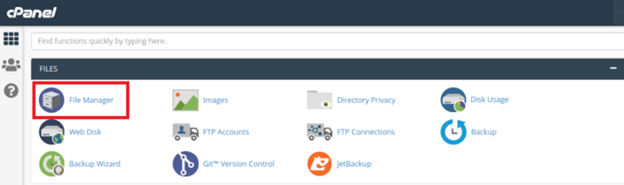
Locate the root directory of your WordPress installation, which contains folders like wp-admin, wp-content, and wp-includes.

Right-click on each directory and set permissions to 755. This allows the owner to read, alter, and execute, while others can only read and execute.

For files, set permissions to 644. This allows the owner to read and write, while others can only read.
Your wp-config.php file should have permissions set to 444 to prevent any modifications.
To further secure your files, you can disable file editing from the WordPress dashboard. This prevents attackers from changing your files through the backend or WordPress admin area. To do this, add the following code to your wp-config.php file:
define('DISALLOW_FILE_EDIT', true);You can find more information in our comprehensive guide to file permissions.
10. Implement Security Information and Event Management (SIEM) systems
SIEM systems collect data from various sources within your WordPress environment, including logs from plugins, themes, and server activity. This centralized approach allows for better detection of suspicious activities and potential threats.
While Solid Security does not function as a full-fledged SIEM system, it provides essential logging and monitoring features that can complement a SIEM setup. By using Solid Security alongside a dedicated SIEM solution, you can significantly improve your site’s security posture. Regularly review logs generated by Solid Security to identify anomalies and respond promptly to potential threats. Integrating these tools creates a robust defense against cyber threats while ensuring compliance with security best practices.
Choosing and using WordPress security plugins
“The worst case scenario is losing your entire website over a security issue, so why take the risk? A reliable plugin is like your guardian, working away in the background while you run your business. They safeguard sensitive data, maintain your site’s integrity, and help you avoid costly breaches. With the sophistication shown by cybercriminals these days, investing in website security is nothing less than a necessity.”
David G Johnson, Product Owner, SolidWP
When it comes to WordPress security best practices, choosing the right security plugin is crucial. Below are some of the top options available, highlighting their pros, cons, and pricing.
1. Solid Security

Pros: Solid Security offers a comprehensive suite of features, including real-time monitoring, automated vulnerability scanning, and strong login protection with 2FA. Its user-friendly dashboard allows for easy management of security settings.
Cons: While its free version provides some seriously robust security measures, some advanced features like virtual patching only come with paid plans.
Pricing: Solid Security offers a free version with a much greater feature set than other gratis products. Premium plans start at $99 per year for one site, with discounts available for multiple sites.
2. MalCare

- Pros: MalCare excels in malware detection and removal, offering one-click cleanup and deep scanning without affecting site performance. Its intelligent firewall blocks malicious requests effectively.
- Cons: The free version is limited in features, and users need to upgrade to access advanced options like scheduled scans and backups.
- Pricing: MalCare starts at $149 per year for its basic security package.
3. Sucuri Security
- Pros: Sucuri provides a robust firewall and malware scanning capabilities, along with excellent support for malware cleanup. Its server-side scanning ensures thorough protection against threats.
- Cons: The setup can be complex for beginners, and the premium version is costly compared to other options like WordFence.
- Pricing: Sucuri’s premium plans start at $199 per year, which includes additional features like a Web Application Firewall (WAF).
4. WordFence Security
- Pros: WordFence offers a powerful firewall and malware scanner that protects against various threats. It also includes login security features like 2FA and IP blocking.
- Cons: The free version has limitations, such as only scanning 60% of your site. Additionally, it can consume significant server resources during scans.
- Pricing: WordFence starts at $119 per year, with a free version providing basic protection.
5. All-in-One Security
- Pros: This plugin offers essential security features like brute force protection and file change detection, making it accessible for beginners.
- Cons: It lacks advanced features such as malware scanning and cleanup services, limiting its effectiveness as a comprehensive security solution.
- Pricing: All-in-One Security is available for free with subscriptions starting at $70 per year, but users may need to seek additional plugins for complete protection.
6. Jetpack
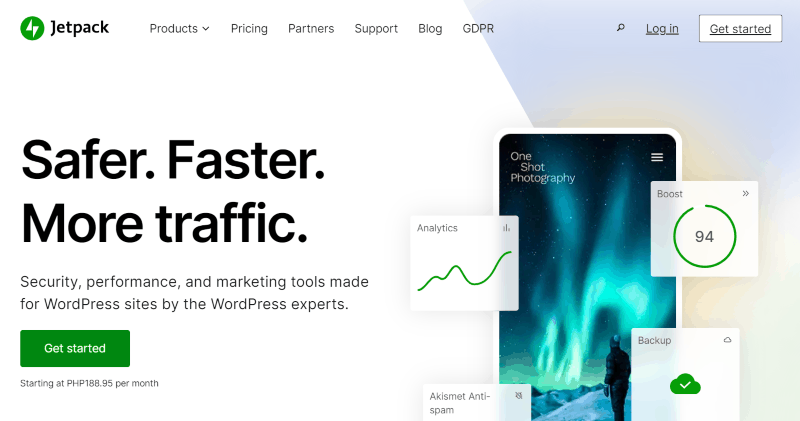
- Pros: Jetpack provides a suite of tools including security features like downtime monitoring, brute force protection, and automated backups. Its integration with WordPress.com adds convenience for users familiar with the platform.
- Cons: The security features are not as robust as dedicated security plugins, and it lacks malware cleanup services.
- Pricing: Jetpack’s security plans start at $120 per year, which can be high considering its limited security capabilities compared to specialized plugins.
7. Defender

- Pros: Defender offers easy setup with one-click configuration options and useful features like 2FA and IP blocking to enhance login security.
- Cons: It lacks comprehensive malware scanning capabilities and does not offer cleanup services.
- Pricing: Defender is available starting at $36 per year, making it an affordable option for basic security needs.
8. CleanTalk Security

- Pros: CleanTalk specializes in spam protection while also offering bot protection and IP blocking capabilities. It effectively reduces spam comments and registrations on your site.
- Cons: Its focus on spam means it lacks traditional malware detection features, making it less suitable as a standalone security solution.
- Pricing: CleanTalk starts at $12 per year, providing good value for those primarily concerned with spam issues.
9. BulletProof Security
- Pros: BulletProof Security offers a range of features including firewall protection, database backups, and malware scanning in its free version.
- Cons: The interface can be complex for beginners, and the effectiveness of its malware scanner has been questioned in various reviews.
- Pricing: BulletProof Security is priced at $69.95, offering a lifetime license that includes updates.
10. SecuPress
- Pros: SecuPress provides an attractive interface with easy-to-use features such as vulnerability scans and geoblocking options to enhance site security.
- Cons: It lacks comprehensive malware detection capabilities, focusing instead on general hardening measures without effective cleanup options.
- Pricing: SecuPress starts at €60 per year (approx. $66 USD), making it an affordable choice but limited in functionality compared to others on this list.
Monitoring and maintaining your WordPress security
Monitoring and maintaining your WordPress security is crucial for protecting your site from evolving threats. Ensure you do the following to guard against future breaches:
- Conduct regular security audits: Audits should include reviewing your website’s security measures, identifying vulnerabilities, and ensuring that all plugins and themes are up to date. Regular audits help you stay proactive rather than reactive, allowing you to address potential weaknesses before they can be exploited.
- Keep track of user activity: Monitoring user logins, changes made to content, and plugin installations can help you identify suspicious behavior. Implementing a logging system or using security plugins that track user actions allows you to detect unauthorized access attempts or changes made by compromised accounts.
- Stay informed about the latest WordPress security threats: Subscribe to security blogs, follow WordPress forums, and join community groups where security issues are discussed. Awareness of emerging threats enables you to take timely action, such as applying necessary updates or implementing new security measures.
- Conduct comprehensive security assessments: These assessments should include vulnerability scanning, penetration testing, and configuration reviews. By regularly evaluating your site’s security infrastructure, you can ensure that it remains resilient against potential attacks.
Implement a robust WordPress security strategy today
Securing your WordPress site is not just a recommendation, it’s a necessity. Increasingly sophisticated cyber threats mean that extra precautions are essential to safeguard your website and your customers’ data.
Having the right infrastructure in place to protect your site against malicious actors is one of the most important security measures you can take. For this, you’ll need to choose a reputable hosting provider and a powerful WordPress security plugin.
Solid Security offers a comprehensive feature set designed to strengthen site security with minimal setup. From real-time monitoring and automated vulnerability patching to 2FA and brute force attack prevention, Solid Security provides all the tools you need to keep your site safe.
Don’t wait until it’s too late! Get started with Solid Security today and take your website’s defense to the next level.
WordPress security best practices: FAQs
How often should I conduct security audits on my WordPress site?
It is recommended to conduct security audits on your WordPress site at least quarterly. Regular audits help identify vulnerabilities and ensure that all plugins, themes, and the WordPress core are up to date. Additionally, perform audits after significant updates or changes to your site to maintain a robust security posture and protect against emerging threats.
What should I do if my WordPress website gets hacked?
If your WordPress website gets hacked, immediately take it offline to prevent further damage. Change all passwords, including those for the admin panel, database, and hosting account. Restore your site from a clean backup if available. Conduct a thorough audit to identify vulnerabilities, remove malicious code, and strengthen security measures to prevent future attacks.
What is a SIEM system and do I need one for my WordPress site?
A Security Information and Event Management (SIEM) system collects and analyzes security data from various sources in real-time. While not mandatory for every WordPress site, implementing a SIEM can enhance security by providing insights into potential threats and enabling proactive responses. For larger sites or those handling sensitive data, a SIEM is highly beneficial.
Join us for the next Solid Academy Webinar!
Free weekly webinars that will help you master WordPress and increase your business's bottom line.
What is a WordPress Phishing Attack?
Learn how to identify and prevent phishing attacks on WordPress websites.
Kiki SheldonWebsite Protection: 5 Ways to Keep Your Website Safe
Robust website protection is the shield that stands between your business and relentless cyber attacks. Prioritizing website protection enables businesses to fortify defenses to safeguard their online presence and preserve the trust of their customers in the face of ever-evolving cybersecurity threats.
Kiki Sheldon23 Ideas To Grow Your WordPress Business in 2023
WordPress is the most popular website-building platform worldwide, trusted by numerous brands. WordPress enables you to build a user-friendly and highly reliable site, together with tools and plugins to enhance your marketing and work like a lead magnet. All these features make WordPress the platform chosen by more than 43% of businesses globally.
SolidWP Editorial TeamSign up now — Get SolidWP updates and valuable content straight to your inbox
Sign up
Get started with confidence — risk free, guaranteed




