

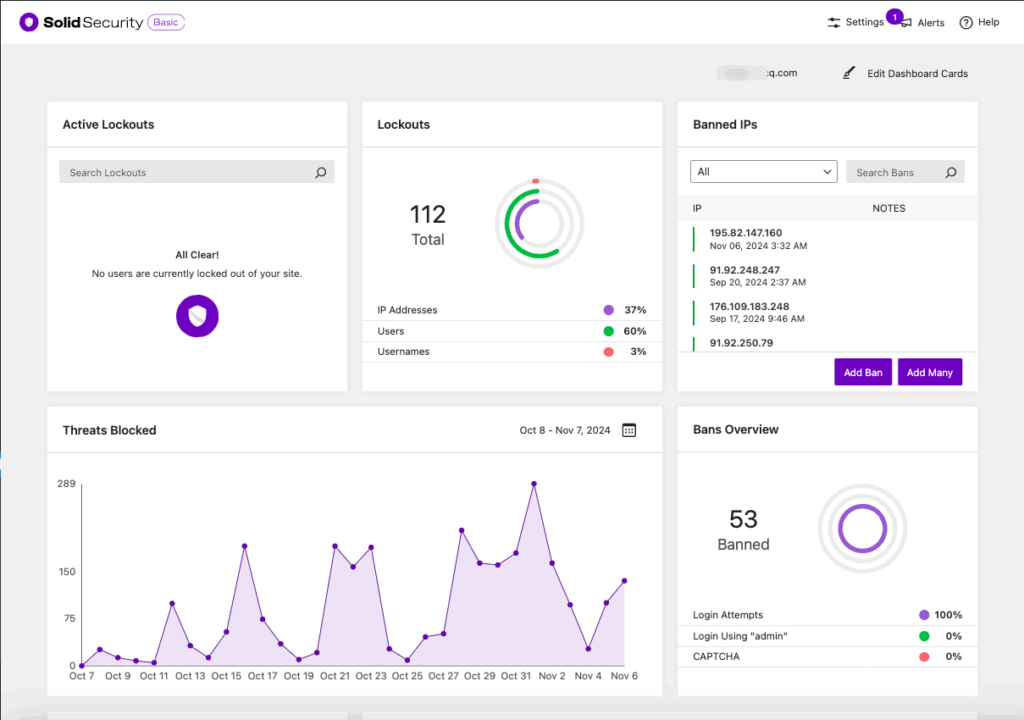
The Solid Security Dashboard utilizes Security Cards to organize all your security activity in a more digestible way. Security Cards allow you to see just the data you want first, and even some direct ways to administer security fixes for your WordPress website without leaving the dashboard.
By default, both Solid Security Basic and Solid Security Pro create a dashboard pre-populated with cards to give you an idea of how you might manage your site’s security settings and functionality. You’re free to use it as is, or edit and configure the dashboard by selecting just the cards you find most valuable.
By getting started with Solid Security, you’re already protected. The dashboard as well as individual cards allow you to see in real time how your site security is doing, and adjust to either tighten or loosen the default settings based on your individual site’s needs.
Manage Access to your Security Dashboards #
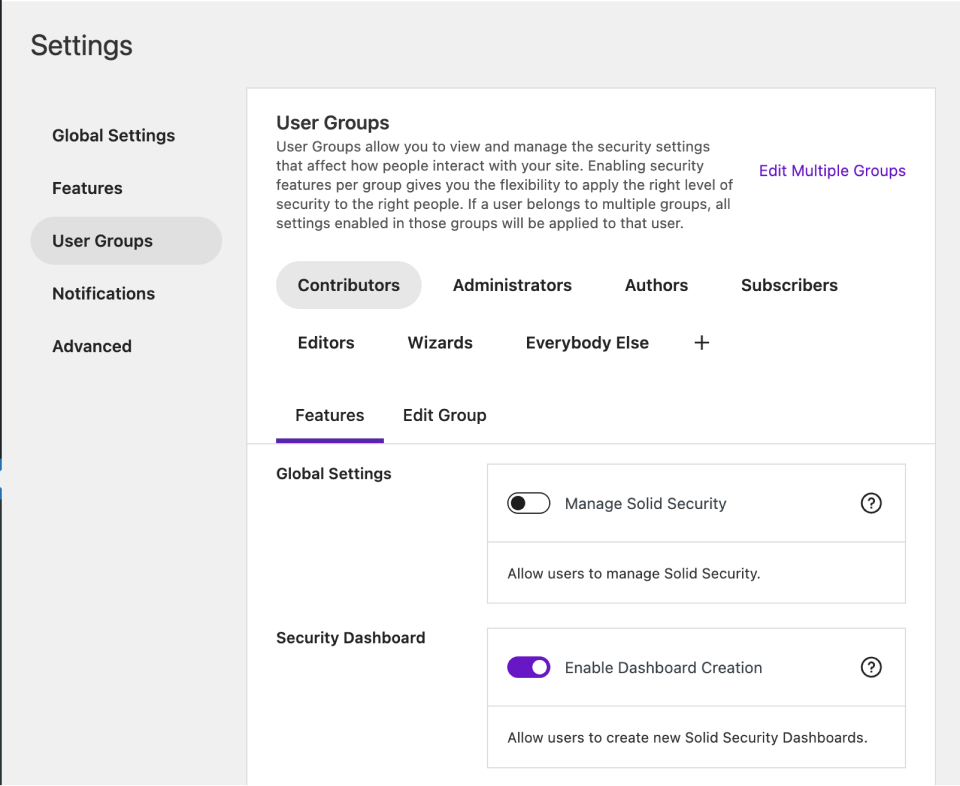
Access to security information and the ability to modify security settings for your site is not every user’s job. That fact is baked into the default settings of Solid Security. During onboarding you’re able to select the users or user groups who you want to have access to security settings, and to be able to create additional dashboards.
Whenever you need to modify those settings, navigate to Security -> Settings -> User Groups.
The “Manage Solid Security” setting controls whether a user group can see the dashboard (and any other Solid Security settings) at all.
Once you’ve enabled the Dashboard to your preferred user groups, you can view it in your WordPress Admin menu.
Create multiple dashboards #
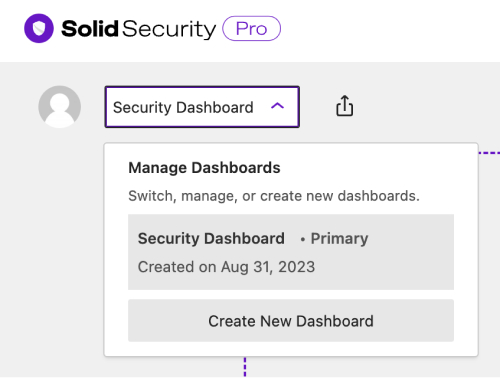
Solid Security Pro users also have the ability to create multiple dashboards, and even share read-only access to those custom dashboards with specific users or user roles.
You can arrange the look of your Dashboard by dragging the dashboard cards and dropping it to the desired location.
Dashboard Cards #
There are several cards available to you as you construct your dashboards. Solid Security Basic users have access to the following cards:
- Active Lockouts
- Banned IPs
- Bans Overview
- Database Backups
- Lockouts
- Security Summary
- Threats Blocked
- Vulnerable Software
Pro Cards #
In addition to those cards, Solid Security Pro users have these cards available:
- Trusted Devices
- Updates Summary
- User Security Profile(s)
The following sections outline what you can do with individual dashboard cards.
Security Summary #
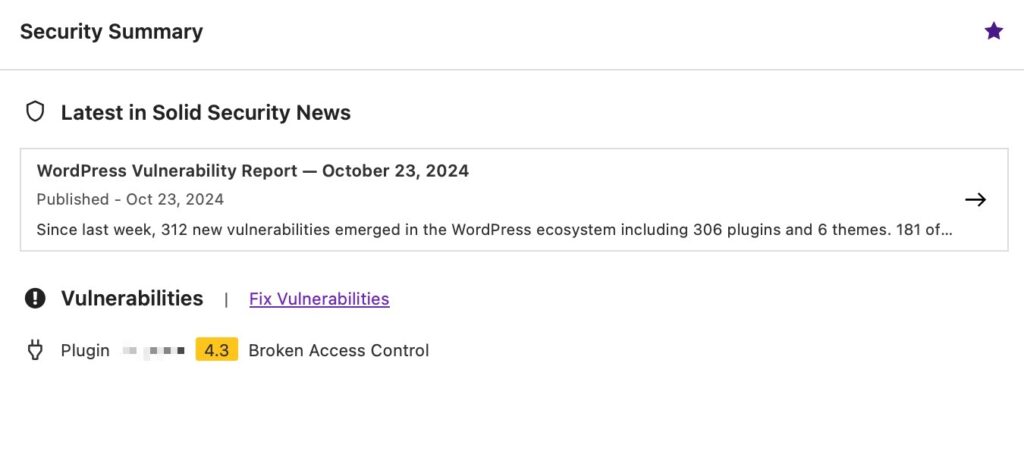
The Security Summary card shows an overview of the latest Solid Security News pulled from the feed here at solidwp.com. This allows you to navigate quickly to a deep dive into WordPress vulnerabilities, curated by the SolidWP team with immense amounts of help from the folks at Patchstack.
Patchstack’s team is constantly monitoring and patching vulnerabilities in the hundreds of thousands of products built around the WordPress ecosystem, and you’ll see their Patchstack Priority score next to each identified vulnerability, helping you understand the real-world risk it presents to your site. You can deep-dive directly from this card into that detailed report.
In addition to the Solid Security News feed, the Security Summary card surfaces the specific vulnerabilities known to exist on your individual site, with a link to get straight to fixing them.
Updates Summary #
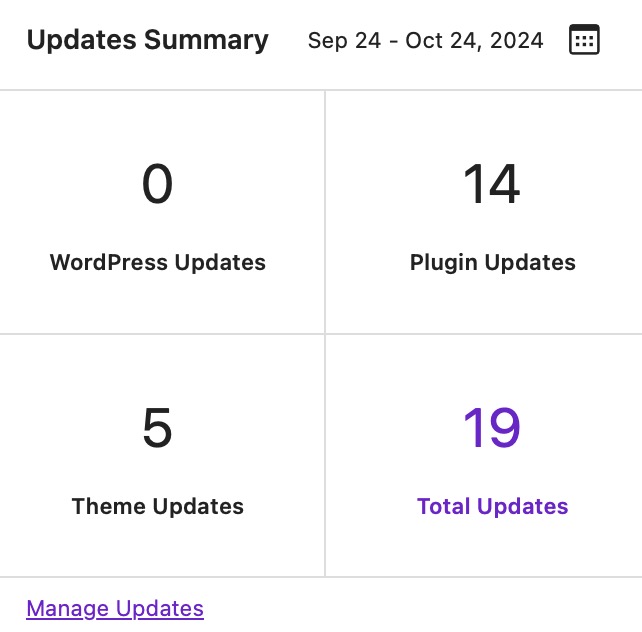
The Updates Summary card provides the summary of all updates made on the site’s WordPress core, plugins, and themes within a specific timeframe. This card is essential for keeping track of update activity. By reviewing this card, you can monitor whether updates are happening regularly or if there are gaps in the update activity, as it is important to ensure all WP components are running their latest versions to mitigate vulnerabilities.
Vulnerable Software #
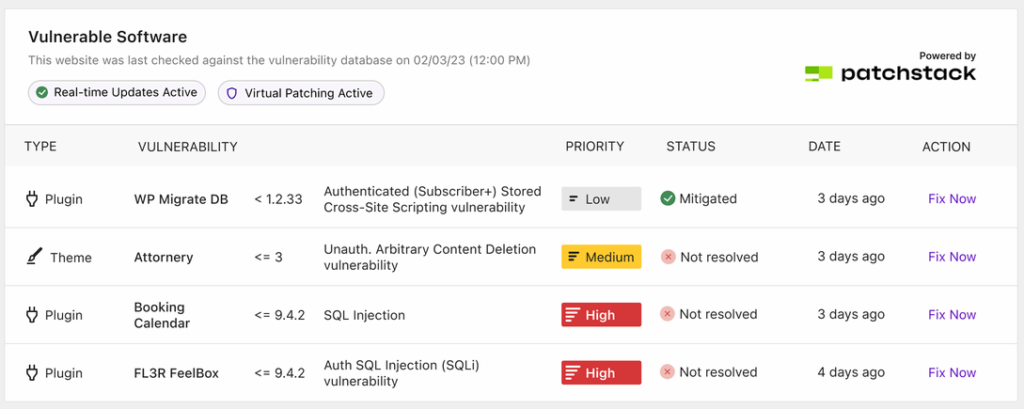
The Vulnerable Software card displays the scan results found during the latest Site Scan against the Patchstack vulnerability database, and includes the Patchstack Priority score next to each identified vulnerability, helping you understand the real-world risk it presents to your site. This ensures that the WordPress core, plugins, and themes are checked for known vulnerabilities and gives you a quick overview of what the scanner found including the basic information of the vulnerabilities.
Banned IPs #
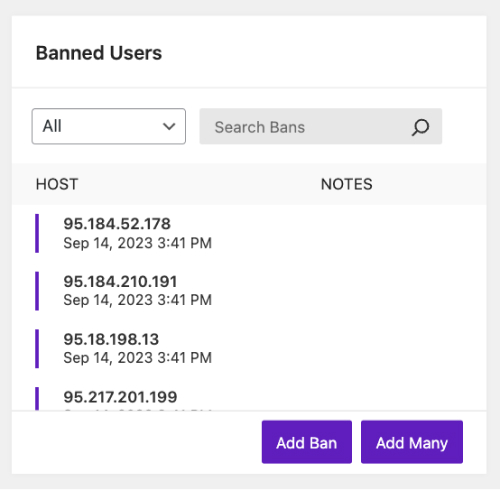
The Banned IPs card lets you manually ban specific IP addresses from accessing the site straight from the dashboard. You can also add, edit, and delete notes with each banned IP address.
This card is part of the Firewall module’s IP Management settings.
Bans Overview #
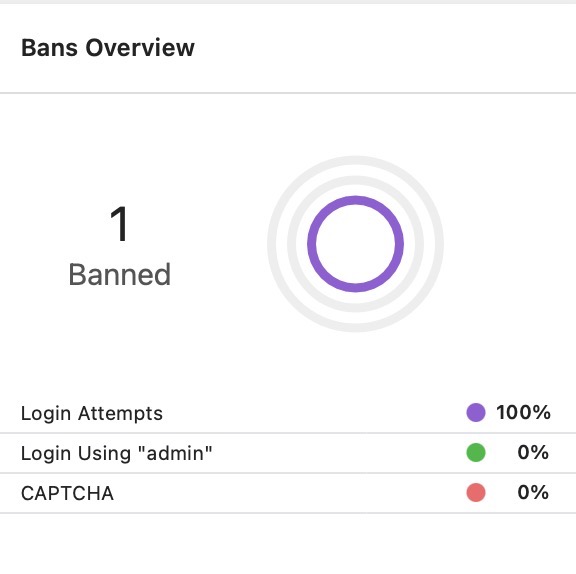
The Bans Overview provides a quick overview of Login Attempts, Login Attempts using “admin”, and CAPTCHA bans on the site over the past 30 days. You can use this card to monitor the summary of login-related events and identify suspicious activity to proactively respond to security threats.
Active Lockouts #
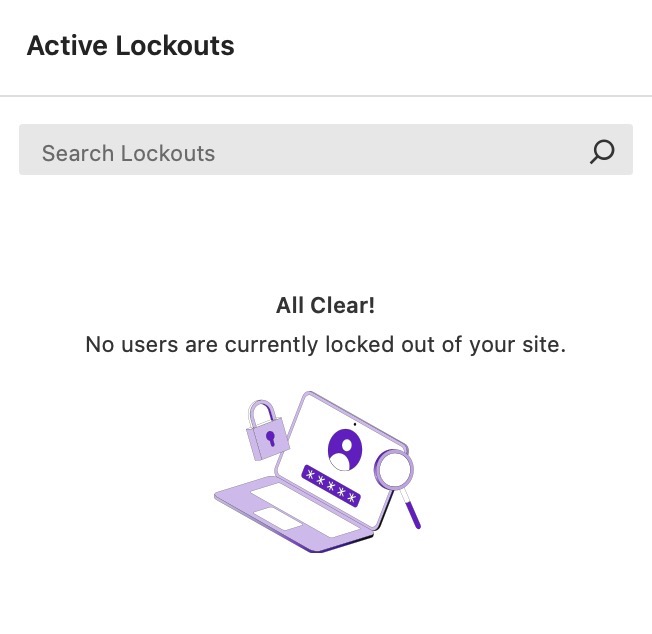
The Active Lockouts card displays a real-time list of IP addresses that have been temporarily locked out due to hitting the lockout criteria such as multiple failed login attempts. This helps you monitor potential brute force attacks early to help you take further action, such as banning repeat offenders or investigating the source.
Active lockouts are temporary and last for 15 minutes before Solid Security automatically releases them. You can use this card to release any active site lockouts.
Lockouts #
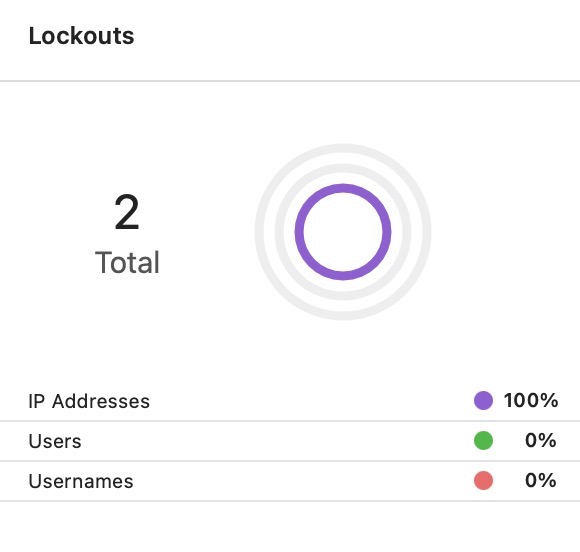
The Lockouts card gives you an overview of lockout events made on the site over the past 30 days. It displays the total number of recorded site lockouts and a breakdown of the source of the attempted logins. This card is useful for understanding where the site lockouts are occurring which can help you implement additional security measures such as implementing stricter login policies, if necessary.
Threats Blocked #
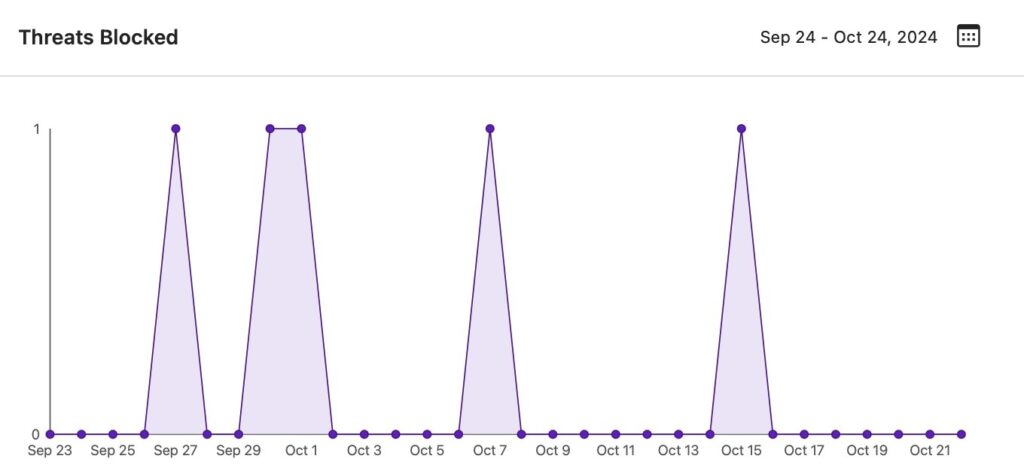
The Threats Blocked card displays a graph of the overall number of threats Solid Security has blocked on the site. The events displayed are data coming from these modules: Local Brute Force, Network Brute Force, and Firewall Rules Engine. This lets you quickly assess the effectiveness of your security configurations and identify which periods had increased activity.
User Security Profiles #

The User Security Profiles card lets you see a comprehensive overview of user security-related details for all registered users on the site. You can use this card to enforce security measures such as logging out a specific user or forcing a password change for all users.
User Security Profile #
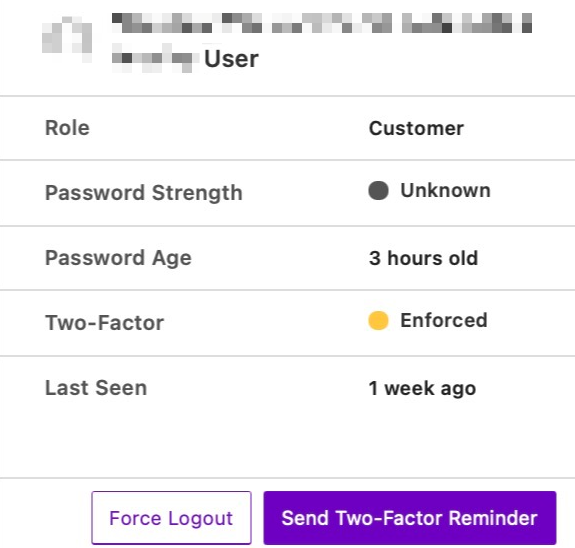
The User Security Profile card works the same as the User Security Profiles card but it lets you pin an individual user, displaying the same security information with an added functionality of sending a Two-Factor Reminder email to that user (if the user hasn’t configured 2FA yet).
Database Backups #
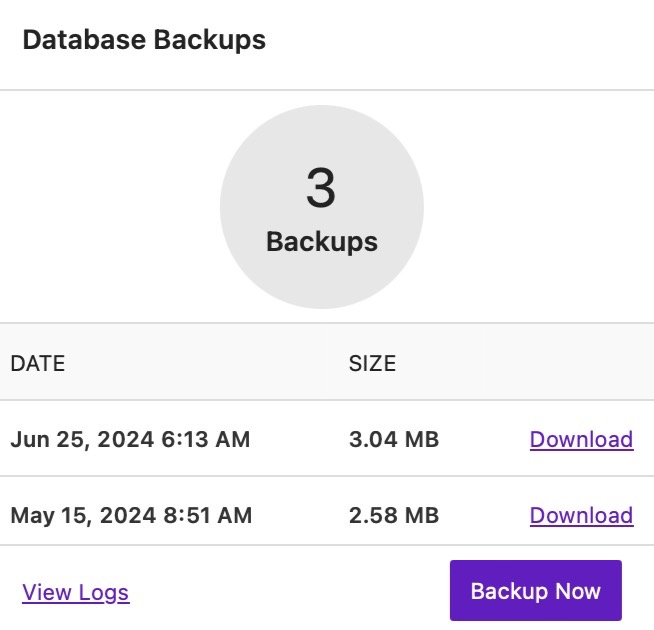
The Database Backups card lets you create a database backup of the site and lists all the backups you’ve created. The number of backups listed will be based on the limit you’ve set on the “BACKUPS TO RETAIN” setting in Security -> Settings -> Features -> Utilities -> Database Backups.
Note: This card won’t be available when you have Solid Backups activated on your website. For Security users who don’t have a backup solution, this is a rudimentary backup option that works as a failsafe for when some setting changes and you need to roll back to the database from before the change.
Trusted Devices #
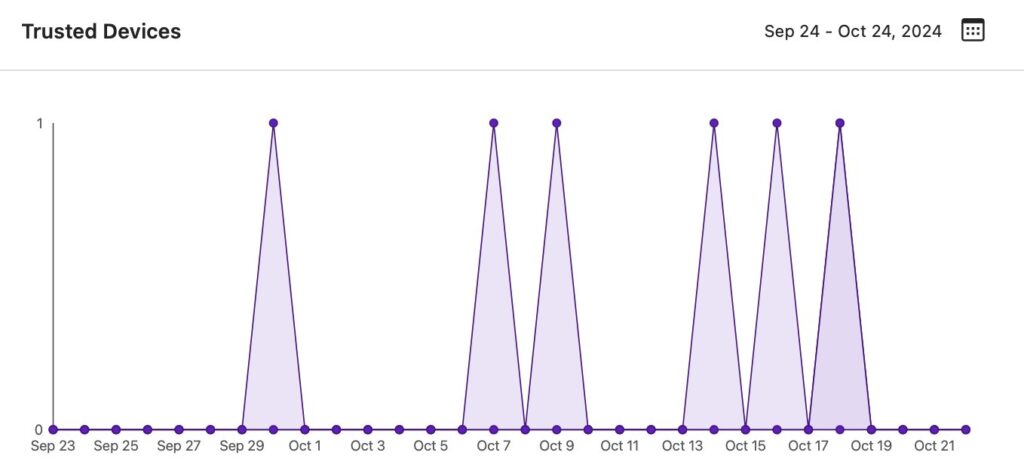
The Trusted Devices card displays a graph of device activity on your site, categorizing devices as Approved, Auto-Approved, or Blocked. This card lets you regularly monitor how devices interact with your site, help detect unauthorized devices, and lets you identify that only trusted devices are gaining access.
Approved devices are those that are manually verified by an administrator. Auto-Approved devices are those recognized by Solid Security as similar to an existing trusted device. Blocked devices are those denied access by the authorized user.
How to share read-only Security Dashboard to users #
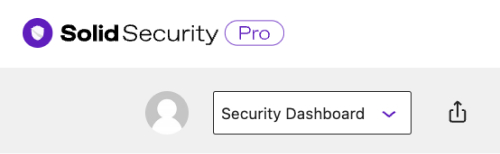
Solid Security Pro gives you the ability to share a read-only view of the Dashboard to specific users. This is an excellent way to share security insights with clients or team members without granting them access to make changes.
For agencies managing client websites, this feature is particularly valuable, as it allows you to showcase the work you’re doing to keep their sites secured. This gives your clients an at-a-glance view of threats blocked, updates summary, lockouts, and more. Sharing the Dashboard lets your clients monitor their sites safely without needing direct access to admin settings or needing technical knowledge. You can choose to share either the default or custom Dashboard ensuring that admin settings remain protected while they stay informed.
By giving your specific users a tailored view, you can demonstrate the security efforts you’ve configured in place and build confidence by being transparent about the security measures.
When you have finalized the look of your Dashboard, you can share it with other users in three steps.
1. Select the Share Dashboard button.
2. Choose the User or User Role.
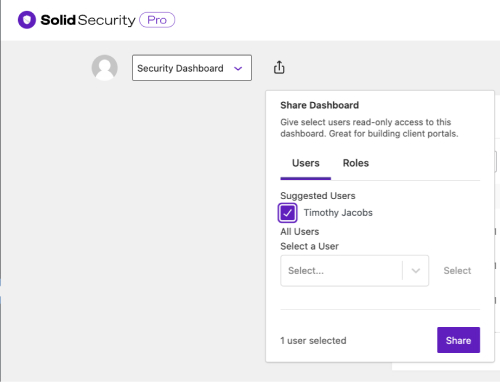
3. And Share!
Now the user or users will have access to that Security Dashboard next time they log in
Dynamic Highlights #
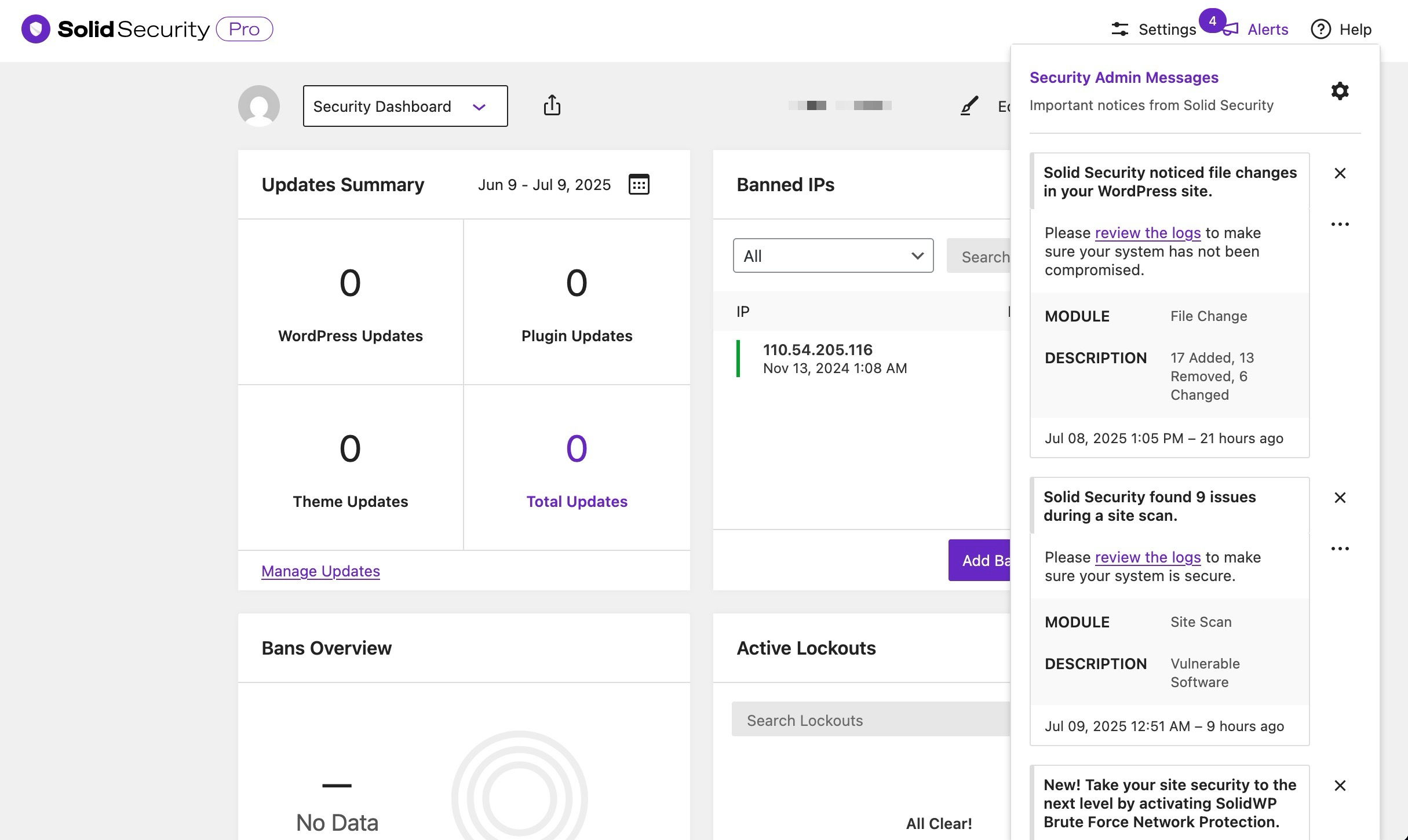
Dynamic Highlights are a Dashboard UI feature that visually highlight important security events in the Security Admin Messages center, making sure you see urgent issues right away.
Examples include: File Change and Vulnerable Software alerts, Failed notification sends, etc., which can be accessed by clicking “Alerts”:
How can Dynamic Highlights affect my Multisite environment? #
Dynamic Highlights are enabled by default and run background database queries like the below to check for the latest matching log entries:
SELECT id, parent_id, module, type, code, timestamp, ...
FROM wp_itsec_logs
WHERE module='notification_center' AND code LIKE 'send_failed::%' ...
On high-scale multisites, it can cause database spike and impact performance even if logging is set to File Only.
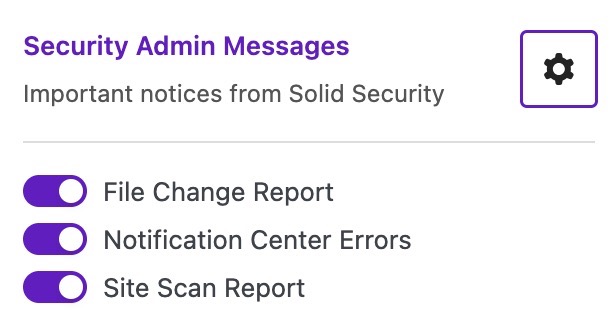
To disable this feature, you can tap the gear icon in the Security Admin Messages area, and toggle OFF the highlights you do not need:
If you are still seeing the database query of this feature spiking server resources despite disabling it, you can disable it robustly using a code snippet, as recommended here: How to stop the send_failed Notification Center database query from spiking server resources on a multisite environment?
WordPress Dashboard Widget #
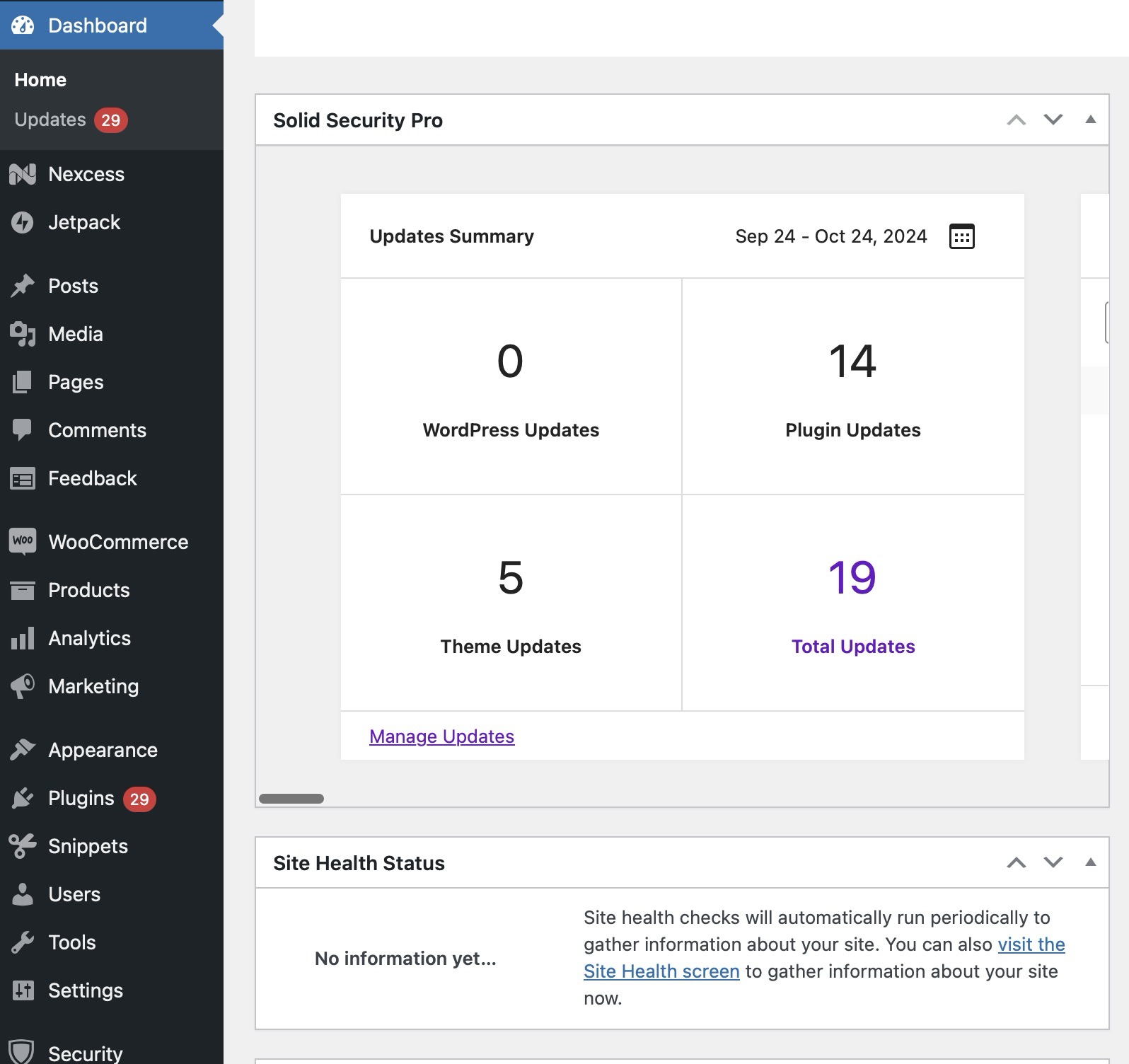
When using Solid Security Pro, a WordPress Dashboard widget is automatically added. This provides at-a-glance data from the Security Dashboard directly within the WordPress admin area. This lets you quickly assess the security status of your website without needing to navigate to the main Security Dashboard. You can also use the action buttons of each Security Card there to perform security actions.
Overall, having a Security Dashboard is an essential way of understanding the overall security health of your WordPress website, helping you to stay informed and take proactive measures against potential threats. You can customize and share a single Dashboard or create multiple different ones that are tailor-made to your different client needs or purposes.
Whether you’re using the Basic version or using the advanced capabilities of the Pro version, Solid Security Dashboards ensure you can effectively manage your site’s security and build trust while keeping the right people informed.



