

What is Two-Factor Authentication (2FA)? #
Two-Factor Authentication (2FA) enhances the security of user accounts by requiring a secondary authentication code in addition to the usual username and password when logging in. This method helps protect against unauthorized access, even if your primary password is compromised.
Enabling Two-Factor Authentication #
- How Users Can Enable 2FA:
- After 2FA is enabled, users can visit their WP Profile page.
- Click on the “Configure” button to start the 2FA onboarding process.
- This will redirect the user to the Two-Factor Authentication Onboarding page where they can set up 2FA for their account.
- Important Considerations:
- Potential Conflicts: Some plugins or themes that modify the default WordPress login screen (wp-login.php) can interfere with configuring 2FA. One such example is the User Registration by WPEverest plugin. If you’re using a plugin/theme that affects the login screen, 2FA setup might not function as expected.
Workaround: To force the old 2FA settings layout, add the following code to the wp-config.php file:
define ( 'SOLID_SECURITY_LEGACY_2FA_UI', true);
- Note: Basic 2FA is available in the free version of Solid Security, but advanced features like “Require 2FA” and “Remember This Device” are part of the Pro version.
Available 2FA Authentication Methods #
Solid Security supports the following methods for Two-Factor Authentication:
- Mobile App (e.g., Google Authenticator or Authy)
- Email (time-sensitive codes sent to the user’s email)
- Backup Authentication Codes (one-time use codes for recovery)
How to Choose Authentication Methods: #
- All Methods (Recommended): Allows users to choose the method that works best for them.
- All Except Email: Excludes the email method from available options.
- Select Methods Manually: Choose specific methods that you want to enable.
Note: If you disable the Email method, the “Require Two-Factor” setting in User Groups will not be available.
2FA Setup Flow #
Onboarding and User Experience #
Disable on First Login: New users will not need to enter a 2FA code the first time they log in, simplifying the initial signup process.

Onboarding Welcome Text: Customize the text shown to users during the 2FA onboarding process.

Two-Factor Protection Settings #
- Vulnerable User Protection:
- Enforces 2FA on accounts with weak passwords or those affected by recent brute force attacks. Recommended for added security.
- Pro Feature: Requires the Email method to be enabled.
- Vulnerable Site Protection:
- Forces all users to use 2FA if the site is vulnerable (e.g., outdated software).
- Pro Feature: Also requires the Email method.
Two-Factor Authentication Onboarding Process #
Initial Setup:
After logging in with your username and password, users are prompted to start the Two-Factor Onboarding process.

Users will next be prompted to select a 2FA method during the onboarding process. Before continuing, they must choose at least one method (Mobile App, Email, or Backup Codes).
Backup Codes:
After setting up your 2FA method, download and store the backup codes in a safe place. These can be used to log in if you lose access to your primary 2FA method.

Completion:
Once the onboarding process is complete, users can begin using their chosen 2FA method for future logins.

Skip Onboarding for Certain Roles:
If you want to skip 2FA onboarding for specific user roles, you can enable the “Skip Two-Factor Onboarding” option in the User Groups settings.

Setting Up Two-Factor Authentication with a Mobile App #
Install a Mobile App:
You can use apps like Google Authenticator or Authy (available for iOS and Android).
Set up in WordPress:
Navigate to Users > Your Profile.
Scroll to Solid Security Two-Factor Authentication and click Configure to start the 2FA onboarding process. Then select Mobile App:

Scan the QR Code with the Google Authenticator or Authy app to link the mobile app with your WordPress site.

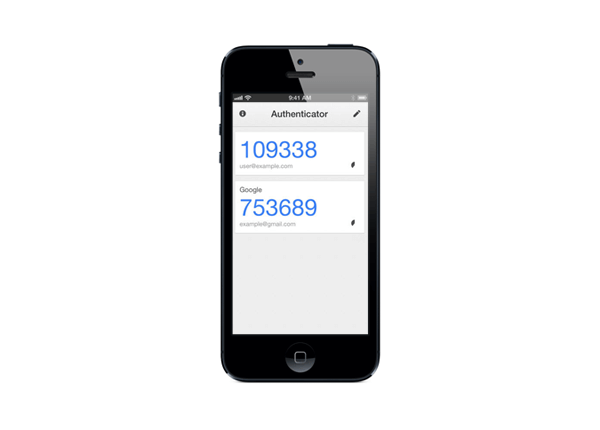
After scanning, your app will generate a 6-digit code that changes every 30 seconds.

Verification:
Enter the 6-digit code from your mobile app into the 2FA setup page to complete the registration.
Backup Codes:
Ensure you download and store backup codes for recovery in case you lose access to your mobile app.
Troubleshooting 2FA issues: #
Disabling 2FA via wp-config.php #
If you run into any issues with 2FA or wish to disable 2FA on a staging site, you can use the following snippet in your wp-config.php file:
define('ITSEC_DISABLE_TWO_FACTOR', true);Error: Mobile App Two-Factor is Temporarily Unavailable #
Solid Security encrypts Two-Factor codes in the database using the ITSEC_ENCRYPTION_KEY constant, which is automatically added into the wp-config.php file when 2FA is set up.
If you see the message “Mobile App Two-Factor is temporarily unavailable,” it may indicate an issue with the encryption key and Solid Security is unable to decrypt Two-Factor codes without the correct key. This may happen if the constant is missing or incorrect, often due to site migration or a corrupted plugin installation/uninstallation.
- Solution:
- Click “Generate New Secret” to reset the 2FA settings for the mobile app.
- Use another method (Email or Backup Codes) to log in, then go to your WP Profile to set up the new 2FA secret for your mobile app.
Error: Invalid Authentication Code or The code you supplied is not valid #
For Time-based One-Time Passwords (TOTP) methods using Mobile App, this error indicates that your website/server and device’s timezones are not in sync with each other.
- Solution:
- Ensure your website’s timezone is correctly configured and matches the timezone set on your server and device’s operating system.
- In your Mobile App, make sure the timezone is set correctly there, too.
- Google Authenticator: Starting version 7.0, time correction setting is no longer available in the settings menu, because the app now uses the time setting on your device’s OS (learn more here).
- Authy: Check the “What to do if your Authenticator token doesn’t work” guide.
Cannot proceed with 2FA Onboarding when only the Mobile App method is enabled #
If you select the Mobile App as the only enabled method for 2FA, the “Continue” button will remain disabled.
Solid Security requires you to enable a different 2FA method to pair with the Mobile App method. This is to ensure that you have an alternative way of getting 2FA codes if you lose access to your mobile app.
Only the Email or Backup Codes methods can be enabled as standalone options at the moment.
Cannot select the Continue button during 2FA Onboarding #
When the “Continue” button during 2FA Onboarding is greyed-out and you cannot select it to continue the process, it’s likely some sort of conflict with another plugin/theme’s settings, most likely ones that can disable/update scripts.
A known setting that causes this issue is the Perfmatters plugin’s Script Manager, so if you have this active, try temporarily disabling it. If not, check your other site settings for a conflict, preferably on a staging environment.

Why does clicking the 2FA Configure button take me back to the WordPress Dashboard without showing setup options? #
This behavior can be caused by a conflict with another plugin or theme, particularly if something is interfering with the modal or admin-ajax behavior Solid Security Pro relies on for 2FA setup.
To troubleshoot:
- Temporarily switch to a default theme like Twenty Twenty-Four and deactivate other plugins.
- Try clicking the Configure button again.
- If it works, re-enable your theme and plugins one by one to identify the conflict.
Also, make sure your 2FA settings are properly configured for your user role.
You can also try to force the old 2FA layout as a workaround if the conflicting plugin/theme is essential to the site. The Important Considerations section above explains how you can force the old 2FA layout.
Why am I still asked for a Two-Factor Authentication (2FA) code after using a Passwordless Login method (Passkey or Magic Link)? #
If you’re logging in with a passwordless login method (passkey or magic link) and Solid Security still asks for a 2FA code afterward, this means the site is configured to require Two-Factor Authentication even when using passwordless login.
To fix this:
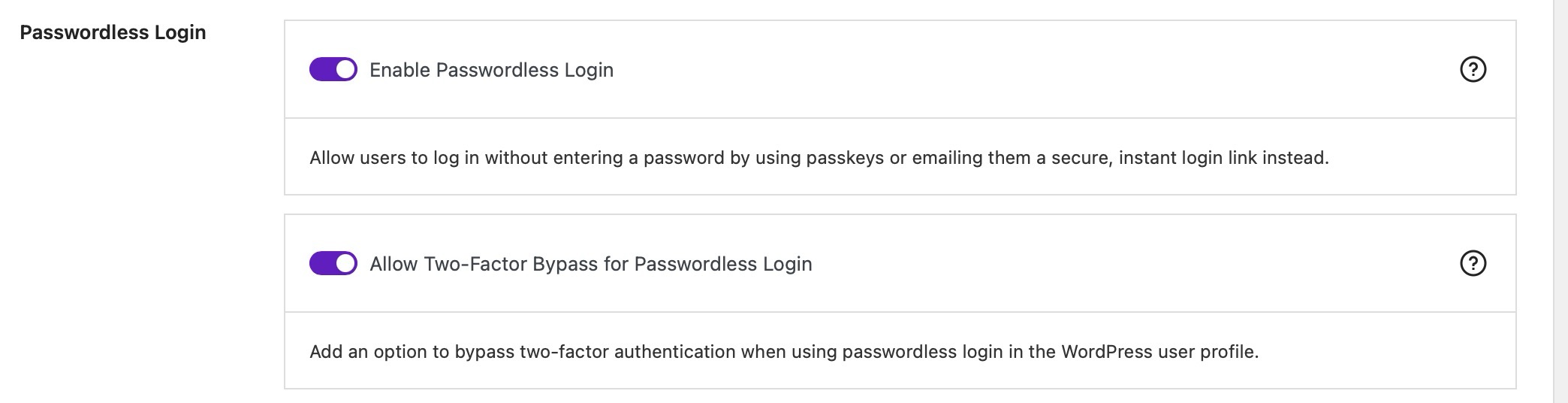
1) Go to Security > Settings > User Groups.
Enable Allow Two-Factor Bypass for Passwordless Login for your user group (for example, Administrators).
2) Go to Users > Profile > Solid Security Settings for your user account.
Disable Use Two-Factor during Passwordless Login.
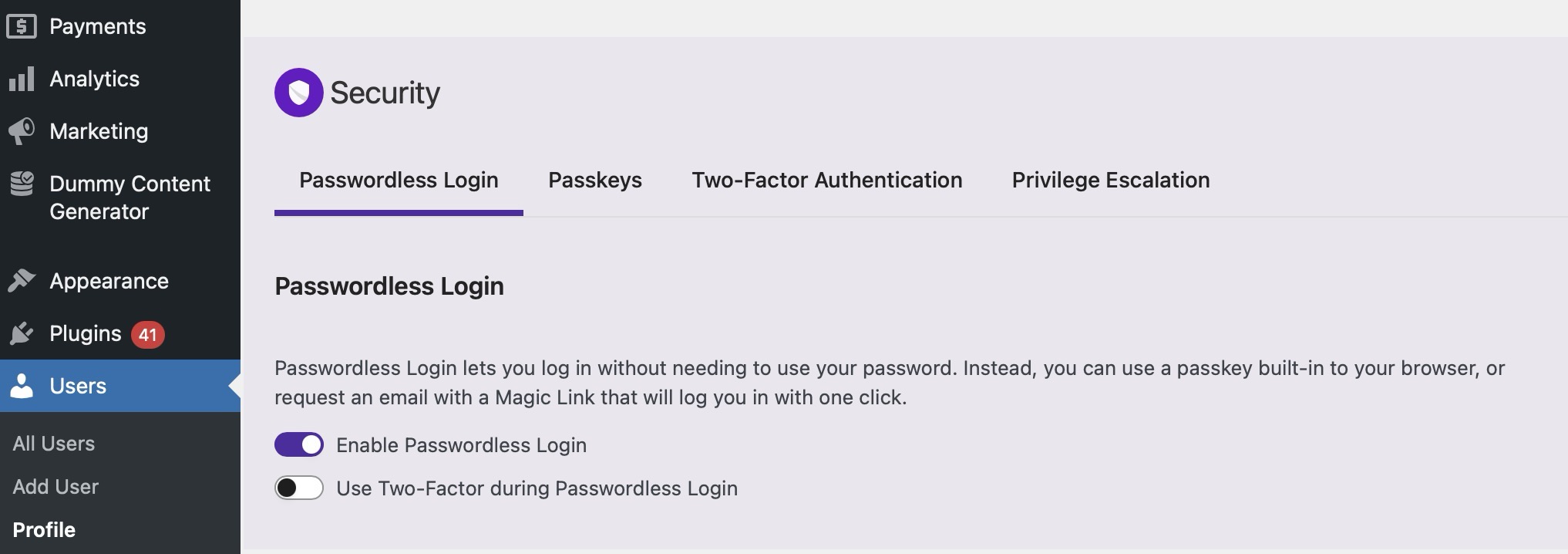
Once these options are set, you’ll be able to log in with your passkey alone, without being prompted for an additional 2FA code.
Conclusion #
Enabling Two-Factor Authentication in Solid Security is essential to securing your WordPress site. By following the steps above, you can ensure that a secondary layer of authentication protects your account, whether you choose to use a mobile app or email. Keep your backup codes handy when you cannot access your email or mobile auth app. Additionally, Solid Security provides flexible options to help you customize and enforce 2FA settings based on your site’s needs.



