

Skip to content
  • Pricing
  • Products & Services
      Save 25%

      Solid Suite

      Secure your sites, keep them safely backed up, and grow your business… all while saving time and money.

      • Solid Security
      • Solid Backups
      • Solid Central
      • Solid Academy
      See pricing

      Protect

      Shield your site from cyberattacks and prevent security vulnerabilities

      A cloud-first solution for rocket fast backups and one-click restore.

      Repair

      Hacked website? Let our WordPress security experts clean up malicious code, remove threats and restore your site.

      Manage

      Maximize and amplify your admin with remote multi-site management.

      Ensure delivery of every email sent from your site.

      Free Plugins

  • Resources
      Save 25%

      Solid Suite

      Secure your sites, keep them safely backed up, and grow your business… all while saving time and money.

      • Solid Security
      • Solid Backups
      • Solid Central
      • Solid Academy
      See pricing

      Academy

      Solid Academy

      For anyone who wants to start or grow a business around WordPress.

      Guides

      Dive deeper into our free WordPress and business guides.

      Livestreams

      Free livestreams to help you discover new tools and work more efficiently

      Tutorials Academy

      Learn WordPress with our beginner WordPress tutorials

      Resources

      Blog

      Catch up on the latest news from our WordPress security experts

      Vulnerability Report

      Keep track of every new plugin and theme vulnerability

      Support

      Your success with Security, Backups and Central is our highest priority.

      Documentation

      Learn everything you need to know about our products & services.

Sign In Get Solid Suite
SolidWP Logo Black
  • Pricing
  • Products & Services
    • Solid Security Pro
    • Solid Backups — NextGen
    • Solid Fix
    • Solid Central
    • Free Plugins
    • Solid Security
    • Solid Performance
    • Solid Mail
  • Resources
    • Solid Academy
    • Guides
    • Livestreams
    • Tutorials
    • Blog
    • Vulnerability Report
    • Support
    • Documentation

How It Works

17
  • All About Solid Security’s Tools
  • Using Solid Security’s CAPTCHA
  • All about Firewall with Solid Security
  • Solid Security Two-Factor Authentication (2FA) Settings Guide
  • Releasing Site Lockouts in Solid Security
  • Diagnosis Tips: Raw Details of Site Scanner Logs
  • SolidWP Licensing: How to Make sure your site is licensed correctly
  • All about Solid Security’s Debug Mode
  • Frequently Asked Questions
  • Vulnerability Protection with Solid Security
  • Security Logs
  • All about User Security with Solid Security
  • All about Solid Security Site Scans
  • Solid Security Dashboard
  • What are Passkeys for WordPress Websites?
  • All about the Solid Security Settings
  • Understanding Trusted Devices in Solid Security

Learn More

9
  • Restrict Admin Access by Country Settings Guide
  • Security Headers Settings Guide
  • List of Solid Security Pro Action Hooks
  • How Do I Integrate My Plugin with Solid Security Pro reCAPTCHA?
  • Solid Security Pro WP-CLI Integration
  • All about Solid Security’s Debug Mode
  • Frequently Asked Questions
  • What are Passkeys for WordPress Websites?
  • Understanding Trusted Devices in Solid Security
View Categories
  • Home
  • SolidWP Documentation
  • Solid Security
  • How It Works
  • SolidWP Licensing: How to Make sure your site is licensed correctly

SolidWP Licensing: How to Make sure your site is licensed correctly

1 min read

To license the Solid Security Pro plugin, log into your website and go to WordPress Dashboard -> Settings -> SolidWP Licensing. 

Under the Unlicensed Products section, tick the Solid Security Pro checkbox and enter your SolidWP username and password. Then, click the “License Products” button.
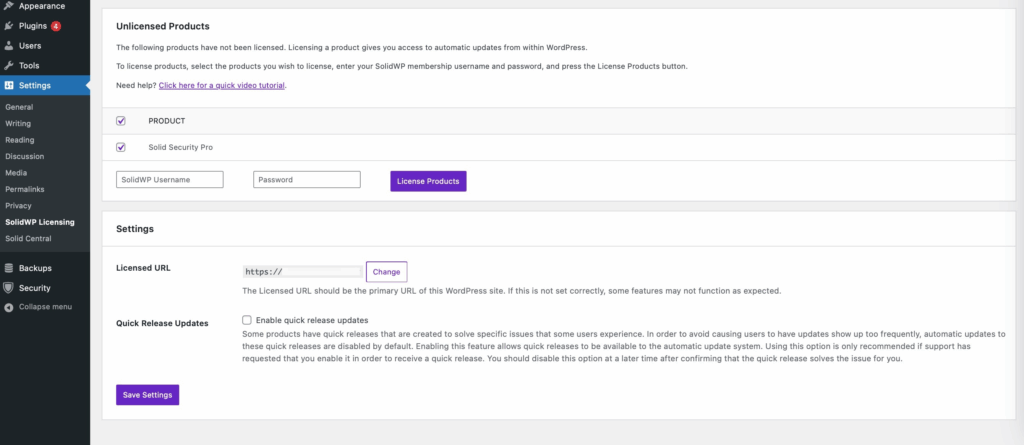

Ensure that the Licensed URL is correct and matches your site. While the vast majority of Solid Security features do not require a license to function on a day-to-day basis, there are some that do interact with the Licensing system to work. Specifically, the Site Scanner runs a brief check to ensure that a site is correctly licensed. If you are running into errors related to the site scanner, the first troubleshooting step is to check to make sure the licensed URL exactly matches the site URL.

Note that the password you need to enter here is the same one you use to log into the Member Panel. If you need to, you can change your password there using the “Forgot password?” link.

Patchstack Licensing #

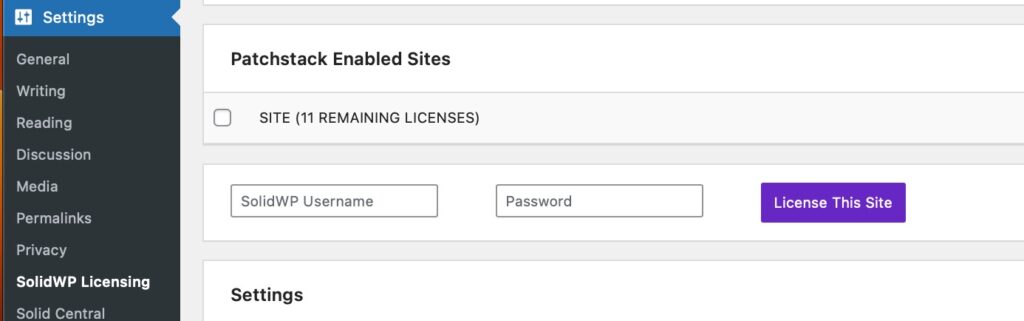
If you’ve purchased a separate Patchstack license and want to enable it, log into the site where the Solid Security Pro plugin is installed and go to the SolidWP Licensing page.

You’ll see a Patchstack Enabled Sites section where you need to enter your SolidWP username and password to activate it.
Updated on April 22, 2026

Was this doc helpful?

  • Happy
  • Normal
  • Sad
Diagnosis Tips: Raw Details of Site Scanner LogsAll about Solid Security’s Debug Mode
Table of Contents
  • Patchstack Licensing
SolidWP
  • Pricing
  • Products
    • Solid Suite – save 25%
    • Solid Security
    • Solid Backups — NextGen
    • Solid Central Pro
  • Resources
    • Blog
    • Academy
    • Guides
    • Tutorials
    • Vulnerability report
  • Support
    • Documentation
  • My account
  • Contact us
    • Terms
    • Refund policy
    • Privacy policy
    • Change Cookie Preferences
  • About SolidWP
    • FAQ
    • Looking for iThemes?
    • Affiliates
    • Press
  • Our Partner Brands
    • GiveWP
    • Iconic
    • KadenceWP
    • LearnDash
    • MemberDash
    • Orderable
    • The Events Calendar

Get Solid Suite bundled with hosting.

Explore StellarSites
  • X
  • YouTube
  • Facebook

A Liquid Web Brand
Hosting for WordPress
© 2025 All Rights Reserved

StellarWP logo
Liquid Web logo

