

User Security is a powerful module within Solid Security designed to centralize user account management while enhancing website security. It provides administrators with handy tools to monitor user activity, enforce critical security policies, and customize access controls based on specific needs. With features such as two-factor authentication, password management, and user group permissions, administrators can ensure that user accounts remain secure against unauthorized access. By combining flexibility with stringent security measures, User Security enables you to maintain a safe, efficient, and user-friendly WordPress environment.

Key Features #
This document outlines and explains the following features in detail:
- Two-Factor Authentication Reminder: Notify users to set up 2FA for increased login security.
- Force Password Reset: Require password changes following potential breaches.
- Force User Lockout: Terminate active user sessions for compromised accounts.
- Add to a User Group: Assign users to specific groups with customized security rules.
- Delete User Accounts: Remove unused or compromised accounts.
- Strong Password Enforcement: Implement and enforce robust password policies.
- Prevent Compromised Passwords: Reject weak or compromised passwords detected in security databases.
- Password Age Policy: Enable periodic password expiration to maintain security.
- Two-Factor Authentication: Enhance login security with advanced multi-factor authentication options.
- Application Passwords: Secure API connections with unique, manageable passwords.
- Privilege Escalation: Grant temporary elevated access for specific roles or tasks.
- Trusted Devices: Restrict access to verified devices, protecting against session hijacking.
- Passkeys for Passwordless Login: Utilize biometric and cryptographic methods for password-free login.
Note: when these features are disabled (which is the default for some), their settings are “collapsed.” Once you enable them and in some cases save the settings at the bottom of the page you will then have access to those settings.

Two-Factor Authentication Reminder #
This feature allows administrators to proactively enhance user login security by sending email notifications reminding users to set up Two-Factor Authentication (2FA). 2FA adds an additional layer of protection by requiring a secondary authentication method, such as a mobile app code or email verification, in addition to the user’s password. This tool is particularly useful for encouraging compliance with security policies without interrupting user workflows. Administrators can select multiple users or groups to receive these reminders, ensuring critical accounts adopt this security measure promptly.
Force Password Reset #
The Force Password Reset feature enables administrators to require immediate password changes for selected users. This function is particularly vital in scenarios involving potential data breaches or when account credentials may have been compromised. With this tool, admins can ensure that affected users update their passwords to meet current security standards, reducing the risk of unauthorized access.
Solid Security does not customize the password reset email. When a Force Password Reset is triggered, the plugin calls WordPress’s built-in retrieve_password() function, which sends the default WordPress password reset email.
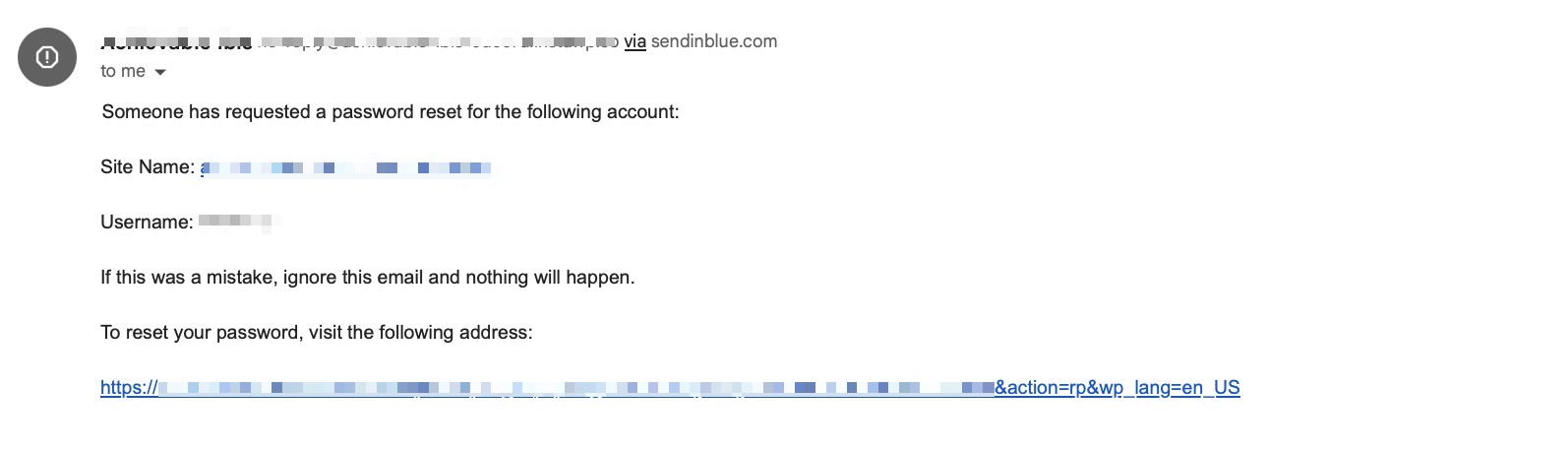
The email includes the site name, username, and the standard password-reset link—exactly as WordPress generates it.
Force User Lockout #
This feature provides administrators with the ability to terminate active sessions for specific user accounts instantly. It’s an essential tool for responding to compromised accounts or unauthorized access attempts. By forcibly logging a user out of their session, admins can prevent further unauthorized activity, mitigating potential risks. This feature is especially effective when used in conjunction with other security protocols, such as requiring a password reset or verifying the account owner.
Add to a User Group #
User groups allow administrators to create customized security rules tailored to specific roles or categories of users. With this feature, selected users can be assigned to these groups, ensuring that the appropriate security measures—such as password strength requirements, and two-factor authentication enforcement—are applied consistently. For example, administrators might assign stricter rules to high-privilege accounts, such as administrators or editors, while applying more lenient settings to subscriber accounts. This functionality streamlines security management while maintaining flexibility.
Strong Passwords #
Enable the Strong Passwords feature to enforce robust password creation standards based on user roles.
Enabling Strong Passwords #
- Navigate to Security > Dashboard > Settings > User Groups > Password Requirements.
- Configure the required user roles for strong password enforcement.

Note: For sites with public registrations, applying a strong password requirement to low-privileged roles (e.g., subscribers) may inconvenience users, so you’ll want to weigh it as an option only for higher privilege users.
This feature uses the built-in WordPress Password strength meter, so there’s not a way to granularly change the password strength required to pass the check. The password strength meter uses zxcvbn. It’s either a pass or fail in terms of strength.
How Strong Passwords Enforcement Works #
Solid Security Pro handles password strength in two stages:
1) Visual Strength Meter (Before Submission)
- On WordPress and WooCommerce registration forms, users will see the native WordPress password strength meter while typing their password. This provides real-time feedback (Very Weak, Weak, Medium, Strong) of the chosen password, but does not prevent form submission.
2) Server-Side Validation (After Submission)
- The actual password enforcement happens after the user clicks Register, Checkout, or Place Order.
- The system validates the submitted password via WordPress’s
user_profile_update_errorshook. - If the password does not meet the strength requirements for the user’s role:
- Registration or checkout fails
- An error message appears
- The user must choose a stronger password to continue
How it looks like for WordPress Registration and WooCommerce Checkout: #
WordPress Registration Forms
- Users see the meter while typing.
- Validation happens after clicking Register.
- Weak passwords cause the registration attempt to fail.
WooCommerce Checkout
Solid Security Pro’s strong password checks also apply during WooCommerce account creation at checkout.
- Users see the strength meter in the WooCommerce password field.
- Validation occurs after clicking Place Order / Register.
- Checkout will fail with an error if the password is too weak.
Programmatic Password Setting #
If a password is set via custom code using wp_set_password():
- The password will be set, even if it’s weak, as WordPress does not run password strength validation inside this function.
- Solid Security Pro will evaluate the password the next time the user logs in. If the password does not meet strength requirements, the user will be:
- Redirected to a forced password change screen and they’re unable to proceed until they set a strong password
Help! I’ve disabled Strong Passwords but it’s still requiring them for my users!
The most common reason for this is that you’ve not disabled it for the specific user group (based on WordPress user roles, if your security settings are “default”) in the settings. Be sure to disable it for all user roles you don’t want to enforce strong passwords for. If you’re having trouble at all, reach out to the SolidWP Support team for assistance!
Refuse Compromised Passwords #
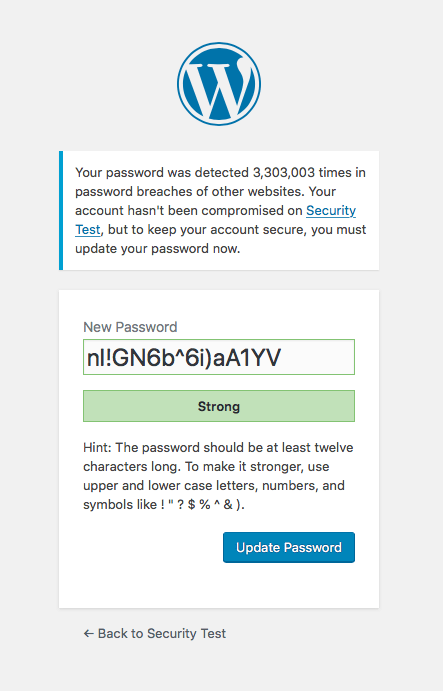
The Refuse Compromised Passwords feature ensures passwords are checked against a database of known breaches.
Key things to note about this feature:
- Passwords are validated using the Have I Been Pwned API.
- Only the first five characters of the hashed password are sent over a secure connection.
- Plain text passwords are never exposed.
Enabling Refuse Compromised Passwords #
- Go to Security > Dashboard > Settings > User Groups > Password Requirements.
- Enable the feature and specify the applicable user roles.

User Experience #
- Users attempting to log in with compromised passwords will receive a prompt to reset their password using a strong password generator.
- Once updated, users can log in securely.
Password Age #
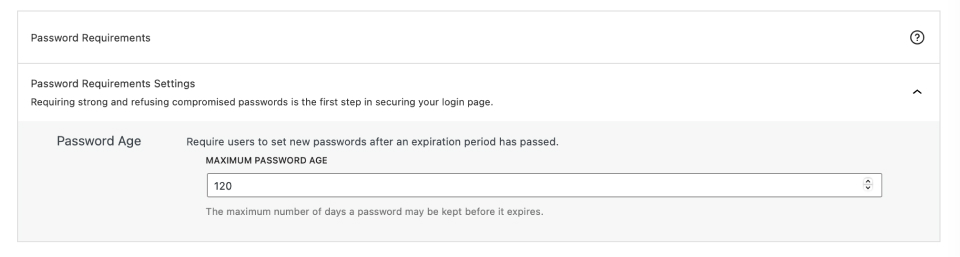
The Password Age feature enforces periodic password changes to maintain security. It’s a best practice to change passwords every 120 days (or 4 months).
Configuration #
Enable the feature for specific user groups via Security > Settings > Features > Login Security.

Set the maximum password age.
Force Password Change #
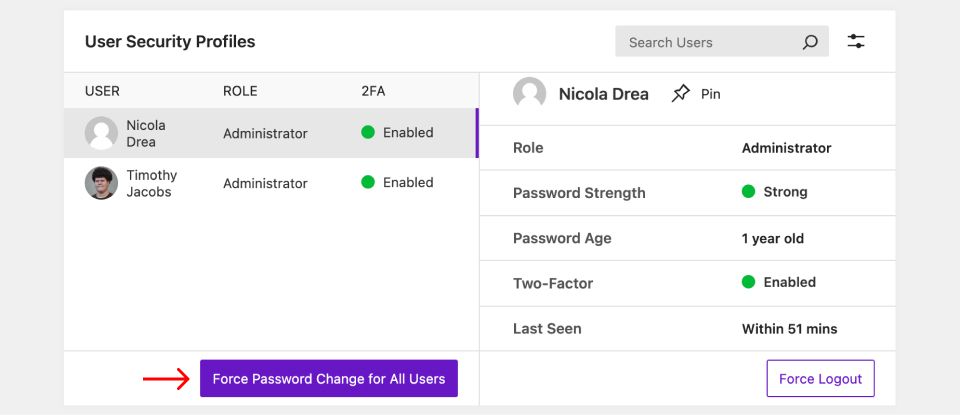
Administrators can require users to reset their passwords immediately or during their next login. This setting is configurable from two separate Dashboard Cards
For all users, navigate to Security > Dashboard > User Security Profiles card and select Force Password Change for All Users.
You can force a change For Specific users at Security > User Security.
Use Edit User or Quick Actions – Edit Multiple Users to enable Force a Password Reset for selected accounts.
User Security Settings (Block & Shortcode) #
In Solid Security Pro 8.2.0 and Solid Security Basic 9.2.0, a feature that allows users to manage their own security settings directly from the front end of the website was introduced.
How to implement:
- Using the Gutenberg Block: Edit a page or post, and add the “Solid Security User Security Settings” block to any page to display the user security interface, then publish/update the changes.
- Using a Shortcode: For sites not using the Block Editor, use the below shortcode to display the same interface.
[solid_security_user_profile_settings]Using User Security Settings in WooCommerce My Account #
If your site uses WooCommerce and customers do not have access to the WordPress admin dashboard, you can still allow them to manage their Solid Security settings such as Two-Factor Authentication (2FA) settings directly from the frontend using either of the two methods:
Option 1: Add the User Security Settings via a Page or Block #
You can place the User Security Settings block on any page and restrict access to logged-in users. This is the simplest approach if you are already linking users to a custom account or profile page.
Alternatively, you can insert the shortcode directly:
[solid_security_user_profile_settings]Option 2: Add User Security Settings to the WooCommerce My Account Area using a custom code snippet #
For a more seamless experience, you can add a custom endpoint to WooCommerce’s My Account page and display the User Security Settings there.
Add the following code to your child theme’s functions.php file or a custom plugin:
// Register custom endpoint
add_action( 'init', function() {
    add_rewrite_endpoint( 'security-settings', EP_ROOT | EP_PAGES );
} );

// Add menu item to My Account
add_filter( 'woocommerce_account_menu_items', function( $items ) {
    $logout = $items['customer-logout'] ?? null;
    unset( $items['customer-logout'] );

    $items['security-settings'] = __( 'Security Settings', 'textdomain' );

    if ( $logout ) {
        $items['customer-logout'] = $logout;
    }

    return $items;
} );

// Render the User Security Settings
add_action( 'woocommerce_account_security-settings_endpoint', function() {
    echo do_shortcode( '' );
} );
After adding this code, visit Settings > Permalinks in WordPress and click Save Changes to flush rewrite rules.
Once added, logged-in customers will see a Security Settings tab (you can rename this) inside their WooCommerce account where they can configure options such as 2FA without accessing /wp-admin.



