

Passkeys are the most secure way to log into your WordPress websites. Passkeys use public-key cryptography, where a public and private key pair is generated on your device (a computer or phone, or even a dedicated cryptography device). The private key, which verifies your identity, stays on your device and is never shared. The public key is stored on your website’s server. When logging in, the website sends a challenge to your device. Your device responds and “signs” it with the private key, proving your identity without ever revealing your credentials.
Passkeys replace passwords completely. The password is only as secure as it is strong, and once it’s cracked your site is vulnerable. With Passkeys, a bad actor would have to compromise the credentials and already have access to the server to have the private key to be able to do anything.
Practically, with passkeys enabled on your site you approve each login with an authentication step, such as fingerprint, face recognition, checking a PIN code, or the login swipe pattern familiar to Android phone owners.
You’ll have to have your phone or computer with you to use passkeys. You can’t log onto a passkey-secured account from a friend’s computer without a device of your own.
Why Use Passkeys? #
For starters, passkeys solve the problem of stolen or leaked passwords as it makes it virtually impossible to have your password leaked or stolen because your passwords aren’t stored on a server that can be compromised.
Second, passkeys protect you from phishing since it is a built-in authentication method where hackers can’t trick you into giving away your password.
Third, passkeys allow you to quickly log in with one click using your face or your fingerprint instead of having to deal with long passwords, extra emails, or two-factor codes.
Fourth, use your passkey to log in with Face ID, Touch ID, or Windows Hello from your mobile device. If you get a new Android phone or iPhone, Google and Apple can restore your passkeys. With end-to-end encryption, Google and Apple can’t see or alter the passkey.
Finally, passkeys are the best way to provide the most secure login method available for your WordPress site. Both website admins and end users, like customers, can start using passkeys to log in to any WordPress site running Solid Security Pro.
For more information on passkeys, here are some helpful links:
- Apple video: https://developer.apple.com/videos/play/wwdc2022/10092/
- Apple Passkey Security: https://support.apple.com/en-us/HT213305
- Android: https://developers.google.com/identity/fido
Authenticator Types #
There are two types of Web Authentication (WebAuthn) authenticators: Roaming authenticators and Platform authenticators.
Roaming Authenticators #
Roaming authenticators are physical security keys that a passkey is saved to. Two popular brands are Yubikey and Titan Keys. Roaming authenticators are dedicated devices that interface with your machine via bluetooth, USB, or some other connection.
- For macOS/iOS: Roaming authenticators are fully supported on Apple devices. You can use physical security keys on devices running macOS and iOS, as long as the security key is compatible with the device’s available interfaces (e.g., USB-C, Lightning, or Bluetooth).
- For Windows: Roaming authenticators are supported by Windows OS as long as the device has a compatible USB, NFC, or Bluetooth interface. The Windows device must run a supported version of the OS (typically Windows 10 and later). Cross-device authentication is possible, so the passkeys can be used on multiple Windows devices without needing to register a different passkey on each one.
Platform authenticators #
Platform authenticators are built into your device and tied to the operating ecosystem. There are some nuances for Apple/Mac and Windows.
Apple/Mac platform authenticators: #
On macOS versions before Ventura (13.0), only devices with the Touch ID sensor can create a platform authenticator passkey. This includes recent Mac laptops as well as desktop computers using an external Touch ID keyboard.
Starting with iOS 16 and macOS Ventura, passkeys are now saved to iCloud and synced across all devices signed into the same iCloud account.
With iCloud passkeys, users using Mac devices without Touch ID (e.g., a Mac Studio) can still register platform authenticator passkeys that are saved to iCloud. These passkeys function identically to ones that are created with the Touch ID on a Mac, but have a slightly different UI.
If you have a separate “work” iCloud and “personal” iCloud, passkeys will not be able to automatically cross that boundary. Instead, you’ll need to register a passkey using any device signed into your “work” iCloud and another passkey on any device using your “personal” iCloud.
Notice how the UI displays saving a passkey to iCloud Keychain.
Windows authenticators: #
Windows 10 and later include built-in support for Windows Hello, which serves as the platform authenticator. It uses biometric methods such as fingerprints, facial recognition, or a PIN to create and store passkeys. These passkeys are tied to the specific Windows device and cannot be transferred to other machines. So if you have multiple Windows devices, you would need to create a separate passkey on each device.
Prerequisites #
Before setting up Passkeys in your Solid Security Pro plugin, first make sure that your browser or device supports WebAuthn. To check, here are some helpful links:
- https://webauthn.me/browser-support
- https://developers.yubico.com/WebAuthn/WebAuthn_Browser_Support/
Apple: #
- iOS 15 or later.
- macOS Big Sur or later.
- Macs with a T1/T2 security chip or Apple Silicon.
Windows: #
- Windows 10 or later.
- Windows Hello serves as the platform authenticator.
- Older versions of Windows may require a browser extension or specific software for WebAuthn compatibility.
Android: #
- Android 9 (Pie) or later
In order to use Passkeys, please ensure your site is updated to PHP 7.3 or higher.
After confirming that you meet the prerequisites, you can now start setting up Passkeys.
How to activate Passkeys in Solid Security Pro? #
To enable the Passkeys module, head to Security -> Settings -> Features -> Login Security and toggle ON Passkeys.
On the same page, enable the Passwordless Login module and open its dropdown to reveal the settings. There, ensure the “Passkeys” checkbox is checked, and save the changes.
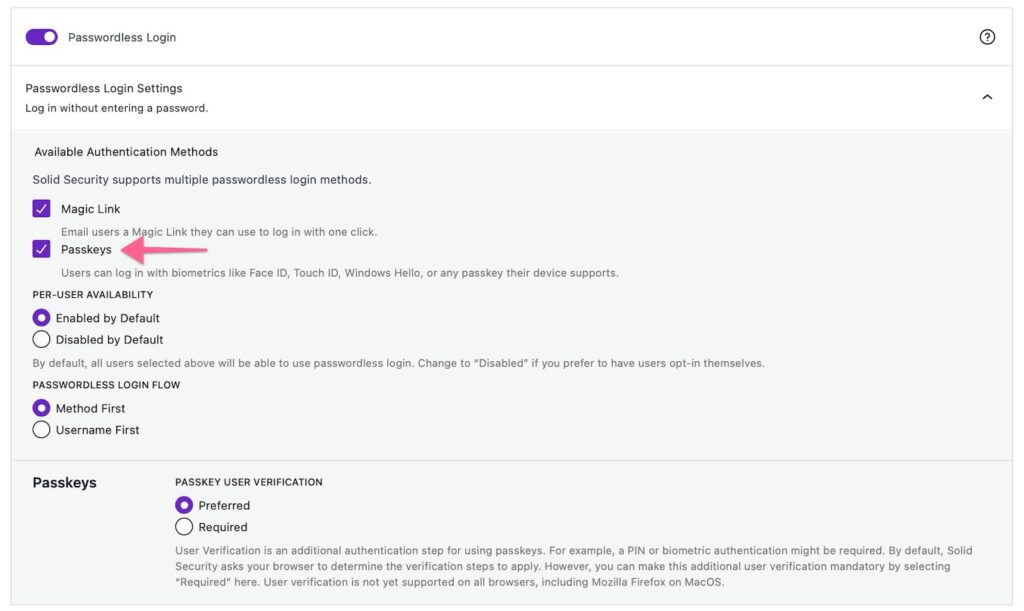
Next, navigate to Security -> Settings -> User Groups and toggle ON the “Enable Passwordless Login” setting in your preferred user group.
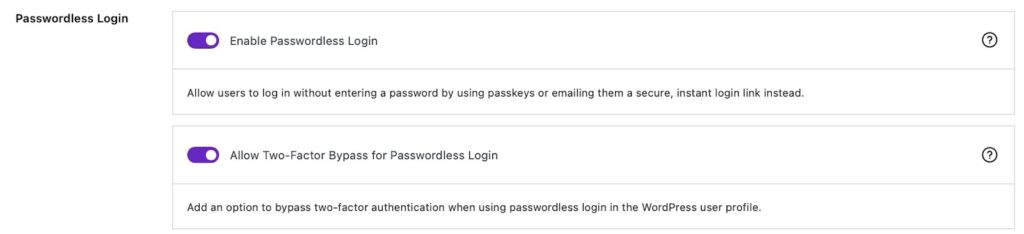
Pro tip: For a smoother login experience when using Passkeys or Magic Links, you can turn ON the “Allow Two-Factor Bypass for Passwordless Login” setting, too.
Once the above settings are configured, users whose user group have Passkeys enabled can go to their WordPress Profile page and scroll down to the Solid Security User Settings and manage their Passkeys. (See Managing Passkeys section for more information).
How does the Passkeys registration work? #
When you’ve configured your Solid Security Pro plugin to activate Passkeys for select user groups, those users will be greeted by the “Set up Passkey Login” prompt the next time they log into the site.
The Passkeys set up flow is done in three easy steps:
Step 1 – Select the type of passkey #
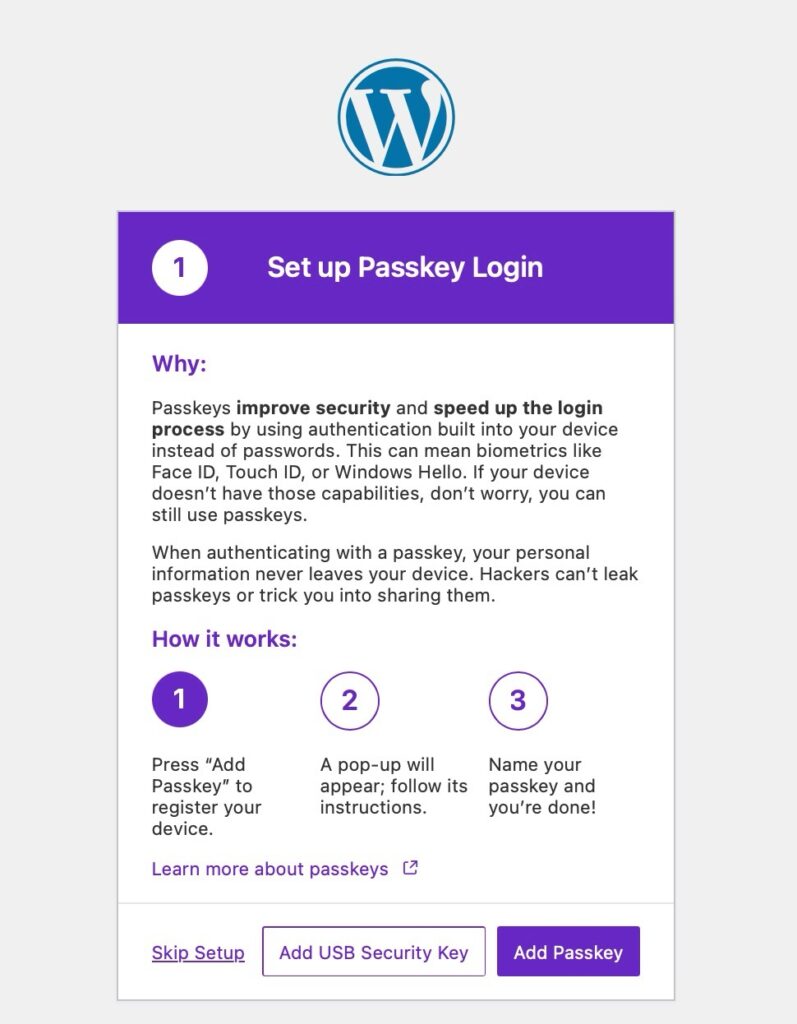
Step 2 – Register the passkey #
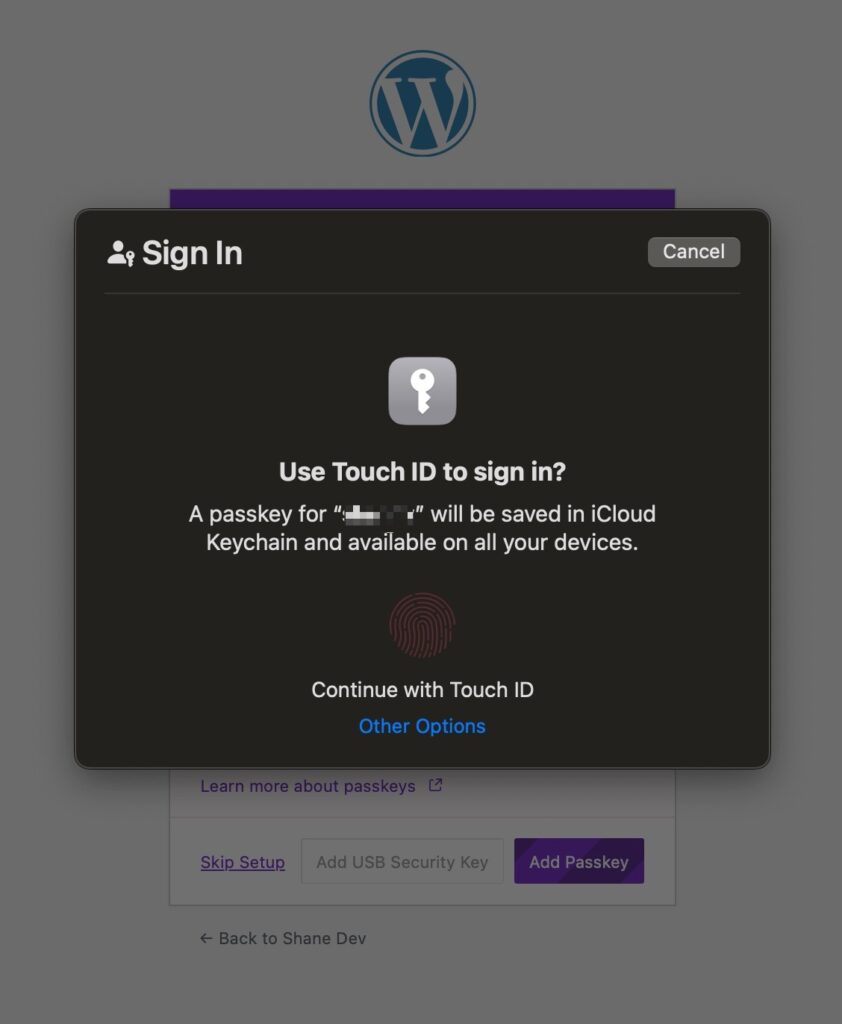
iCloud platform authenticator
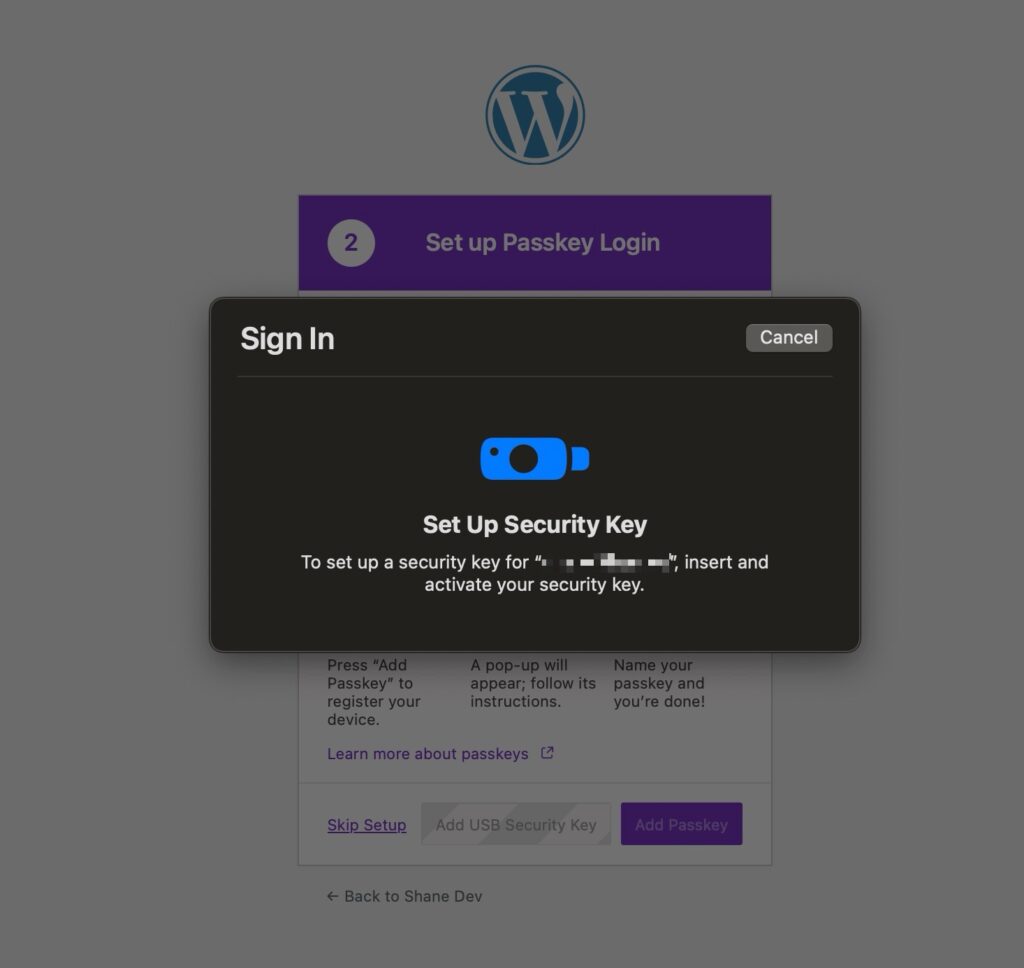
Roaming authenticator
Step 3 – Name your passkey #
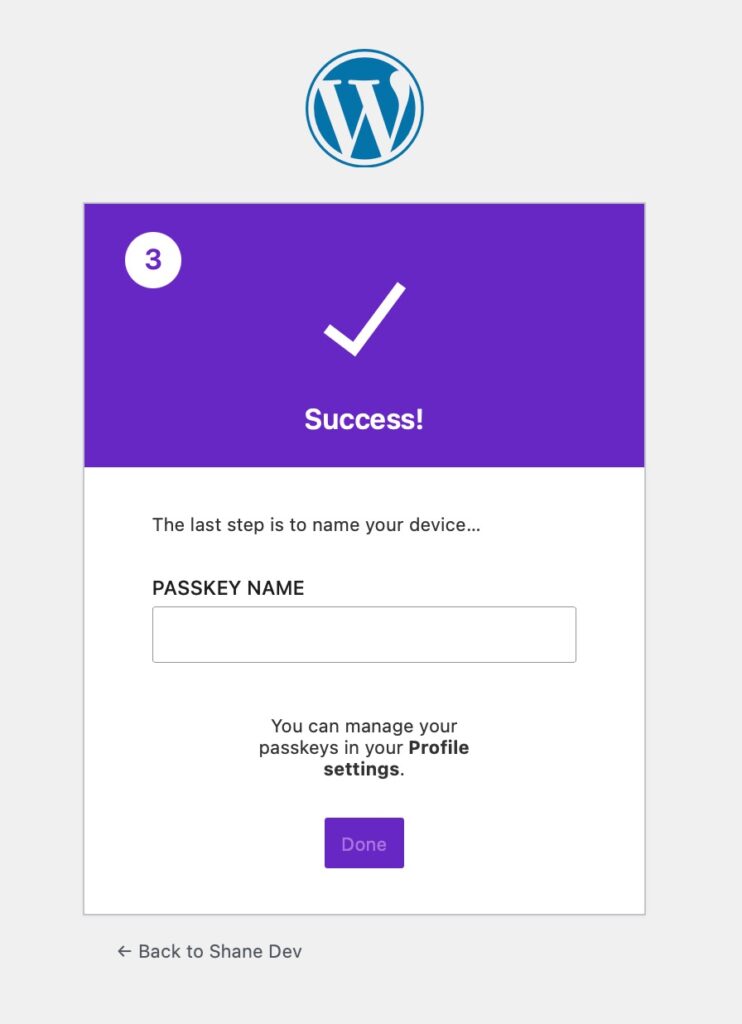
Managing Passkeys #
To manage your passkeys, navigate to your WordPress Profile page and head to the Solid Security Passkeys settings.
Here, you will see all the passkeys you’ve registered, the date they were added, and when they were last used.
When you select the “Manage Passkeys” button, a prompt will appear that lets you delete the existing passkeys or add a new one.
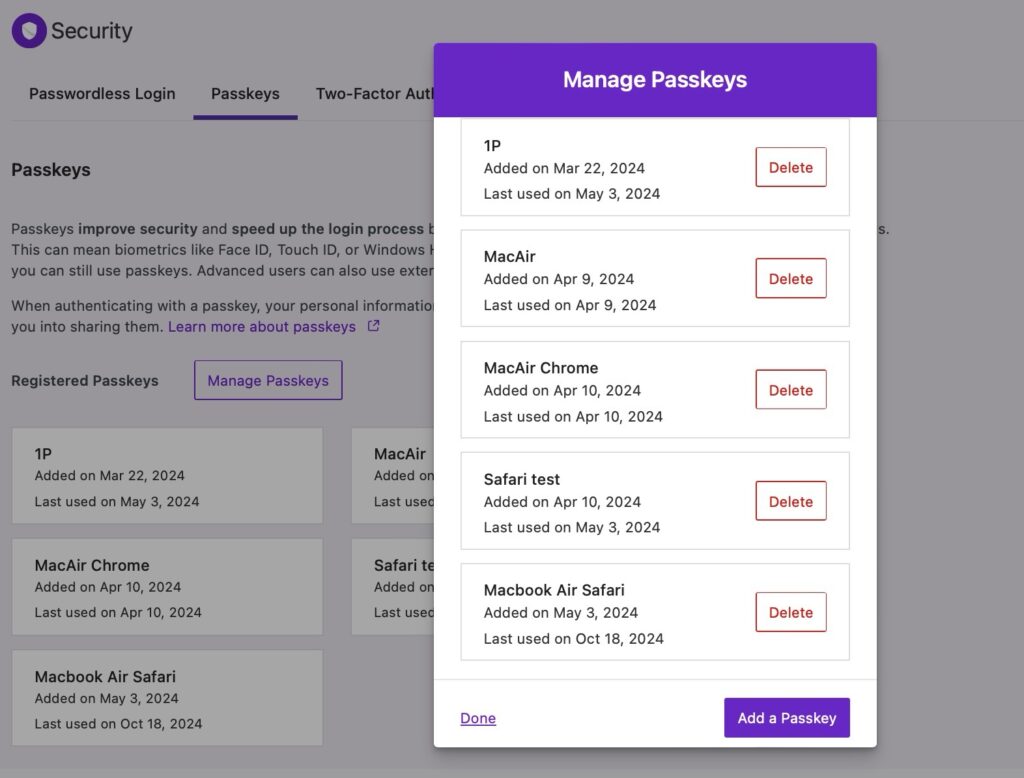
Users will be given seven days to recover their deleted passkeys. After that, Solid Security will automatically delete them permanently.
Can I add Passkeys management on the front end for users without WP Admin access? #
Yes, you can!
For sites using the block editor (Gutenberg), you can add the “Solid Security User Security Settings” block to the page where you want users to have access to their settings.
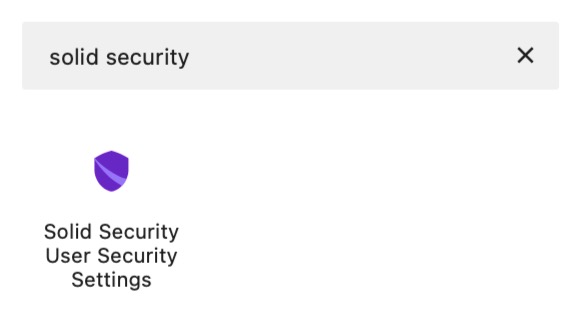
Alternatively, you can also choose to add this code as a shortcode:
[itsec_passwordless_login_settings]Both methods would show this Solid Security User Security Settings UI for the logged in users.

Passkeys FAQs #
Passkeys are not available on multisite.
Passkeys don’t care if you are in Incognito or Private browsing modes. You can use the same passkey you’ve already registered.
Your Face ID / Touch ID / Computer password is never sent to the website you are logging in with. They are only used to “unlock” your passkey locally. Your passkey is also never sent to the website you are logging in with.
Passkeys registration currently only accepts Email input. If you have set your Solid Security WordPress Tweaks “Login With Email Address Or Username” setting to “Username Only“, the email address used during registration will be assigned as both the user’s email address and username.



