

Stolen admin credentials can be exploited by foreign threat actors to gain access to a website to further their goals. Restrict Admin Access by Country enhances the security of your WordPress dashboard by limiting administrative logins to a specific list of approved countries.
How It Works #
Solid Security now provides a simple interface to restrict admin access to a list of approved countries. When enabled, this feature checks the geolocation of the IP address used for any administrative login attempt. If the country is not on your authorized list, access is denied immediately, preventing attackers from using stolen credentials from foreign locations.
Configuring Your Authorized Countries #
To enable this feature, navigate to Settings > Features in your WordPress dashboard. Locate the Restrict Admin Access by Country setting and toggle it on.
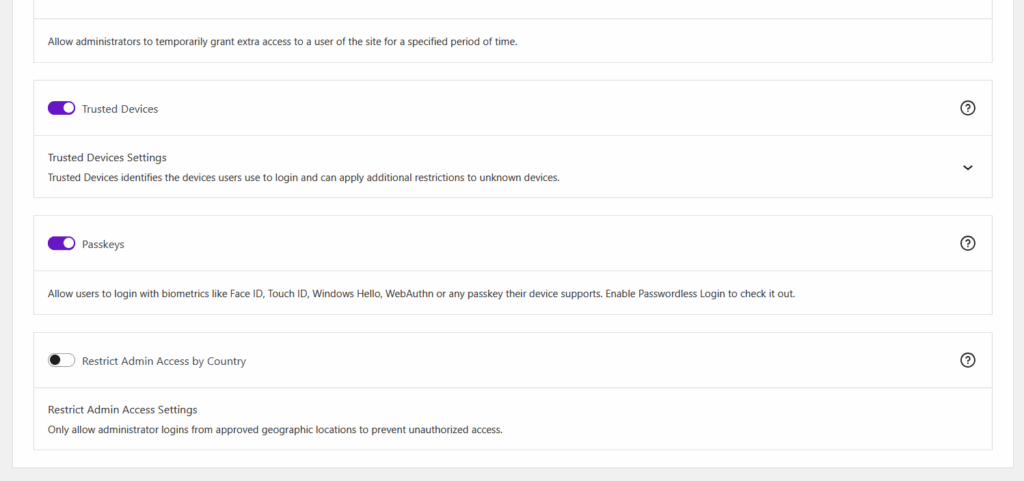
Once enabled, expand the section to reveal the Authorized Administrator Countries setting.
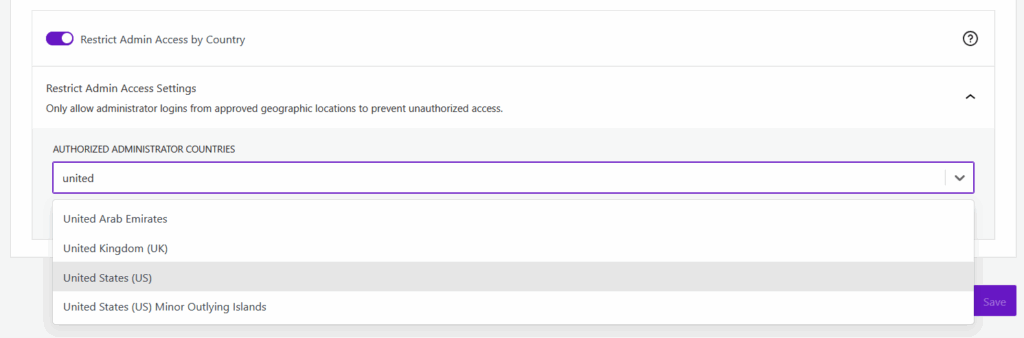
This setting allows you to define all countries from which admin login requests should be permitted. Simply search for and select the countries where your administrators reside or travel to frequently.
Defensive Logic: Saving Your List #
To prevent you from accidentally locking yourself out, defensive logic has been added to the settings page. Solid Security will notify you if you attempt to save a list of countries that does not contain your current country, based on the geolocation of your current IP address.
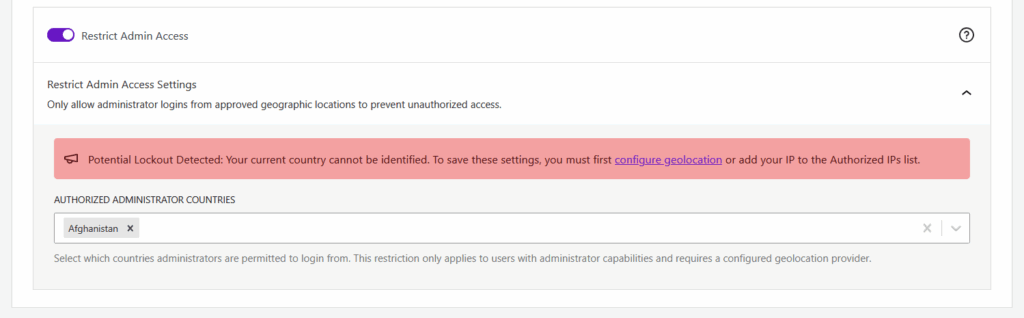
Authorizing IP Addresses #
There may be scenarios where an administrator needs to log in from a country not on the authorized list (e.g., using a VPN with a static IP or traveling temporarily). You can circumvent the country check for specific users by adding their IP address to the Authorized IPs list in Solid Security settings.
Defensive Logic: Removing IPs #
Similar to the country list, defensive logic protects you here as well. If you attempt to remove your current IP address from the Authorized IPs setting, and your geolocated country is not in the list of Authorized Administrator Countries, the plugin will alert you to prevent a potential lockout.

What Happens During an Unauthorized Attempt? #
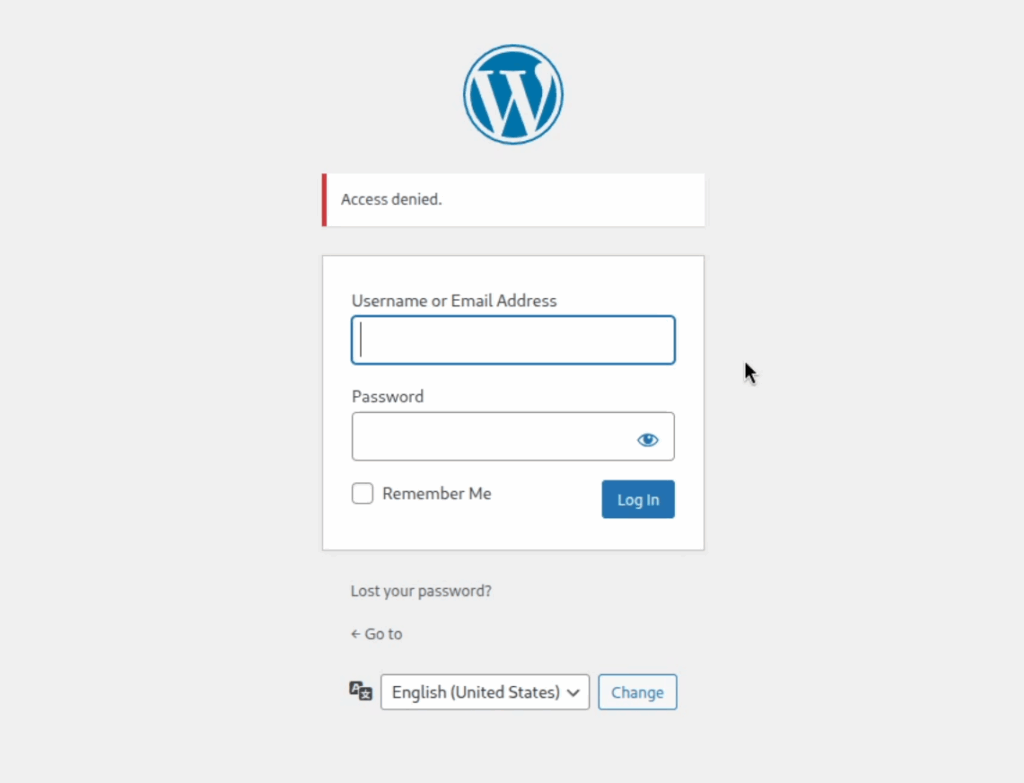
If an attacker (or an admin using an unapproved VPN) attempts to log in from an unauthorized country, the following occurs:
- Access Denied: A generic denial notice is issued to the user.
- Logging: Every failed attempt generates a Warning level entry in the Solid Security logs, allowing you to audit these attempts.

- Brute Force Lockout: If an admin account repeatedly attempts to log in from an unauthorized country, Solid Security’s Brute Force feature will trigger. Because the access denial re-uses existing access control functionality, the offending IP address will be blocked after numerous failed attempts.
Order of Execution #
When a login occurs, Solid Security processes access control logic in the following order:
- Captcha
- Restrict Admin Access by Country
- Trusted Devices
Improving Geolocation Accuracy #
To improve the accuracy and reliability of the geolocation data used by this feature, we strongly recommend that customers sign up for and configure one of the MaxMind APIs. You can reference these in Settings > Features > Utilities.
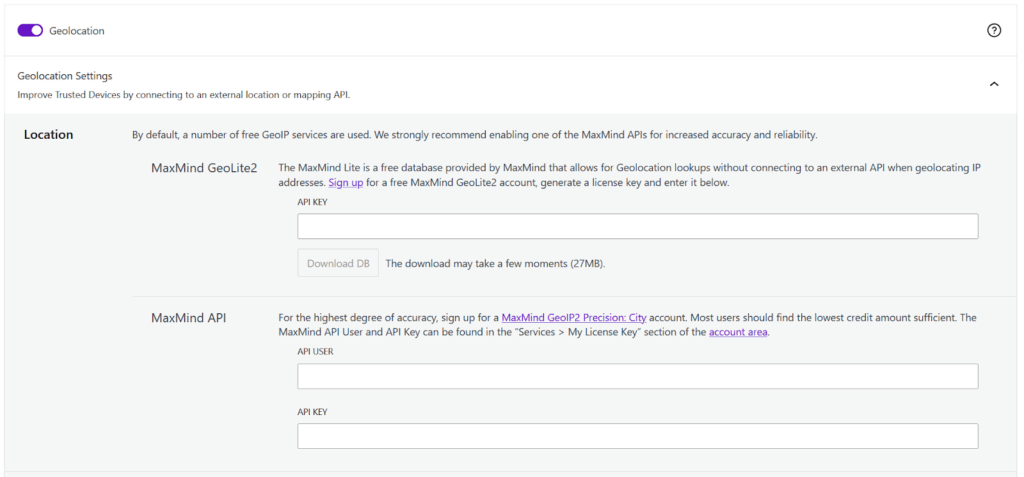
Note: customers should be mindful that admin users logging in behind a VPN may have their access denied if the VPN’s IP address is geolocated to an unauthorized country. If your VPN uses static IP addresses, we recommend adding them to the Authorized IPs setting to ensure consistent access.
What to Do If You Get Locked Out #
Even with defensive logic in place, it is possible to accidentally lock yourself out of your site—for example, if you unexpectedly need to log in while traveling to an unauthorized country, or if your VPN assigns you a new IP address. If you find yourself locked out, don’t panic.
The fastest and most reliable way to regain access to your dashboard is by using our emergency bypass constant. You can temporarily disable the country restriction check by adding the ITSEC_DISABLE_COUNTRY_RESTRICTION constant to your site’s wp-config.php file.
Here is how to apply the bypass:
- Access your site’s files using FTP/SFTP or your hosting provider’s File Manager.
- Locate and edit the
wp-config.phpfile found in the root directory of your WordPress installation. - Add the following line of code just above the
/* That's all, stop editing! Happy publishing. */line:define( 'ITSEC_DISABLE_COUNTRY_RESTRICTION', true ); - Save the file and refresh your WordPress login page. The country restriction will be bypassed, allowing you to log in normally.
Once you have successfully logged back into the dashboard, navigate to Settings > Features > Restrict Admin Access by Country to correct your authorized countries or add your current IP address to the Settings > Global > Authorized IPs list. After fixing your configuration, be sure to remove the constant from your wp-config.php file so the feature can resume protecting your site.
Magic Links and Access Control #
It is important to note that logging in with a valid Magic Link generated by Solid Security will bypass the Restrict Admin Access by Country check.
Because Magic Links are designed to provide secure, verified, and seamless access, they inherently bypass this and all other access control features. This ensures that users with a valid, authenticated link can always access their accounts, regardless of their current physical location or IP address.
Conclusion #
The Restrict Admin Access by Country feature provides a significant additional layer of security. While there is some functional overlap with Trusted Devices, they work best when used together:
- Trusted Devices identifies logins from unrecognized devices and downgrades access to prevent damage.
- Restrict Admin Access by Country denies access entirely at the door if the location is incorrect.
Ideally, customers should enable both features. However, if you choose not to use Trusted Devices, we highly recommend enabling Country Restriction to reduce the attack surface of your site.



